What's new
What's new
Everything that has changed in Winkquote, newest first.
2026-11-27
New
- Today replaces Home. The first page you see lists what needs you, in order, each with its one button: new requests (Send quote), quotes about to expire (Follow up), changes and cancellations your customers asked for (Review change), payments due this week (Charge saved card or Send a reminder) and your next event (Open event). Done for you lists the payment reminders and review requests that went out on their own and the payments your customers made online. Beside them: this week's Paid, Processing and Payment due, the next deposit to your bank, your pipeline, and Copy booking link. See Today.
Improved
- A date picker on Reports. One button on every Reports page shows the dates you're looking at and opens the presets, Custom range with a Start and End, and a two-month calendar where you tap the first day and the last. Compare with sits in the same menu, and nothing changes until you press Apply. See Reports.
- Analytics leads with what matters. Booked, Site visitors, Requests, Visit to request and Request to booked come first, with On your site now beside them. Under them: From visit to paid and Where visitors come from, then Journeys, Form fields and visitors by day of the week. See Reports.
- Quotes opens on the board, with the next step on every quote. The board has four columns, Requests, Quote sent, Booked, coming up and Done or lost, each with its count and total, plus your own columns and + Add column last. Each card shows the customer, the total and the event, small icons for an overdue payment, a failed charge, email opens, quote views, an expiry this week and a running flow (hover one for the details), and its one next step: Send quote, Follow up, Charge saved card or Send reminder. List groups the same quotes under Needs you, Waiting on the customer, Booked and coming up and Done or lost, with the next step at the end of every row. See Quotes.
- Saved views as tabs, shared with your team. Your business's saved views sit under the header with their counts, after All quotes. Save this view names the current search and filters for everyone. See Saved views.
- Filters you can see at a glance. One row of filters for Event date (with This week, This month, Next 90 days, This season, Past events and their counts, or your own dates), Event type, Status, Service, Total, Source and Assigned, with More filters. The row shows how many quotes match and their total, with Clear all, and the page's address keeps them so you can share a filtered view. See Filters.
- Remove a column once it's empty. Remove column on a column of your own shows how many cards are left until they've all moved off. See Your own columns.
- A request and its quote on one screen. Opening a quote shows what your customer asked for (the date and time, guests, services and extras, whether the date is open, and their note) beside the quote built from it. The venue sits on a map with the drive from your base, when to leave and arrive, the travel fee, tolls and what the drive costs you. People and Equipment show who and what the event needs, each free or busy that day. Under the quote, Payments, Agreement and Follow-up show what goes out with it, each with Edit, and Send quote sends it from there. History and the quote's Activity, Duplicate and messaging the customer are under More. See Quotes.
- Read the agreement before you send. View on the quote's Agreement card opens the agreement filled in with the quote's date, venue and services. See Quotes.
- Clearer quote lines. Each line on the quote page shows what it is, how many (such as 80 × $8.00) and the amount in their own columns.
2026-11-26
Improved
- Your customer hears about every request, booking and payment. Request received, Booking confirmed, Payment receipt, Payment reminder and Payment failed always go out, like Quote ready, including if you had switched one off. You can still change their words in the designer. See Flows.
- Receipts for payments you record by hand. Record payment (cash, check, bank transfer and the like) emails your customer its receipt, with Total paid. See Payments.
- A way back to the booking in every email. Once a quote is sent, each email to your customer carries a View your booking link to their booking page, unless a button in it already goes there.
- Your customer is told when you cancel. More → Cancel booking emails your customer that the booking is canceled, with a link to it. Your reason stays with your team. See Events.
- No email goes missing quietly. An email that couldn't go, such as a receipt for a customer with no email address, shows as not sent with the reason on the booking's Timeline, and a payment reminder counts as sent only once it's on its way.
- Know when your customer signs. A new Agreement signed alert in Settings → Notifications tells you when a customer signs the agreement after booking, or every signer has signed. A new Review left alert tells you when a customer leaves a review or sends one to approve. Everything a customer does (a new request or booked call, an accepted quote, a payment, a change, cancel, extra or privacy request, a message, a signature, a review) always reaches your business by email: when nobody who gets it has that email on, your admins get it. See Notifications.
API
- Reminder events when they're sent.
payment.reminder_sentgoes once the email provider has accepted the reminder, andPOST /v1/bookings/{id}/cancelemails the customer that the booking is canceled. - Your site goes live with a service. Publishing your booking site, or publishing or turning on a quote form, needs at least one service, so customers always have something to request. Until then, publishing says so, with Add a service. See Booking site.
- Connect Stripe before a quote takes a deposit. You can go live and take requests before you connect Stripe. A quote whose payment schedule takes money at booking is sent once Stripe can take payments: until then, Send in the send dialog reads Connect Stripe. Quotes with nothing due at booking still go out, and an instant quote that would take a deposit waits for you instead. See Payments.
Fixed
- No service question with nothing to pick. A quote form no longer asks your customer to pick a service when you haven't added one, so the request can still be sent.
- A booking waits for its deposit. When a customer accepts a quote with a deposit due while Stripe can't take payments, the booking waits on the deposit instead of being confirmed with nothing paid. Your team gets a Deposit due notice, your customer's booking page says you'll send a way to pay, and the booking is confirmed once you record the deposit or your customer pays it online. See Payments.
API
stripe_requiredwhen sending a quote.POST /v1/quotes/{id}/sendanswers400withstripe_requiredwhen the quote's payment schedule takes money at booking and Stripe can't take payments yet. The AI connector, Zapier and n8n get the same answer.- A cover photo on every plan. Add a cover photo to your quote page on any plan, Free included: Add a cover photo in the template's Sections. There's none until you add one; without it, the cover is your brand color with your logo, and a service's photo no longer stands in for it. Your customer's payment page shows it in the Split and Showcase designs. For your quote email, the Header photo in your emails' look is on every plan too. Photos, video and the Split, Showcase and Spotlight designs stay on Plus and Scale. See Quotes.
- Pick your business type from cards. The last page of sign-up shows one card for each kind of business, with an icon, in place of the dropdown. See Setting up.
- Fewer NEW tags. A new business sees no NEW tags in its first two weeks, and no screen shows more than two at once: the two newest.
New
- Choose whether customers see your prices. Settings → Quotes → Prices and instant quote has Show prices and calculator: on, your quote form shows the running estimate and your booking site shows your prices; off, they show no prices or totals, and customers still pick their services and extras and send the request. Instant quote prices each request from the customer's choices and sends your quote email straight away instead of We got your request; anything that can't be priced still comes to you first. Both start off for new businesses, and turn on once every service customers see has a price (and, for Instant quote, Stripe is connected when your payment schedule takes a payment at booking). Businesses already set up keep showing their prices, and each form keeps its own instant or review choice until Instant quote is set. See Prices and instant quote.
API
Price settings on the API.
GET /v1/request_settingsreturnsshow_prices,instant_quoteand what each needs to turn on, andPOST /v1/request_settingschanges them. The AI connector reads them withget_request_settingsand changes them withset_request_settings.Form fields. Analytics shows Form fields: for each form, each question with the sessions that answered it, how many people left the form there, the average time on it and to the first answer, how many answers were fixed, and the errors that showed. It counts visitors who allow Analytics on your pages, never what anyone typed or picked. The API reads it at
GET /v1/analytics/form_fields. See Reports.Visits. A customer's page and their request's quote page show Visits: each visit to your booking site and forms, newest first, with when it started, the page it landed on, its source, medium and campaign, the device, browser and in-app browser, the city, pages viewed, time on screen, whether a form was started or the request sent, and whether it bounced. The visit a request is sent from, and that browser's earlier visits to your pages, are linked to the customer when they send it. See Reports.
Improved
- A customer's later visits link to them. After a customer sends a request, their later visits to your booking site and forms from the same browser, and visits open in another tab when they sent it, show under Visits too, while their Analytics choice stays on. The visit the request was sent from is marked Request, and the quote page splits the visits at the request's time. See Reports.
- Exact journey counts. Journeys in Analytics shows every count as it is, from 0 up, with nothing hidden or rounded, for the exact dates picked on the page, and times to the minute. See Reports.
Improved
- Payment pills say what to do next. A booking's payment pill on the pipeline board and list, a quote's page, the inbox, the events list and a booking's page reads Payment due while anything is owed (a deposit, the balance, a failed payment or a late fee), in red once any of it is late; Processing while nothing is owed but a payment is still clearing; and Paid once it's all in. A canceled booking still reads Canceled. The events list's payment status filter uses the same words, with Payment due (late) for the late ones. Search the quotes list for "payment due", "overdue" or "processing".
Fixed
Test payments stay out of exports. The All payments, Invoices and Events exports leave out test bookings even while the list is showing them, so test money never reaches your books and an export of every payment adds up to the totals on All payments. See Payments.
Processing and balance amounts agree. A payment still clearing shows its full charge, with the online payment fee your customer pays, as Payment processing on the invoice, the payment page and your customer's portal, and counts with what's paid on their portal list. A bank payment still clearing on a canceled booking shows Payment processing beside Canceled. An issued invoice with nothing scheduled shows the same Balance due on the payment page and in the portal as on the invoice. What's left to collect on Home, your quotes and in Winq never counts a tip or a payment that's still clearing. Overdue, Coming in and Due in 30 days on Money, the overdue alert and Winq's overdue list count the same way, so Home, Money and Winq agree, and a booking whose only open money is still clearing or a tip reads as paid. See Payments.
Canceled bookings read Canceled. A canceled booking never shows Paid, Paid in full or Deposit paid: its invoices, its payments, the events and payments lists, Money, search, Winq, a session's money, the payment page, the portal and the printed invoice all read Canceled, with what you collected as an amount, like "Canceled · $500.00 collected". See Events.
Exports show the booking and its money side by side. The payments CSV from Money and All payments has Booking status and Payment status as their own columns, so a canceled booking reads Canceled while the $500 deposit you kept reads Paid, with Amount charged, Tip, Refunded, Credited, Dispute lost, Kept and a Money outcome like Kept, Refunded or Dispute lost. Kept, Refunded, Credited and Dispute lost always add up to Amount charged, and the columns add up to Collected and Refunded on All payments. The Invoices and Events exports end with the same booking status and money columns. See Exported payments.
API
- Zapier's Send Quote, Update Customer and task actions run. A Zapier connection can send a quote, update a customer, and update, complete or reopen a task. The New Verified Review and Brand triggers load their samples, and the Claude and ChatGPT connector reads your verified reviews and brands. See API.
- What a payment kept. A payment has
credited,dispute_lost,keptandmoney_outcomebeside itsrefunded: once it's paid,keptis what was charged less refunds, credit and a dispute you lost, andmoney_outcome(kept,refunded,partly_refunded,dispute_lost,pending,owedand more) says what happened to the money, apart from its booking's status. See API. - Canceled bookings read
cancelled. An invoice'sstatus_detailiscancelledonce its booking is canceled, even when it was paid in full, and a booking'spayments_summary.stateiscancelled, neverpaid. See API. - A customer's visits on the API.
GET /v1/customers/{id}/visitslists a customer's visits to your pages, andGET /v1/quotes/{id}/visitsthe visits before and after a quote's request, each markedafter_request. The AI connector reads them withget_customer_visitsandget_quote_visits. See API. - Exact journeys on the API.
GET /v1/analytics/journeysreturns exact counts and takesfromandtoas well asdays, which now ends yesterday. See API. - What's left to collect on a quote. A quote's
dueandoverduenever count a tip or a payment still processing, the same as an invoice'sbalance. See API.
New
- Delete from the pipeline. Choose Delete in a card's ⋯ menu on the board, in More on a quote's page, or with rows ticked in the list. A quote with nothing paid, signed or invoiced is deleted straight away, with Undo. A quote with a booking, a payment, a signature or an issued invoice asks first, and its records stay in Money, Reports and the customer's history. A deleted quote stops selling: an open one with no booking stops taking bookings, and its follow-ups and campaign emails stop. See Deleting quotes.
Fixed
- Drag cards on the board again, on any device. Cards drag between columns with a mouse, by pressing and holding on a phone or tablet (drop onto a column's name above the board), and with the keyboard from the card's picture. Dropping a booked card on Lost opens Cancel booking, where you decide about any refund; a move never charges or refunds by itself. See Moving quotes.
API
- Delete quotes on the API.
DELETE /v1/quotes/{id}takes a quote off the board andPOST /v1/quotes/{id}/restoreputs it back; aquotehasremoved_atandremoval, and thequote.removedandquote.restoredwebhooks say when. - What's left to collect on a quote. A quote's
dueandoverduenever count a tip or a payment still processing, the same as an invoice'sbalance. A quote's newprocessingis what's still clearing, sopaid,dueandprocessingadd up. Itspayment_statusandnext_due_datefollow what's owed: a booking whose only open money is a payment still clearing or a tip readspaid, neverdeposit_paidorbalance_duewith nothing due. See API.
2026-11-25
New
- Customers request changes on their booking. Request a change on your customer's payment page asks for a new date, a new start or end time (on the same day too) or a different guest count, with a note. Requests from the page and the portal, and cancel requests, show with their note on the booking's new Requests card: Accept a change and it goes on the event, moving due dates, tasks and flows with a new date; Accept a cancel and choose each time to refund what the policy allows or keep what's paid; or Decline with a reply. A request that clashes with your equipment or crew says so, and you still decide. With change requests off in the portal, the payment page doesn't offer them either. You get an email and a notification for each (Customer requests in Settings → Notifications), your customer is emailed your answer, and they see each request's status on their booking. See Customer portal.
- Ask repeat customers who've reviewed. Settings → Reviews has Ask repeat customers who've reviewed, beside Ask for reviews. It's off to start with, so your flows ask a customer for a review after each booking until they've left you one, and don't ask a repeat customer who already has; turn it on to ask after every booking, once each. See Review requests.
Improved
- Bill an extra hour per staff. An add-on that adds service time, like an "Extra hour", can be billed at a flat rate or per staff: the price for each staff member on the event for that time. Add-ons you already have stay flat, and quotes you already sent keep their totals. A per-staff add-on on an event with no staff shows no staff on the quote and the booking. See Services and add-ons.
- Your privacy choices on the sign-up page. The sign-up page's footer has Your privacy choices, where you can turn analytics and advertising off, or back on, and the page follows the same rules as winkquote.com: in the US they start on, Global Privacy Control always turns them off, and in the European Economic Area, the UK and Switzerland they stay off until you allow them. See the privacy policy.
- Your privacy choices on winkquote.com. The privacy policy spells out that in the US, analytics and advertising cookies on winkquote.com and the sign-up page start on, and that Your privacy choices in the footer turns them off; Global Privacy Control always does. In the European Economic Area, the UK and Switzerland, analytics, advertising and session recording on winkquote.com stay off until you allow them.
- Extra invoices start at your tax rate. A new invoice on a booking starts at your tax rate for the booking's location instead of 0%, or 0% when the quote was tax-exempt. You can still change it on each invoice, and invoices you already made keep their rate. See Invoices and reminders.
- Damage charges aren't refundable. Tick Damage charge on an extra invoice and its payment is left out of refund estimates and a canceled booking's refund, with no refund terms shown to your customer. Ticking it sets the invoice's tax to 0%, which you can still change; unticking it puts back your usual rate unless you typed one yourself. See Invoices and reminders.
- Review requests reach every customer of the booking. The Thank you, tip and review email, and the review emails in the Leave a review and Ask for a review templates, are Booking or payment notices, so they go to customers who haven't agreed to your news and offers too. Addresses that bounced or reported you as spam are still skipped, and an email purpose you chose stays as you set it. See Email purpose.
- One review request per event. Your flows send each booking at most one review request email, even when two flows ask, a flow starts again, or you move the event. Flows that start when a booking is made or an event is completed now run once for each booking, so a customer's second booking gets its own reminders while the first is still coming up. See Flows.
- After the event is on for new businesses. A new business's After the event flow starts on while Ask for reviews is on, so each booking gets its thank-you and review request the day after the event. Turn it off in Flows any time.
- Know when a customer's card is declined. When a customer's card is declined on their payment page, quote or portal, your team gets a Payment failed notice in the app with who, which payment and how much, and the booking's payment shows Card declined with the time and, when the bank gives one, the reason, until a later attempt pays it. See Payments.
API
- Customer requests on the API.
GET /v1/cancel_requests,channelandoutcomeon achange_request, and therequest.createdandrequest.decidedwebhooks. The AI connector lists cancel requests and drafts a decision for your team to make in Winkquote. - How added time is billed on the API. An
addonhasadded_time_billing:flatorper_staffwhen it adds service time, null when it doesn't. - Ask repeat customers who've reviewed on the API.
GET /v1/review_settingsreturnsask_repeat_customers, andPOST /v1/review_settingschanges it. The AI connector reads it withget_review_settingsand changes it withset_ask_repeat_customers.
Fixed
- Two services on one event book. A quote with two services that each have their own equipment, like a 360 booth and an open-air booth for one party, can be booked: each piece only needs to serve the services of its own kind, and the quote no longer says the time was just booked.
- Joining a team goes straight in. Someone who accepts your invitation is taken into your business as soon as they sign in, instead of seeing that they were removed while their access was still on its way.
- An extra hour costs its own price. An add-on that adds service time and has its own price, like an "Extra hour" at $150, adds just that price: a service priced by the hour no longer charges the same time again. Quotes you already sent keep their totals. See Services and add-ons.
- Tips are worked out before tax. A tip percent on the booking form, the payment page and an invoice is now a percent of the total before sales tax. See Payments.
- Tips aren't sales. Sales · last 30 days and Sales by month on Money → Overview leave tips out; they're your team's. See Payments.
- Paying doesn't stop at an earlier attempt. When the payment step opened twice at once, your customer could see "An earlier payment attempt needs checking" on their first try. The step now picks up the payment that's already started.
- Payment dates in your time zone. Receipts, booking emails, the payment page, invoices and the customer portal show the day a payment was made in the event's time zone, or your business's, not a day ahead.
- Cancel requests read as written. The email about a customer's cancel request shows their note whole, after the greeting.
- Event types read naturally in emails. A new business starts with event types such as Corporate event and Portrait session, so emails say "your corporate event".
- Moving an event leaves customer requests alone. A customer's change or cancel request stays due from when they asked, and the event's own tasks never move to before they were made.
- A signature isn't lost at Pay. When your customer signs the agreement with the email on the quote and stops before paying, their signature is kept: the quote shows it signed, and Book by hand uses it instead of asking them to sign again, as long as the agreement hasn't changed. See Contracts and event details.
- Signed copies in the event's time zone. A signed agreement's completion certificate gives each signing time in the time zone of the event's venue, named, and in UTC. Times on a booking's page in the customer portal show in the venue's time zone too. When the event has no venue address, they use your business's time zone.
- Booking says why it's waiting. When later payments are charged automatically, the box to save the card is marked required to book, and the booking button says to agree to the automatic payments until it's ticked. See Payments.
- Travel is charged without vehicles. A business with no vehicles in Resources, such as a photographer or a florist, is charged its per-mile travel for one trip, as Service area and travel shows, on the request form's estimate and on new quotes. Quotes already sent keep their prices. See Travel.
- A co-signer's payment stays theirs. When another signer chooses I'll pay this or Split it, that payment is paid from their own link. Turning automatic payments on in the customer portal never moves it back onto the customer's saved card, and the wording the customer agrees to lists only their own payments. See Customer portal.
- Canceled bookings' invoices read Canceled. On the booking, in your Invoices list and on the invoice, an invoice for a canceled booking shows Canceled, not Open or Paid. It's hidden with void and refunded invoices until you show them from Filters. See Invoices and reminders.
- Customer questions reach your Inbox. A question a customer asks on their quote, like a message from their portal or your Contact form, opens their conversation in Inbox → Messages, and the notice and email about it open that conversation. See Inbox.
- Event types from the start. A new business starts with event types for its kind of business, so manual quotes and Duplicate work right away; when every event type is off, the quote shows why with a link to add one, and your quote form leaves out the kind of event. See Pricing rules.
- Send the quote opens the quote. The first-request card on Home and its email open the quote in Quotes, and an address that doesn't exist shows a page with your menu and a way back.
- Next on your booking site's quote form. On a computer, Back and Next sit in the form's card instead of a bar across the bottom of the page, and each new step opens with the form in view, on every booking site design.
- Sign says what's left. When your customer presses Sign before everything is filled in, it says what's still needed, such as an Initial here on a section, and takes them to it.
- Send gallery says when nothing is published. When none of a gallery's photos are published yet, Send gallery says so in the dialog and offers Publish and send, which publishes every ready photo and sends the gallery. See Photo galleries.
- Copy booking opens once. After Copy booking creates the copy, the copy's page no longer opens the duplicate dialog again.
- Copy booking opens on the first click. Copy booking on a booking opens the duplicate dialog straight away, without reloading the page, and still only once.
- Reviews wait for the event to end. How was it? shows in the customer portal once the event has ended (its start time plus its hours), not earlier on the event day. See Customer portal.
- An extra hour charges one hour. An Hourly add-on with Adds service time, such as an "Extra hour", charges the time it adds instead of every hour of the event. Quotes already sent keep their prices. See Services and add-ons.
2026-11-25
Fixed
- Customer questions in full. A question your customer asks on their quote or a message from their portal shows in full on the quote's Activity and the customer's timeline, and the email about it, like one about a Contact form message, has their whole message. See Inbox.
- Voiding an invoice with a payment on it. Void and issue a new one and Void only say why an invoice with a payment on it can't be voided, with Open booking to refund the payment there. See Invoices.
API
- Ask repeat customers for a review on the API.
GET /v1/review_settingsreturnsask_repeat_customers, andPOST /v1/review_settingschanges it. The AI connector reads it withget_review_settingsand changes it withset_ask_repeat_customers. - Invoice kind and default tax. Invoices have
kind(standardordamage), whichPOST /invoicesandPATCH /invoices/{id}accept, and a new draft withouttax_rate_bpsstarts at the tax rate of the booking's location, or at 0% when it's created withkinddamage. - Canceled invoices. An issued invoice whose booking is canceled has
status_detailcancelled. The Claude and ChatGPT connector reads the same field. See API. - New values within v1. A field that lists its values, such as
status_detail, may gain new values withinv1. Treat a value your code doesn't know as valid. - Declined attempts on payments. A payment has
last_decline(its label, a plain reason when one is safe to name, Stripe's code and the time) until a later attempt pays it, andpayment.failedalso fires when the customer's own payment is declined, at most once per payment every 30 minutes.
2026-11-24
New
- Compare Pipedrive, Zoho, Attio and folk. See how each CRM handles plans, quotes, contracts and team pricing beside Winkquote, and how to bring your contacts over with a CSV. Read Pipedrive, Zoho, Attio or folk.
- Journeys in Analytics. Reports → Analytics has a Journeys section, following the page's dates as the closest of 7, 30 or 90 days ending with the last full week: your site funnel from a first visit to a form, each step, a request, a viewed quote, a started booking, signing and paying; each form's funnel page by page; where unfinished requests stopped, by page and by question; returning visitors and visits before a request; the typical time to request and to book; and how journeys first arrived. It counts only visitors whose Analytics choice was on and shows totals only, rounded to the nearest 5 and updated each Monday; any figure from fewer than 5 journeys shows a dash. See Reports.
Improved
- Who sees page heatmaps and how recordings ended. The privacy policy now says that only Winkquote's console owner views the heatmaps of your pages, a layout only once it has at least 50 page views, with every viewing logged, and that a form recording keeps the step number the visitor was on and whether they sent the request, never their answers. You don't see either.
- Topic labels from finished conversations. After the same de-identification as test cases, Winkquote labels what finished Winq and chat quote form conversations were about and how they ended, from a fixed list of topics, and keeps only the labels for 24 months, with no conversation text, names, contact details or prices, and nothing on a label that points to your business. Only the Winkquote team sees them, and counts are adjusted by a small random amount and rounded to the nearest 5, and shown only when at least 5 businesses contribute; smaller groups are left out. Use our conversations to test Winkquote's assistants in Settings → Privacy turns this off too. See Privacy and AI.
Fixed
- Receipts show the total charged. A payment receipt, the payment page, the customer portal and invoices show each paid payment's Subtotal, Tip, Online payment fee when your customer paid it, and Total paid, the amount charged to their card or bank, at the rate the booking was accepted at. When you absorb the fee there's no fee line. A refund shows the amount refunded, with the online payment fee when it was returned. Totals show Paid as what was charged and Balance due as what's still owed, and a flow's payment receipt shows the payment that started it. See Payments.
- One balance on every invoice. An invoice's Balance, the Balance due above it, your Invoices list and the payment page all show the same amount: what's still owed on the booking, with any late or failed-payment fee. A tip is never part of it, so a tip paid with a deposit no longer lowers the balance, and a tip your customer picked shows only in what they pay now. A payment still clearing shows as Payment processing with its amount, and an invoice for a canceled booking shows Canceled with nothing owed. See Payments.
API
- Invoice balance. An invoice's
balanceis what's still owed: due and failed payments with their late or failed-payment fees, never a tip, and0once it's paid or its booking is canceled. A payment still processing isn't counted. An invoice still owing with nothing scheduled showsstatus_detailsent. The Claude and ChatGPT connector reads the same field. See API. - Journeys.
GET /v1/analytics/journeys?days=30(or7or90) returnsanalytics_journeys: the same totals as Journeys in Analytics, ending with the last full week and rounded to the nearest 5, withnullfor a figure from fewer than 5 journeys. The Claude and ChatGPT connector reads it. See API.
2026-11-23
New
- Site enhancement on your pages. The Privacy choices link on your booking site, forms, quotes, payment, signing and portal pages adds a Site enhancement row. While it's on, Winkquote uses de-identified results from those visits, and figures from your quotes and bookings from November 24, 2026 onward (amounts rounded to whole dollars), for its own product improvement and internal benchmarks, never names, contact details, form answers or messages (privacy policy). It starts on, stays off with Global Privacy Control, and in the EEA, the UK and Switzerland stays off until the visitor allows it. Your published privacy notice at
/privacylists Winkquote's own purposes. To leave your business out, ask us through the contact form. - Sessions, page views, devices and new and returning in Analytics. Reports → Analytics adds Sessions and Page views to its figures, a Devices card (phones, computers and tablets, or by browser or operating system), New and returning visitors, views on Top pages and sessions on Sources. They count visitors who allow Analytics in your pages' Privacy choices, never with Global Privacy Control, in the EEA, the UK and Switzerland only once a visitor allows it, and never your previews, test requests or crawlers. They're in the export and on the analytics API too.
- Site enhancement on your pages. The Privacy choices link on your booking site, forms, quotes, payment, signing and portal pages adds a Site enhancement row. While it's on, Winkquote uses de-identified results from those visits, and figures from your quotes and bookings from November 24, 2026 onward (amounts rounded to whole dollars), for its own product improvement and internal benchmarks, never names, contact details, form answers or messages (privacy policy). It starts on, stays off with Global Privacy Control, and in the EEA, the UK and Switzerland stays off until the visitor allows it. Your published privacy notice at
/privacylists Winkquote's own purposes. To leave your business out, ask us through the contact form. - Heatmaps of your pages for Winkquote's designs. While a visitor's Site enhancement choice is on, Winkquote keeps daily totals of where visitors click and tap on your booking site, forms and embedded forms, and how far down they scroll, by page layout or form and screen size, to improve its page and form designs. They hold no visitor code, journey or text, are kept 25 months and aren't shown in your account. Quote, payment, signing and portal pages are never included (privacy policy).
- Winkquote insights on your pages. The Privacy choices link on your booking site, forms, quotes, payment, signing and portal pages adds a Winkquote insights row. While it's on, Winkquote uses de-identified results from those visits, and figures from your quotes and bookings from November 24, 2026 onward (amounts rounded to whole dollars), for its own product improvement and internal benchmarks, never names, contact details, form answers or messages (privacy policy). It starts on, stays off with Global Privacy Control, and in the EEA, the UK and Switzerland stays off until the visitor allows it. Your published privacy notice at
/privacylists Winkquote's own purposes. To leave your business out, ask us through the contact form. - Privacy choices and visitor journeys on your pages. Your booking site, forms, quotes, payment, signing and portal pages, on your Winkquote address and your own domain, show Winkquote's Privacy choices link at the foot of the page, naming your business and Winkquote and linking both privacy notices. While a visitor's Analytics choice is on, Winkquote counts their visits and keeps their journey for your business with a cookie on your site's address for up to 180 days: the kinds of page and which forms viewed, each form step reached and left, and when they sent a request, viewed a quote, started a booking, signed, paid and visited the portal. Answers, names, emails and phone numbers are never part of it, and journeys are never linked across businesses. Analytics starts on, stays off with Global Privacy Control, and in the EEA, the UK and Switzerland starts off until the visitor turns it on. Your Google, Meta, TikTok and Pinterest tags stay Paused. To link a notice of your own from the panel, set Your own notice in Settings → Privacy. The Privacy Policy, Terms and Data Processing Agreement say the same. See Visitor privacy.
- Session recording under Site enhancement. Privacy choices on your pages has a Session recording switch under Site enhancement. It starts on with it, stays off with Global Privacy Control, and in the EEA, the UK and Switzerland stays off until a visitor allows it; turning Site enhancement off turns recording off too. While both are on, Winkquote records how visitors use your form pages to improve its forms, with every field, every pick, anything shown back from an answer, and emails, phone numbers and prices masked in their browser. Quote, payment, signing and portal pages are never recorded, recordings are kept 30 days, and you don't see them. See Visitor privacy.
- Terminate a partner in the console. Console Owners terminate a partner for cause from the partner's page, with a reason and a fresh second sign-in step. Fraud voids every open commission and forfeits what hasn't been paid; Breach does the same for only the commissions they pick. The partner's links stop at once and the partner gets an email.
- Check a partner account that expired during setup. When a partner invitation ran out while its account was being created, console Owners press Check account on the invitation, with a reason. If the account exists it becomes the partner's account; if it was never created, the invitation can get a New link. No second account is ever created.
2026-11-22
Improved
- A simpler menu. What you use every day sits on top: Home, Inbox, Quotes, Calendar, Money and Customers, with Galleries and Prints after them for photographers. Under a line, Website holds your booking site's pages (Design, Details, Content, Pop-ups and Share) with Forms, Services, Media and Templates, and Grow holds Marketing, Reports and, for partners, Affiliate. Settings is one link at the foot. Events is now Calendar, with Schedule, Bookings and Mine. Team is in Settings. Each part opens and closes on its own, and a closed part still shows the page you're on. Every page keeps its link. See The menu.
2026-11-22
New
- Partner switch on merchants in the console. Console Owners turn Partner on from a merchant's page: Make partner takes a display name, a code with an availability check and a reason, and the business owner then accepts the Partner Program Agreement in Affiliate. For an existing partner the switch pauses or resumes its links with a reason. The merchant's Partner panel shows the status and link, and each partner's page adds Notes and an Audit log of who did what and why.
- Several forms on your booking site. Show a different quote form for each kind of service, each asking its own questions. Forms, beside Sections in the booking site editor, lists your quote request forms: switch each On my site, pick your Default, and add or take off the services each one quotes. Its Services view picks the form each service is quoted with, or Auto. A service's page runs that service's form in its Instant quote box, Get a quote on your Services page opens the quote page with the service's form, and a new Forms section lists your forms with the services each covers, as cards or as tabs that run each form in place. You can also pick a service's Quote form in its editor and switch On the booking site in a form's settings. Free on every plan. See Several forms.
Improved
- Mini sessions for photographers. Photographers’ pop-up days are now called Mini sessions (Website → Mini sessions), so they read apart from the Sessions you book. Photo booths see Pop-ups. You can still pick your own word. See Pop-ups.
- A calmer Money overview. Money → Overview opens on four figures: sales in the last 30 days against the 30 before, your next Stripe deposit with the day it lands and its bank, payments due in the next 30 days, and what your open quotes for events in the next 30 days are worth. Below them, sales by month against last year, then up to three next actions, most urgent first: overdue payments, a dispute's deadline, then a deposit left unpaid. The highlight and What's earning now sit under All payments. See The Money overview.
- Mini sessions for photographers. Photographers’ pop-up days are now called Mini sessions (Booking site → Mini sessions), so they read apart from the Sessions you book. Photo booths see Pop-ups. You can still pick your own word. See Pop-ups.
- Word your Instant quote. Pick Instant quote in the editor to set its Heading, Subheading, Note and Button text, the Form it runs, and Steps: Quick steps, one group at a time, or the Full form, its own pages as you wrote them. Left as they are, they follow the form: a form that prices the service on the spot reads Get your instant quote, and every other form reads Request a quote. See A service's page.
- A Form setting on form sections. Quote form, Questions beside the form and Is your date open? each pick Auto or one of your forms. See Several forms.
- Run pop-ups at the same time. One pop-up holds another only through a unit or crew member they both take, so several pop-ups, each with its own truck or crew, stay open on the same day, and two left on Whole business don't close each other's slots. Clashes on the When step lists another pop-up only when it shares a unit or crew member, and Same day lists the rest. Your bookings and quote form still treat a pop-up left on Whole business as taking your whole business. See In your quotes and calendar.
API
- Forms and services.
formaddson_siteandservices(the services it quotes), andpackageaddsform, the quote form your booking site quotes it with. Theform.updatedandpackage.updatedwebhooks fire when they change. See API.
2026-11-22
New
- Winq builds a quote from a request. Ask Winq to quote a new request, like "quote Hannah's wedding request", and it reads what the customer asked for, from your quote form, an email or message, or a lead from another app, then builds the whole quote from your own services, add-ons, event types and payment schedules. The card shows the quote priced with your own prices, its total, the payment schedule with each payment, and what Winq assumed. Nothing is saved until you choose Allow once or Always allow, then Review and send or Open quote; only you send it. Paste a request that isn't in Winkquote yet and Winq finds the customer and makes the quote the same way. See Build a quote from a request with Winq.
2026-11-22
New
- Included choices. A service can include some of your paid extras for the customer to choose, like Choose 1: cold brew or pour over or Choose up to 2 of five desserts. Set the options, how many are included and whether the customer has to pick them all under Included choices in the service's editor. Customers pick in the form's extras step and on the quote; picked options show as Included on the quote, agreement, emails and booking, and the rest stay paid extras at their usual price. Free on every plan. See Included choices.
API
- Services have
included_choice_groups,POST /v1/estimatestakesincluded_choices, and quote and estimate lines carryincluded_choicefor a picked option. Zapier, n8n and the Claude and ChatGPT connector have the same fields.
2026-11-22
New
- Sales tax in Reports. Reports → Sales tax shows what to file for a month, quarter or year: tax collected and sales split into taxable, non-taxable and exempt, with each tax rate (or each place with automatic tax) and its taxable sales and tax. Count by Paid date or Event date, pick a location or brand, and Export the summary or every payment behind it as a CSV. See Sales tax.
API
- Sales tax on the API.
GET /v1/reports/sales_taxreturns sales, taxable, non-taxable and exempt amounts and tax collected by rate for any dates up to a year, by paid date or event date, with every payment behind them. Each paid payment now carriestax: how much of it was taxable, non-taxable or exempt, and its tax by rate. The AI connector'sget_sales_tax_reportreads it. See API.
2026-11-22
Improved
- Your pop-ups in the Inbox and on the board. The Inbox's folders list each pop-up (photographers: session) still to come or finished in the last 30 days that has conversations, with how many; open one to see only the clients booked on it. Filters on Quotes and the board picks one pop-up's bookings, and a booking's card on the board names its pop-up. See In your quotes and calendar.
- Every page in your sitemap. Your booking site's sitemap lists your home page, every page that's on, each service's page and your past events, not just your home page, beside your pop-ups. See How your page is found.
API
- Quotes by pop-up.
GET /v1/quotes?popup=pop_…lists the bookings on one pop-up or session, and the Claude and ChatGPT connector's List quotes takes the same filter. See API.
2026-11-22
Improved
- Lists keep your place. Open a quote, customer, event or invoice and press Back, and the list comes back with your search, filters, sort, tab and Show more as you left them, scrolled to where you were. The view is in the page's address too, so refreshing or sharing the link opens the same view. A reply or note you started in Inbox stays in its box while you look at something else. See Lists keep your place.
2026-11-22
- Campaigns, with offers inside. Marketing now holds Flows and Campaigns. A campaign is a single email or a series to the people you choose, with an optional offer: pick who gets it from every quote, event and customer detail, set the amount off and when it ends in your time zone, and write the emails in the same designer as Flows. Each person's emails run from when they join, so someone who asks for a quote mid-campaign still gets the welcome first. The offer is on their quote with the original price struck through and when it ends, on the Quote ready email and at checkout, and comes off by itself at the end; bookings keep it.
- Campaign results. A live campaign shows its emails' sent, delivered, opened, clicked and booked, and Redemptions: every booking made at its offer price with the amount off, ready to export. Reports lists the campaigns that started in the dates you pick, with what each booked and gave away.
- Discounts choose where they're offered. Each saved discount in Settings › Discounts is offered on quotes, at point of sale, or both.
2026-11-21
New
Ask Winq about your insights. Winq answers questions about your booking funnel and your money and demand, like "where are people dropping off this month?" or "what were my busiest days last quarter?", from the same figures as Reports → Insights, for the dates you name and the locations you can see. See Insights.
Change your pop-ups and sessions with Winq. Ask Winq what pop-ups or sessions you have, or to change one: new dates or hours, another place, a new title, booking on or off, other services, slot or gap. It shows what changes in a card, and Confirm changes saves it. Winq can also publish one now or later, move a scheduled one back to drafts, cancel or end one with no bookings to come, duplicate one, or delete one that's over, each from its own card. See Change one with Winq.
Ask Winq about your records, and change tasks and customers. Winq answers questions about your invoices, bookings, customer segments, reviews, galleries, forms, tasks, notes and booking site visits, with your own access. It can also add, change and complete tasks, and change a customer's contact details or tags, each from a card you confirm. See Ask Winq about your records.
Ask Winq about your connected apps. Winq answers "is my Google Calendar still connected?" from your connected apps, for people who can see them in Settings.
Cancel, refund and issue invoices with Winq. Ask Winq to cancel a booking, refund a payment or issue a draft invoice. A card shows what happens (for a cancel, what its payment policy allows refunding; for a refund, what was paid and what's been returned), and nothing moves until you press Confirm changes. You need permission to edit payments.
Events, crew and shifts with Winq. Ask Winq to move an event to another date, change a day's crew notes or who's working it, add or change a crew member, or offer or take back an open shift. A card shows what changes, and nothing is saved until you press Confirm changes.
Your booking site's content with Winq. Ask Winq to add, change or delete a question, menu item, past event page, mix or backdrop, or to change your As seen at names, your policies or who shows in your Team section. A card shows the change, and it's on your site once you press Confirm changes.
Insights in Reports. Reports → Insights shows your booking funnel from a visit to an event done, with the step where the most people leave in red, the typical time to your first reply, your first quote, the quote being opened and the booking, and where bookings come from by source and by service. Money and demand shows what you booked, your average booking, how many bookings paid a deposit, repeat customers, refunds, your busiest days and months, how far ahead people book, your top services and add-ons, travel and tolls, and profit per event when your costs are set up. Up to four insight cards say what stands out, like "Requests quoted within an hour book 3× more often", each with a button to act on it. Free on every plan. See Insights.
Phases, carpooling and crew rules in Optimize my day. Each event day now has setup, service and pack-down, each with its own times and crew count, set per service with Crew by phase and changed for one day on the event page. Optimize my day plans people onto phases, so two baristas can run an event start to finish while a third leaves another event and arrives for service only. Turn on Carpooling in Crew rules and crew who work one event ride with whoever drives there, within the seats each van has and the detour you allow. Weigh your Crew rules (the same person sets up and packs down, no split shifts, minimum time on site, most hours a day, a break after long stretches, don't send a trainee alone, fewer people, the same crew for repeat customers) and the board names any rule it bent and why. Keep someone on some phases, keep them off an event, or put them in someone's car and run it again; when you make the same change often, the board suggests it as a rule. Mark Trainee on the Team page. See Optimize my day and Phases.
Phases, carpooling and crew rules in Optimize my day. Each event day now has setup, service and pack-down, each with its own times and crew count, set per service with Crew by phase and changed for one day on the event page. Optimize my day plans people onto phases, so two baristas can run an event start to finish while a third leaves another event and arrives for service only. Turn on Carpooling in Crew rules and crew who work one event ride with whoever drives there, within the seats each van has and the detour you allow. Everything starts off: turn on and weigh your Crew rules in Settings → Crew and routes or on the board (the same person sets up and packs down, no split shifts, minimum time on site, most hours a day, a break after long stretches, don't send a trainee alone, fewer people, the same crew for repeat customers) and the board names any rule it bent and why. Keep someone on some phases, keep them off an event, or put them in someone's car and run it again; when you make the same change often, the board suggests it as a rule. Mark Trainee on the Team page. Ask Winq to plan a day, read the plan, change crew rules or phases, or apply a plan; every change is a card you confirm. The mobile app shows phases and rides on your shifts. See Optimize my day and Phases.
Optimize my day. On Scale, Optimize day in the calendar's Day view plans who goes to which event, in what order, and when each person leaves and gets back, with the least driving and typical traffic for when your crew leave. It keeps each event's setup, service and pack-down times and crew count, who's busy elsewhere, and equipment that travels together, and names anything it can't plan, like Cart 2 is booked at two events that overlap. The board shows the day's drive time, what the plan saves against the crew already on each event, each person's lane and their route on a map. Lock anyone who should stay put and run it again; nothing changes until you press Apply. See Optimize my day.
Date demand emails. When a new request comes in for a date more people want than you can take, the customers whose quotes for it aren't paid get an email from you with Reserve your date, and so do people who picked the date on your form but didn't send their request, with a button back to your form. The date goes to whoever books first, and the emails say so. They never name anyone, follow caps, and stop once someone books, sends the request, or the event is a day away. Your form's date picker marks Popular dates too. Turn each on or off and preview the emails in Settings → Quotes. See Date demand.
Compare VenVen. See how VenVen and Winkquote handle quotes, plans and team sign-ins for coffee carts, with dated sources and steps for bringing your customer list over. Read VenVen.
Compare Crema. See how Crema handles quote forms, plans and team size beside Winkquote, and how to bring your leads over with a CSV. Read Winkquote vs Crema.
Dynamic pricing. Let each date's price follow demand, inside the range you set for every service, add-on and travel. Set your cost to run an event once, see the next 12 weeks with the reason for every date, and turn it on in Settings → Dynamic pricing. A date price is part of the item's own price, the same on your quote form, quote builder, booking site and pop-ups, and a sent quote keeps its price. On Plus and Scale. See Dynamic pricing.
Compare Squarespace, Pixieset and Session. See how each one handles quotes, booking, galleries and payments beside Winkquote, and how to bring your contacts over with a CSV. Read Squarespace, Pixieset or Session.
Badges on services and add-ons. Give any service or add-on a badge in its editor: Recommended, Customer favorite or New. Popular and Trending come on their own from your bookings: Popular for your three most booked in the last 90 days (at least 3 bookings each), Trending for the biggest risers over the last 30 days. Customers see one badge beside each name on your quote form, booking site, pop-up and session pages and quote pages. Switch automatic badges off for your business with Automatic badges on Services, or hide one on a single item. See Badges.
Walk-ins and counter payments on the day sheet. Add walk-in on a pop-up's Day sheet, at the top or beside an open slot, books someone who turns up: the session, the time, their name and, if they give them, phone and email. It's a booking like any other under the pop-up's payment policy, and it takes its spot online too. Record payment beside a client with money due marks it paid as cash, check, Venmo, Zelle, bank transfer or other, with no online payment fee. See Day sheet.
Set up a pop-up or session with Winq. Tell Winq the place, the dates (or a weekly day) and the hours, and for booking which of your services and how long, and it shows the draft in a card. Save draft adds it to your list; nothing is published until you open it with Open to publish and publish it in the editor. Winq asks when the date, place or hours are missing, and uses only services you already have. See Set one up with Winq.
Waitlist switch for a pop-up. Waitlist in a pop-up's Booking step is on to start; turn it off and a full day just says it's full. See Booking a time.
Tolls in the travel fee. Winkquote looks up the road tolls on the drive to each event address. In Settings → Service area and travel → More options, Tolls picks Pass tolls to the customer, which adds them into the travel line (its detail says how much is tolls), or Absorb tolls, which charges nothing for them and keeps them on the quote and booking as a cost of the event, in its Economics. Tolls count there and back, per vehicle, each event day, like travel. Quotes already sent keep their prices. See Travel.
Drive time with typical traffic. For upcoming events, the drive there is worked out for when your crew leave to arrive by setup, with typical traffic for that day and hour. The event page shows it with typical traffic, and the crew's run sheet and arrival times use it. See Events.
A pop-up day's bookings in one row. In Quotes, a pop-up day with more than one booking shows as one row with its title, date, number of bookings and their total; open it to see each booking with its own stage and payment. See In your quotes and calendar.
Improved
- Content tabs fit your business. Booking site → Content shows the lists your kind of business uses: menu items and truck stops for coffee carts, bars, food trucks and caterers, mixes for DJs, backdrops for photo booths and past events for event businesses, beside questions, As seen at, policies and team. A list you've already filled or that your site shows stays, and More opens the rest. See Your site's lists.
- Quote icons in the order things happen. On the quotes list and board, the open envelope (email opens), the eye (quote views), the flame and the amber icon for leaving booking part way line up from right to left in the order they happen, so the same icon sits in the same place on every row. See Quotes.
- Truck stops are now pop-ups. Every truck stop became a pop-up at the same place and hours, so each one has its own page with directions, photos and your menu: a weekly stop is a weekly pop-up on that day, running a year ahead, and a one-off stop is a pop-up on its date. Stops your site showed are published; private and closed ones are drafts. Street Menu's Find the truck this week lists your pop-ups day by day, and Booking site → Content no longer has a Truck stops tab. See Where the truck is this week.
- Content tabs fit your business. Booking site → Content shows the lists your kind of business uses: menu items for coffee carts, bars, food trucks and caterers, mixes for DJs, backdrops for photo booths and past events for event businesses, beside questions, As seen at, policies and team. A list you've already filled or that your site shows stays, and More opens the rest. See Your site's lists.
- Privacy policy updated: it now says that a quote form saves a person's answers for the business once they type their email and pick a date, that the business may email them about that date before they send the request (at most once a day and five times in all, never within 24 hours of the event, with a link to stop them that deletes the saved answers), and that answers never sent are deleted 30 days after the event date. See the Privacy Policy.
- Quotes and Customers open fast however many you have. The quotes board and list count every quote in each column without reading them all, and the Customers tabs count every customer. A search or filter looks through your newest 1,000 quotes and says so when there are more; Look further under the search looks further back. See Quotes.
- Privacy policy updated: Google Cloud (BigQuery) is now listed among our service providers. It keeps a de-identified copy of usage figures Winkquote analyzes for its own purposes, with coded references in place of business and customer IDs and no names, contact details, addresses, messages, form answers, files or card details. A deleted company's rows are removed within 2 days. See the Privacy Policy.
- Pop-ups work before your booking site is published. A published pop-up's page and your list page open and take bookings even if your booking site isn't published yet, like your quote form's link. They show your logo, colors and business name without your site's menu, and stay out of search results and your sitemap until you publish your site. See Before your booking site is published.
- See the print before buying it. In the print store, under the crop, clients see their photo as it will look: inside the frame and mount of a framed print in the lab's frame color, on a canvas's wrapped edge, or edge to edge as a print or metal, always with the crop they set. See Print sales.
- Pop-ups can't be double-booked against. A published pop-up's days are busy time from setup to pack-down plus the drive each way. Takes, in its When step, picks the units and crew it needs; left on Whole business, it holds your whole business at its location. Your other schedules don't offer those times, your quote form doesn't offer them when the pop-up takes your whole business, a unit it takes isn't sent to an event that would clash, crew it takes count as busy, and your Calendar shows each pop-up day. See In your quotes and calendar.
- A time is held the moment it's picked. On a pop-up's page, picking a time holds it for 10 minutes, with the time left shown, while the client fills in their details, and the same hold carries on to their quote. Picking another time or leaving lets it go, and two people picking the same time at once can't both get it.
- Privacy policy updated: deleting your company still deletes everything in it right away. Winkquote keeps only its own billing and tax records, such as what it charged you, with amounts, dates and payment IDs and never your customers' details, for as long as the law requires. See the Privacy Policy.
API
- Truck stops.
GET /v1/truck_stopsis read-only and retired: it lists the stops kept before they became pop-ups, each withpopup_id, the pop-up it became.truck_stop.updatedandtruck_stop.deletedare no longer sent; the new pop-ups sendpopup.createdand, for published ones,popup.published. - Pop-ups and sessions you can create and change. On Scale,
POST /v1/popupscreates a draft with its venue, days and booking,PATCH /v1/popups/{id}changes its details, days, services, slot and gap, and its own routes publish, unschedule, cancel, end, duplicate and delete it, with the same checks as the editor. The Claude and ChatGPT connector can do the same. See API. - Connected apps.
GET /v1/integrationsreads the apps you've connected with each one's status, on Scale and through the Claude and ChatGPT connector. Read-only. See API. - Cancel bookings, refund payments and issue invoices. On Scale,
POST /v1/bookings/{id}/cancel,POST /v1/payments/{id}/refund(with anIdempotency-Key, never more than what was paid less what's been refunded) andPOST /v1/invoiceswith/issue, with the same checks as the app. The Claude and ChatGPT connector can do the same. See API. - Crew notes, crew members and open shifts. On Scale,
PATCH /v1/event_days/{id}changes a day's crew notes,POST /v1/staffandPATCH /v1/staff/{id}add and change crew members, andPOST /v1/shift_offers/{id}/canceltakes back an open shift. The Claude and ChatGPT connector can do the same. See API. - Booking site content you can write. On Scale, questions, menu items, past event pages, mixes and backdrops take
POST,PATCHandDELETE, andGETandPATCH /v1/site_contenthold your As seen at names, policies and Team section. The Claude and ChatGPT connector can do the same. See API. - Insights.
GET /v1/analytics/booking_funnelandGET /v1/analytics/moneyreturn the Reports → Insights funnel and money figures for a period against the one before, optionally for one location, with the same plan rules as the rest of analytics. n8n's Analytics resource adds Get Booking Funnel and Get Money, and the AI connector'sget_analyticstakesreportbooking_funnelormoney. See API. - Phases and carpools.
event_dayaddsphases(the day's own setup, service and pack-down windows and crew counts, or null),crew_phases(crew on only some phases) andrides.packageaddscrew_phases, andstaffaddstrainee. Eachroute_planday addseventswith their phases, each route addsrides_withandpassengersand each stop itsphases,unassignedaddsphases_missing, and the day addsrules_bentin plain words; the plan addslocksandexcludes. Webhook payloads carry the same fields.PATCH /v1/event_days/{id}sets a day'sphases,PATCH /v1/event_days/{id}/crewsets who works which phase and who rides with whom (with the same checks as the event page),PATCH /v1/packages/{id}setscrew_phases, andGETandPATCH /v1/route_settingsread and change the crew rules and carpooling, with theroute_settings.updatedwebhook. The Claude and ChatGPT connector can read and change crew rules, set phases and set who works which phase. See API. - Route plans.
GET /v1/route_planslists Optimize my day's crew and route plans, with each day's routes, leave-by and arrival times, drive minutes and miles, minutes saved and the events it couldn't fully crew. Theroute_plan.appliedwebhook fires when your team applies one. The Claude and ChatGPT connector can list them. See API. - Tolls.
quote,quote_versionandbookingaddtolls: the trip's road tolls in cents (amount), whether the travel line charges them (passed_to_customer) and why they're $0 or not charged (reason). Each line of a quote version addstolls, the tolls in the travel line. See API. - Badges. The
packageandaddonobjects addbadge(recommended,favoriteornew),auto_badge(popularortrending, as customers see it now) andhide_auto_badge. See API. - Date demand in quote history.
GET /quotes/{id}/historyaddsdate_demand_sentanddate_demand_booked. See API. - Dynamic pricing.
GET /v1/dynamic_pricingreturns the settings and the change for each date in basis points, and thedynamic_pricing.updatedwebhook sends it when they change. Quote version and estimate lines adddynamic_change_bps, and an estimate addsdynamic_pricing. Zapier's Dynamic Prices Updated trigger, n8n's Dynamic Pricing resource and the AI connector'sget_dynamic_pricingread it. See API. - Pop-ups. The
popupobject addsunit_idsandstaff_ids, the units and crew it takes on its days, andsessions.waitlist. A walk-in is a quote, reservation and booking like any other, with the usual webhooks. See API.
2026-11-21
New
- Picture choice for your quote forms. Add Picture choice to any quote form, on every plan: 2 to 12 of your own photos, each with a name, on a page of their own that the photos fill. Customers tap one, or up to as many as you allow, so a florist can show designs to take inspiration from and a coffee cart can show its carts. Their pick shows on the quote with each photo, and by name on the customer's page and in the API. See Picture choice.
2026-11-20
New
- Pop-ups and sessions on your booking site. Booking site → Sessions (photographers and photo booths) or Pop-ups (everyone else) puts a place and your days there on your site: a truck at a brewery every Friday, a stall at a holiday market, Christmas sessions at a tree farm. Pick the venue (its time zone comes with it), tap the days and set the hours, write the page, then publish now or at a time you choose. Each one gets its own page with when and where, Get directions, photos, your questions and a menu group or services, at
/sessionsor/events, the address you pick the first time you publish. Coming ones show on that list page, as cards on Home, as a button on your Link page and in your site's menu in your own words, free on every plan. Copy the link or download a QR code for flyers, duplicate one for next year, end it early or cancel it. See Pop-ups and sessions. - Clients book a time on a pop-up or session. Turn on Clients book a time in a pop-up's Booking step and its page shows Book a spot: the open days with the spots left, up to four services to choose from (like a 15-minute Mini and a 30-minute Extended, a longer one taking slots in a row), and the times. With Instant book the client gets their quote, signs your agreement and pays online on the same page, under the payment policy you pick (paying in full to start for photographers), with a 10-minute hold on the time; off, the request lands in your Inbox and the time stays held for 24 hours while you reply. Bookings use the venue's address, time zone and, when you set one, its tax rate in confirmations, reminders, calendar invites and the customer portal. A full day offers its waitlist. Day sheet lists each day's clients with phone, service, add-ons and payment, with Checked in, Late and No-show taps; a no-show keeps the payment. Canceling a pop-up cancels its bookings, refunds them in full with the online payment fee, and emails each client. Free on every plan. See Booking a time.
- One review program for your business. Settings → Reviews has one Ask for reviews switch, on to start with. While it's on,
{review.link}in your emails and flows takes each customer to the right place: their booking's review in the customer portal, or, for any other customer with a paid or completed booking, your review page on your booking site, where a booking that can be reviewed is reviewed as that booking and anyone else can write one review of your business a year, shown in Verified reviews with Verified customer. A customer with nothing to review gets no review button or link. Every rating goes to the same place. Turn it off and{review.link}goes back to your brand kit's Google or Yelp link. See Asking for reviews. - Review request block for your emails. Add Review request from the blocks in any customer email, on every plan: a button to
{review.link}, with your own words. A customer with no review to write, like one who already left one, doesn't see it, and neither does the Leave a review button in Thank you, tip and review. See Designing your customer emails.
Improved
- Gap between sessions. A session schedule in Settings → Scheduling → Sessions and rentals asks for the session length and a Gap between sessions, and starts each session that long after the last one ends. Custom start interval and buffers sets them yourself. A date override can have more than one set of hours. See Sessions and rentals.
- Customers pick from open days. A schedule's booking page shows the open days in each month with the spots left on each, counting your staff and equipment, instead of a blank date box. A full day says Full, and customers can still join its waitlist.
- One unit can do two events in a day. A booked event holds its unit from setup to pack-down, not the whole day, so a cart can do a morning event and an evening one. Between them Winkquote leaves the drive from one address to the next and your new Turnaround time in Events → Availability (30 minutes until you change it). An event without a start time still holds its unit all day. Your quote form only offers start times when a unit is free. See Double-booking protection.
Fixed
- Sessions on one schedule no longer overlap. A session schedule without staff or equipment requirements no longer offers or books a time that overlaps another booking on it, buffers included; clients share a session only by starting at the same time, up to your clients per start time. Some times offered before, like a 30-minute session starting 15 minutes into another, are no longer offered. Sessions never overlap on the schedule turns this off, or on for a schedule whose staff and equipment run sessions side by side.
- Events past midnight check the next day. An event that runs past midnight holds its unit into the next morning, and your quote form checks the next day's hours and blocked time for it.
- Crew needed when a booking comes in short. When an event books and needs more crew than are free during its shift, the booking still goes ahead and everyone who can edit events gets a Crew needed notification. See Staffing.
- Requests for a full time go on the waitlist. A request sent for a date and time when every unit is out goes on the waitlist, as your form's date picker said, and the customer sees that on the sent screen.
API
- Pop-ups. The Claude and ChatGPT connector reads your pop-ups (photographers: sessions) with their venue, days and page link on every plan. On Scale,
GET /v1/popupsreads them andpopup.created,popup.updated,popup.published,popup.cancelledandpopup.deletedwebhooks send them. A pop-up's own schedule and days aren't listed under the scheduling resources. A pop-up with booking on carries its services, slot and instant book setting assessions, withpayment_policy_id,tax_rate_idandno_show_terms. Thereservationobject gainspopup_id,service,venue,attendance(checked_in,lateorno_show) andattendance_at, and thequoteobject gainspopup_id; day sheet taps sendreservation.updated. no_overlapon scheduling profiles.GET /v1/scheduling_profilesandscheduling_profile.updatedcarryno_overlap: true when the schedule's sessions never overlap.- Reviews of your business from your review page come through
GET /v1/reviewsandreview.postedwithkind: "customer"and thecustomer, andbookingandquotenull. A booking reviewed there comes through like one reviewed in the portal.
2026-11-19
Improved
- Payment pages read the same for every customer. Payment, quote, contract, invoice, print checkout and customer portal pages show a business's colors, fonts and logo without its custom CSS. Brand kit custom CSS can no longer add text (with
content, list markers or other text values), use:has()or counters, fix boxes to the screen or stack above az-indexof 10, and no custom CSS, from the brand kit or a booking site, reaches the booking form's terms or running total. Your custom CSS is saved as you typed it. See Custom CSS. - The online payment fee is now 2.9%. It's the same on Free, Plus and Scale, and you still choose whether your customer pays it or you absorb it. Bookings already accepted keep the rate they were accepted at. See Payments.
API
plan.online_payment_fee_percentis 2.9 onGET /v1/billing, or your lower custom rate. It's a number that can have decimals.- Tag customers from your AI assistant. Add or remove a customer's tags through the connector or
POST /v1/customers/{id}/tags. Other tags stay as they are; retries keep the same request ID. - MCP protocol 2025-11-25. The connector accepts the 2025-11-25 protocol version alongside the earlier ones.
- Adding a customer already on file keeps one customer.
POST /v1/customers, the connector'screate_customerand Zapier's Create Customer return the customer whose email is already on file, or whose phone is when no email is sent. Only details the customer is missing are filled in, withcustomer.updatedwhen something is.
Fixed
- Imports keep the customers you already have. Every import, Flashquotes included, matches customers by email, then by phone when they have no email on file, so someone already in Winkquote isn't added twice. Undo takes back details an import filled in on them.
- Imports skip bookings you already have. The import preview lists bookings that match one already in Winkquote, from another tool or entered by hand: the same customer on the same event date, or for HoneyBook and Dubsado the same project name within six months. Each is set to Skip, which leaves out its quote and invoices; pick Import to bring one in anyway. Payments on a skipped booking that aren't in Winkquote yet go onto the booking you have, and a new date for it becomes a task to check.
- A second import brings in what changed in your old tool. The import preview lists bookings imported before that were canceled, repriced or moved there since, under Changed in Flashquotes, Changed in HoneyBook or Changed in Dubsado. A cancellation cancels the booking here too and frees its date; a new total or new dates are kept as they are in Winkquote until you pick Update, which moves the event with its due dates or adds the difference as a draft change-order invoice. A lower total or reshaped days show On the booking, to change there. A booking you've worked on in Winkquote since it came in is marked Changed here and isn't touched unless you say so. Undo puts these changes back.
- Undo never leaves a later import's bookings behind. If a later import uses customers, bookings or settings an earlier one brought in, undoing the earlier one asks you to undo the later one first and names it. An import and an undo never run at the same time. A booking with a payment or invoice made in Winkquote since it was imported stays on undo, with the payments, invoices, dates and quote it came in with. An invoice a later import's payment paid off opens again when you undo that import.
- Imports reuse the settings you already have. Packages, add-ons, tax rates, discounts and equipment with the same name as one you have, whatever the capitals or spacing, are used rather than added again, the one you still use first; a tax rate or percentage discount has to match its rate too. The preview counts only the new ones.
New
Affiliate for partners. Partner accounts open Affiliate to see their link with its clicks each day over 30 days, their balance with what they have earned and been paid, the path from link clicks to sign-ups, finished trials, paying businesses and earnings, sign-ups and earnings for each of the last 6 months, expected deposits and where payout setup stands. Referrals lists each referred business with its status, earning and eligibility date, showing a business's name only once its booking site is published, and masked when the business hides its name from its referrer. Payouts lists sent transfers with their items, shows In bank once Stripe pays a transfer out to the partner's bank, and downloads them as a CSV. In Settings the owner changes the partner name, shares Affiliate with billing admins or leaves the program.
Partner payout approvals in the console. Finance can approve a payout run's selection, and Owners can release it with a reason after a second verification step when payout release is enabled. Large runs need Finance approval or a 24-hour Owner cooling period. A release records the decision and its scheduled time; it does not send money.
Report this site. Beside the Powered by badge, booking sites, link pages, quote forms and print stores have a Report this site link. Visitors can tell the Winkquote team about a site that looks unsafe or misleading; reports go straight to our support team. When you turn the badge off on Plus or Scale, the link goes with it. See Booking site.
Improved
- Your own domain proves it's yours. Connecting a booking site or sign-in domain now takes a TXT record as well as the CNAME, and Winkquote checks both every hour while it's connected. A domain you remove, or one from a deleted business, is held for 30 days before anyone else can connect it. Booking site domains that were already connected keep working for 30 days while you add the TXT record shown beside them; a sign-in domain needs its TXT record to keep signing customers in.
- Safer booking site addresses. Addresses that read like Winkquote's own or a sign-in, payment or account page aren't offered. When a business changes or archives an address, or deletes its company, no other business can take it for 90 days, so printed links and QR codes keep leading to the right place. See Brands.
- Custom CSS stays on your pages. Rules that would reach outside your pages, like
html:has(&)or& ~ *, are removed, and brand previews inside Winkquote keep their styling inside the preview. See Custom CSS. - Previews keep their links inside. Links from a booking site preview to anywhere but its own pages open in a new tab, so the preview only ever shows your draft. See Booking site.
2026-11-18
API
Review today’s priorities from your AI assistant. Read events, inquiries, quotes, overdue money and tasks together, then open a record and use the task tools to follow up. Incomplete counts are labeled.
Read payments from your AI assistant. Review payment amounts, due dates, status, fees, refunds and receipts in pages. Reading does not charge customers or send reminders.
Update customer contact details from your AI assistant. Change a customer’s name, email, phone or company through the connector. Fields you leave out stay unchanged; retries keep the same request ID.
Partial quote draft edits. The signed-in quote editor can save just guests or hours while retaining the rest of the event and its pricing inputs. Invalid counts and durations are refused; fractional hours are preserved. Booked quotes and scheduled times keep their existing protections.
Event-day prep details. Read checklist stages, packing quantities and completion from an individual event day or its updated webhook. Event-day lists keep these details out; fetch a single day to read them.
Improved
- Smoother homepage booking preview. The hand follows your scroll through a slower tap, payment confirmation and event reveal.
- Create a customer quote with Winq. Review the customer, event, services and calculated price in chat, then confirm to create an unsent quote. Sending remains a separate step.
- Check your team invitations. In Team, check confirmed invitations you sent at least three days ago and review those still pending. A check never sends another invitation; unavailable status stays visible for retry.
- Console audit log. Load older records without losing your filters. CSV preparation shows when older records remain and labels partial downloads.
- Booking-site hero photos. Menu Board, Boutique and Atelier fit one or two available photos without leaving empty image columns.
- A secure payment fallback for wallets. When a business’s site cannot register for wallets and its Winkquote payment domain is ready, customers can continue to a branded secure page. They review the amount before paying; the payment still goes to the same business. Wallet availability depends on the business’s settings and the customer’s device.
- Website embed instructions explain builder plan requirements, published-page checks and when to use a direct form link.
- Saved form previews. A saved preview link opens that saved draft after web sign-in to its business. If the draft changes, reopen the latest saved preview. Unsaved editor changes stay in the editor.
Fixed
Console mail rules. Reordering keeps rule contents intact. Interrupted saves and mail organization retain the same attempt for retry, and changed rules must be reviewed again before organizing more mail.
Form previews keep files on your device. Try a file question, replace the file or press Remove file without uploading anything. Preview addresses and dates do not contact address or availability services. Customer uploads on live forms work as before. See Preview your form.
Nested pop-up calendars. Escape closes an open date calendar before the outer form when focus is on the website around the form.
Forms embedded on phones. Embedded forms release extra space when a shorter step opens. Date calendars fit inside narrow website columns, and Escape closes the calendar before closing the form pop-up.
Closing a date calendar. Escape closes the calendar after clicking its month controls in Safari, returns to the date field and leaves the quote form open.
Service quote wording. Manual and custom-priced requests no longer promise an instant price. Manual forms label a displayed total Estimated price and keep Send request as their default send button. Your own send-button words stay unchanged.
New
- Partner payout runs in the console. Review reconciliation progress and blocked reasons. Owners can prepare a draft or restart a failed build when payout preparation is enabled; these actions do not send money.
- Reply to a venue in Inbox. Use Reply to venue on a recognized venue email, review its fixed recipient, and send a separate reply hidden from the customer. Your customer reply draft stays in place. Unconfirmed delivery is shown before you send again.
- Download a Winq conversation. Open a saved conversation and choose More → Download conversation for a PDF of its saved messages. Cards appear as summaries and unavailable replies are marked. Files are not embedded. See Winq.
- Winq conversations can be emailed as a PDF after reviewing your verified account address and confirming. Delivery receipts distinguish provider acceptance from uncertain outcomes.
- Competitor intelligence in the admin console. Console owners can manage monitored public sources, review source-linked announcements and new source candidates, and check email receipts without resending unknown alerts.
- AI connector activity. Settings → Developer shows accepted connector operations, their connection and time. Open a customer or quote when you have access. Send requests are distinct from delivery confirmation.
- Console Campaigns can resume corrected milestone schedules only when delivery has never been attempted.
- Console Campaigns includes separately reviewed milestone-message controls with shared account limits and delivery history.
- New business owners see first-request and first-paid-booking milestones on Home, with a direct next step and a dismiss control.
Improved
- Console Owners can review partner applications, keep a reason for a review, decline or spam decision, and see that decision in the audit log. Finance and Legal viewers can read applications without changing them.
- Partner referral review. Authorized console staff can inspect pending referral evidence and dismiss a review with an audited reason. Pending referrals do not grant an extended trial or commission.
- Partner enrollment. Console Owners can enroll an existing merchant with an audited code reservation and a separately tracked invitation. The merchant Owner reviews and accepts the configured Partner Program Agreement in Affiliate. Enrollment is unavailable until the reviewed agreement is configured.
- Console partner codes. Owners can add and permanently retire codes on existing partner records with a recorded reason. Finance and Legal can review codes.
- Console Campaigns includes setup-reminder controls with separate configuration and approval, per-person delivery limits, category opt-out and enrollment history. Pausing stops new deliveries, and unresolved delivery outcomes remain available for review.
- Console Campaigns includes an Owner-managed company mailing address and footer preview. Product-news emails and campaign tests wait for an address, while booking, account and billing email remain separate. Conflicting edits preserve the address already saved.
Fixed
Retry loading task notes. If a task cannot load, choose Try again without closing the dialog. A temporary read failure no longer says the task was removed.
New message recovery in Inbox. Closing a message before its conversation opens stops the send. A delayed result cannot close a newer draft or take you to the old conversation. Unconfirmed delivery keeps the draft and offers the conversation to check; long email addresses fit the recipient picker on phones.
Winq offers a saved interrupted question for review without resending it or replaying completed actions. Expired reply leases settle visibly.
Support ticket drafts stay put. Ticket updates retain unsent replies and triage edits. Review the latest version before submitting, and delayed acknowledgements leave newer drafts intact.
Quote creation dialogs can recover the saved quote after a lost response, retry the same details without creating a second copy, and confirm cancellation before allowing edits. Uncertain results retain your details while the dialog stays open; reopening lets you check the saved attempt. Nothing retries or cancels automatically.
API
- MCP read contracts. Workspace, customer and quote readers advertise output schemas, including nullable totals and expanded quote versions. Existing responses and permissions stay unchanged.
- Retrieve known records with MCP. The read-only
fetchtool returns a customer, quote, booking, invoice, task or service by ID with its app link. Quotes include their current version; related collections are not expanded. Existing tools and API key permissions stay in place. - Clearer AI connector input errors. Tool calls check the published field types, choices, limits and nested items before starting an API request. Invalid arguments return the field to correct without repeating private input values. See API.
2026-11-17
New
- Sales charts in Winq. Ask for booked sales over a date range and see a chart with exact values, using the same calculation as Reports. Charts respect your current access and refresh when you reopen the conversation.
- Compare Cortado Pro and HopQuote. See the published workflows beside Winkquote, with dated sources and steps for bringing a customer list over. Read Cortado Pro or HopQuote.
- Console Intelligence and activity. The Owner console shows recorded sign-ups, bookings and logins, plus booking breakdowns by business, location, service, add-on, plan and time. Read coverage is explicit; booked value is separate from collected revenue.
Improved
- Calmer app controls. Menus and dialogs open from their controls, tabs keep their width, and totals and short list updates move smoothly. Reduced-motion preferences apply throughout.
- Excel files for help moving in. Email an Excel (.xlsx) export alongside CSV files using the address and subject on Settings → Import. The first visible sheet is read without running formulas, and files that cannot be read are turned away with a reason.
- Privacy choices in Settings. Reopen your browser’s privacy preferences from any Settings page. The app no longer shows a privacy link below every page.
- Edit your booking site on your phone. Section settings open full-page on your phone. Save returns to your preview with a small section drawer. Swipe its handle down to see more of your site, or tap a section in the preview to find it in the drawer. Your changes stay in the draft until you publish.
- Your booking site's button words. Click a section or its button in the editor to change Button text. Choose Get a quote, Book now, Check date or Check availability, or write your own words. The field explains the unchanged action. Header, calendar and instant-quote entry buttons share the control. Edits stay in your draft until you publish.
- A clearer console. Light graphite surfaces and readable type carry through the existing console. Minimized inbox messages sit at the bottom right.
Fixed
- Readable email drafts in Winq. Saved-email review cards show the subject, preview text and email body without internal block labels between paragraphs. Review and confirm the draft to save it; saving does not send an email.
API
- Safer connector write retries. Tools that change records require a stable request ID; refresh your client’s tool list to provide it. Replays are tied to the original API key, route and arguments, with current permissions checked again. Conflicting requests and older unbound retry records are refused without repeating the operation. See API and the signed-in request reference.
- Know when an AI connector result is partial. Filtered lists and a booking’s related records report which source rows were examined and provide continuation cursors. Empty partial results no longer imply there are no matches. Existing record arrays remain unchanged. See API.
Fixed
- Winq quote drafts preserve newer edits. A draft card prepared before the quote changed asks for a fresh review instead of overwriting your changes. Saved-card retries recheck access and never save the draft twice.
- Readable email drafts in Winq. Saved-email review cards show the subject, preview text and email body without internal block labels between paragraphs. Review and confirm the draft to save it; saving does not send an email.
- Saved Winq replies stay readable after record edits. Editing a service no longer makes a completed reply disappear from your conversation. A saved reply whose information has changed is marked, with its action cards removed. Start a new conversation for current information. Replies still follow your current access.
2026-11-16
New
Build sections with Winq. On Plus and Scale, press Build with Winq in the booking site editor's Add section, or open its new Winq tab, and say what a section should show. Winq builds it from your own services, photos and reviews, in your template's style and your brand's colors, and shows a preview with Keep and Try again. Keep adds it to your draft and to My sections, with Undo for a day, and Publish puts it live. Plus includes 20 builds a month and Scale 100. On Scale, Open in Code turns a Winq section into your own code. See Build a section with Winq.
Winkquote's ads on Meta, in Settings → Your account. Winkquote may use a hashed copy of your account's email and phone to show you, or leave you out of, Winkquote's own ads on Facebook and Instagram, in one of two lists: people on a business that pays for Plus or Scale, and everyone else. Turn Winkquote's ads on Meta off to be taken off within 48 hours. Your customers are never in these lists. See Winkquote's ads on Meta and the Privacy Policy.
A privacy notice on your booking site. Every booking site now has a privacy notice at
/privacy, on your Winkquote address and your own domain, linked as Privacy in its footer. It's written from your settings and changes when they do. Open it from Settings → Privacy → Privacy notice. See Your privacy notice.Blocks in your own code sections. On Scale, a section written in your theme's code can declare kinds of block in its
{% settings %}, each with its own fields and how many it holds. Add, remove and reorder its blocks in the section's settings in the sections tool, and its Liquid reads them assection.blocks. See Your theme's code.On site now, goals with pace and booking site alerts. Reports → Analytics shows how many people are on site now, counted over the last 5 minutes, beside its title. Goals shows each goal you've set with its pace: where you'd be by now at an even pace, what today's pace ends up at, and Ahead, On pace, Behind or Met; you can set a Visitors goal too. Last 48 hours shows visitors by the hour, and Visitors by day of the week lays your dates out Monday to Sunday with each weekday's average. Booking site alerts email and notify people who see Reports when visits drop 40% or more on the week before, visits from one source jump, your forms turn down more requests, or no requests come in for 7 days, at most once a week each; turn them off in Settings → Notifications. See Analytics.
Repeat customers and cohorts. Reports → Analytics now shows Repeat customers: of the customers who booked in your dates, the share who had booked with you before, against the comparison, with repeat and new counts and what the repeat bookings are worth. Cohorts groups your customers by the month they first booked, over the last 12 months, with the share who booked again by each month after. Both follow your brand and location, and Export includes them. See Analytics.
Pages in the booking site editor. The editor has a Pages tab on every plan: each page with its switch (Home and Get a quote are always on, and Service detail is on with Services). Pick a page to open it in the preview, with its switch, its Menu label, your header menu's links and where its words and photos come from, each linked to where you edit them. A page that's off leaves your header menu, your footer and the links in your sections, and its address says This page isn't here. Custom CSS is now under Theme. See Edit your site.
Analytics in Reports. Reports → Analytics takes the place of Visitors and funnel. It shows Visitors, Requests, Booked and Booked value against the dates you compare with, visitors by day with the comparison under it, the funnel from a visit through Opened a form to Paid, your top pages, and Sources grouped by channel, source, campaign or referrer. It keeps where people stop on the form, campaigns and the tracked-link maker. Pick a brand to see just that brand's visits and requests. A visitor count under 3 shows as <3, and Export downloads what the page shows. Links to Visitors and funnel open Analytics. See Analytics.
Logo cloud motion, Card grid and Button row. In the booking site editor, the section with your As seen at names is now Logo cloud, with Motion: still, slow or lively. Drifting names pause under the pointer and stay still for visitors whose device asks for reduced motion, and Motion goes live on every plan. Add section has Logo cloud, Floating logo cloud, Card grid (up to 12 cards, each with your own title, text, site photo and button) and Button row (up to 4 buttons). Like any section you add, they save to your draft on any plan and go live with Plus. See The sections tool.
Your own footer and header settings, on every plan. In the booking site editor's sections tool, Footer now has up to 4 columns of links, each with its own heading, and a switch for the Contact column; it starts from your template's Book and About columns, and a link to a page that's off doesn't show. Header adds Logo size and whether the header stays at the top when scrolling. Both go live on every plan. Links to web addresses in your footer go live with Plus. See The sections tool.
New add-on from the add-on editor. New add-on sits at the top of an add-on, between On the form and the ⋯ menu, and opens a new, blank add-on without going back to Services. If the add-on you're on has unsaved changes, choose Save & create another, Discard changes & create another or Keep editing; if the save doesn't go through, you stay on the add-on with your changes. See Add an add-on.
Improved
Services page opens on its title. Your booking site's Services page heading shows Services and the line below it, without the small What we offer line above. If you've already changed the Services page's sections, its heading stays as you left it: clear Small line above in Page heading to remove the line. See Booking site.
Winq shows your message at once. Your message appears in Winq the moment you press Send and goes in the background. If it can't be sent, it stays marked Didn’t send or Not confirmed with Retry, and your words go back in the box; sending it again never makes a second copy. Thumbs up and down, renaming and archiving a conversation show straight away too, and a reply too long to fit opens at its first line.
Write your story on the About page. In the booking site editor, the About page's Your story section has a Story box for your story in your own words, up to 10,000 characters, on every plan. It starts from the About in Booking site → Details, and Story's chapters tell it too. See The sections tool.
Your header menu goes live on Free. Renaming, reordering and removing your menu's links, and adding links to your pages and home page sections, now go live on every plan. Links to web addresses and the announcement bar still go live with Plus.
Your own words on your booking site's fixed lines. In the booking site editor, on every plan: the words on your hero's two buttons, the What's included, add-ons and questions headings on each service's page, the Our story line on your About page (with or without the year you started), and the Send a message heading on your Contact page. The Contact section also has a switch for each line (phone, email, based in, office hours and follow) and for the message form, and turning any of them off goes live on Free too. See The sections tool.
Privacy policy and terms updated, with a data processing agreement. The privacy policy has a new section 6A on what Winkquote may use for its own limited purposes on your pages: security and fraud checks, improving Winkquote, and benchmarks that combine at least 10 businesses and never identify anyone. It never uses your customers' names, contact details, messages, form answers, files or card details for these. The terms of service add that you authorize these uses and won't try to identify anyone from benchmarks, and the data processing agreement is now part of them. To leave your business's data out of product improvement and benchmarks, ask us through the contact form.
Paid in Visitors and funnel. The funnel in Reports → Visitors and funnel ends with Paid, and Where leads come from and Campaigns show what's been paid on each channel's and campaign's bookings. Booked value and paid are after refunds, so a refund lowers them under the source the request came from. Export includes both. See Analytics.
API
price_typeandpricing_modelreadfixedfor a flat price. A service priced only by its base, with Show it as a starting price never ticked, readsfixedwith aprice_labellike "$1,200";starting_atand "From $1,200" are only for services the business ticks it on. The MCP server, Zapier and n8n read the same.- Goals and alerts on the API.
GET /v1/analytics/goalsreads each goal with its pace, andGET /v1/analytics/alertsthe booking site alerts sent in the last 90 days. On Scale,analytics.alertsends each alert as it goes out. The Claude and ChatGPT connector reads both on every plan. Report goals can be forvisitors. See API. - Analytics on the API.
GET /v1/analytics/summary,/sources,/pages,/funneland/cohortsread your Reports → Analytics figures as totals only, with the dates you compare with, a brand and a location; the summary includes repeat customers. A visitor count under 3 reads"<3". On Scale,analytics.weekly_summarysends last week's summary every Monday morning. The Claude and ChatGPT connector reads them on every plan. See API.
Fixed
- Flat prices show as flat prices. Show it as a starting price on a service's Pricing is off for every new service, however you add it: New service in Services, setup with Winq, a business-type starter or services read from your website (unless your site words the price as "from" or "starting at"). Your booking site shows "From $1,200" only for a service you tick it on, and otherwise shows the price itself, like $1,200, in its service cards, service pages and calendar. A service you saved with it ticked keeps it, and Duplicate keeps the original's choice. Prices, quotes and bookings don't change. The example beside the box shows the service's own price. See How it's priced.
- Instant quote links follow the switch. A hero button or a Services card set to open a service's instant quote now opens the service's page while Instant quote is off, and the box once it's on.
- Number boxes keep what you type. Price, percent, quantity, hours and other number boxes across Winkquote, including add-on and service prices, quotes, invoices, payment schedules, recurring billing, and quantities on your booking site and customer portal, no longer put a 0 in front of what you type: clearing a price and typing 275 saves $275.00. A box showing a saved 0 selects it when you click in, so the next digit replaces it; an optional box you clear stays empty; a saved value stays as it is when you tab past; and the up and down arrow keys step a number.
- Quote page designs stay in their own cards. Under Design in a quote page template, each design's picture, name, Plus tag and outline stays inside its own card. When there isn't room for every design in a row, arrows beside them show the rest; the arrows don't change your design, picking a card does.
2026-11-15
New
- Event home for your customers. A booking in your customer portal opens on its event: what they booked, the date, time, address and guests, Message, Call and Request a change, then What we need from you with the next thing to do, such as a payment, a signature or questions asked after booking. Your service shows each booked service as agreed, with what's included, the add-ons they chose and what isn't included, read from the quote they accepted, so later edits to your services never change it. Approved changes are kept apart from change requests that are waiting or declined, and payments, the agreement and its signers, and their answers follow. See Customer portal.
- Not included on each service. List what a service's price doesn't cover, such as tables and linens, under Not included on the service. It shows under the service on the quote, is kept with each quote a customer accepts and shows on their booking in the customer portal. See Services and add-ons.
- Blocks inside your booking site's sections. Under a section's settings in the sections tool, add, remove and reorder its blocks on every plan: up to 3 buttons in any hero (to your quote form, a page, a service, its instant quote, a call or a web address), cards in Services with their own title, price line, button words, link and site photo, your own steps in How it works, and which questions, reviews, team members and As seen at names show, in your order. A block for a service, question or review you delete stops showing. See The sections tool.
Improved
- Section settings go live on Free. In the editor's sections tool, the settings and cards of your template's sections, like a hero's headline, a section's heading, background or layout, and which services or reviews a section shows, now go live on every plan when you publish. Adding, removing or moving sections, a section's own CSS, a theme and custom CSS still go live with Plus. See The sections tool.
New
- Winq drafts quotes. Ask Winq to draft the quote for a new request, like "add the espresso bar and make it 4 hours". A card shows the changes (your own add-ons, the guest count and the hours) with Deny, Allow once and Always allow; allowing saves the draft and opens Send quote. Only you send a quote: Always allow saves drafts, never sends. See Build a quote from a request with Winq.
- Time to send. A request's quote shows, on its Activity, how long after the new request alert its first send went. The API's quotes carry
request_alerted_atandalert_to_sent_seconds. - View in browser on your customer emails. Emails about a quote or booking, and the emails your flows send, end with View in browser, which opens the email as a page on your booking site's address. Only someone with the link can open it, search engines don't list it, and it has no tracking. Pictures in an email you've sent keep showing, even after you delete the photo or logo it showed; those copies and the pages are kept for good and don't count toward your cloud. See View in browser.
Improved
- Booking from a quote is one card per step. Customers press Accept quote, with a line under it naming your booking terms, then go through Sign, Details and Pay, each on one card sized to the screen with Back and the step's button under it, in the same place on every step. With no contract in use there's no signing step and nothing to type: Accept quote is the acceptance. Details puts your questions and the tip on one card, and Pay shows the deposit, the online payment fee, what's paid today and the balance before the card. The line under Pay at checkout reads "By paying, you agree to Winkquote's terms and privacy policy." With the phone's keyboard open the buttons sit just above it; on short screens and at 200% zoom the step scrolls as one page. See Quotes and Contracts and event details.
- Privacy policy updated: with advertising on under Your privacy choices, Google may now use visits to winkquote.com and the sign-up page to show Winkquote's own ads to people who visited, as the Meta Pixel already could. Nobody is shown them more than 365 days after their last visit; Meta keeps its lists of visitors for up to 180 days and Google for up to 365. Turning advertising off, or Global Privacy Control, keeps you out, and in the EEA, the UK and Switzerland advertising stays off until you allow it. Your booking site, forms, quotes, payments and customer portal are never part of it. See the Privacy Policy.
- Privacy choices icon. Your privacy choices in the footer of winkquote.com, the docs and the Winkquote app now shows the blue privacy options icon beside the link.
- No tracking tags on your pages. Your booking site, forms, quotes, payment, signing and portal pages, on your Winkquote address and your own domain, load no optional tracking or advertising tags, and have no Privacy choices link at the foot. Your Google, Meta, TikTok and Pinterest tags stay saved and show as Paused on Settings → Integrations. Ad click IDs in your pages' addresses aren't kept with requests, no conversions are sent to Google Ads, TikTok or Pinterest, and design tests set no cookie. Winkquote still counts visits for your Reports, without a cookie. The Privacy Policy and Terms say the same. See Visitor privacy.
Fixed
- Adding a social link in Branding. Add a link under Settings → Branding → More styling → Social links keeps the new row until you fill it in or remove it, stays available up to ten links, the same as the email footer, and an address that isn't a full https:// link says so under the field and keeps what you typed.
- Visits to every booking site page count. Reports counts visits that start on any page of your booking site, like About, Services or FAQ, and on your Links page, not only your home page and forms, and First page they landed on shows each by its name. See Analytics.
- The booking site editor follows the preview. Going to another page in the preview, from its menu, footer, a link in a picked section, or back and forward, switches the page at the top and the sections on the left to that page, and picking a page at the top always brings the preview to it. A link that leaves your site, like a form page, leaves the page at the top as it was. See Booking site.
- Instant quote on service pages is yours to turn on. The Get your instant quote box on each service's page is now its own section, Instant quote, with a switch in the booking site editor on every plan. It's off on new sites, so a quote form you put on the page is the only one visitors see. Sites published before today kept the box where it was the page's only form, and turned it off where another form was on the page. See A service's page.
- Prices in dollars when you set up services. Winq's setup cards show a service's base price, minimum and rates as dollars, like $1,234.56, and the price boxes in setup take dollars with or without a $ or commas, keep every cent and turn down negative prices.
- Send on a page's Ask Winq bar asks Winq straight away. Winq opens with your question already sent, so you no longer press Send twice.
- Winq comes back as you left it. After Minimize, Winq in the corner opens the same conversation, scrolled where you left it, with anything you typed still in the message box, on every page.
API
by_payingconsents. Pressing Pay at checkout records atermsconsent withpatternby_payingand the version of Winkquote's Terms and Privacy Policy. It's inGET /v1/consents, the customer's consents and theconsent.recordedwebhook event.excludeson services and booked scope. A package hasexcludes, what its price doesn't cover, one line each, and each service in a booking'sbooked_scopehas theexcludesagreed when the quote was accepted. Zapier's package fields include it.booking.restoredwebhook event. When Winkquote support restores a canceled booking at your request, thebooking.restoredevent sends the booking, back to pending or confirmed, and its stopped payments are scheduled again. Zapier has a Booking Restored trigger, n8n lists the event, and your bookings calendar adds the event back.
2026-11-14
New
- Upgrade now and Cancel trial during your free trial. On Settings → Plan and billing, the trial shows the days left and the date you'll be billed. Upgrade now ends the trial today: you pay for the plan now and your billing date becomes today. If the payment doesn't go through, your trial carries on. Cancel trial stops it before you're charged: your plan stays on until the trial ends and nothing is charged. See Free trial.
- Trial emails. Everyone who manages billing gets an email and a bell notice when the trial starts, a How's it going? email 3 days in, and Stripe emails a billing reminder before the trial ends. Canceling the trial stops the How's it going? email. See Free trial.
- Clearer notices when a plan payment doesn't go through. Your plan stays on for 14 days after a failed renewal, and ends at the exact time shown in your time zone, like "Sat, Nov 29, 2:04 pm ET". Everyone who manages billing gets an email and a bell notice the day it fails (naming the card, like Visa ••4242), when your bank declines the card or asks you to approve the payment, after 3 failed tries, 10 days on, 24 hours before the end, when it ends and when it's paid. Emails on a set day go at 10:00 your time. The bar at the top and Settings → Plan and billing show where it stands, like "Past due · 2 tries · Next try Nov 18", with Pay now and the new Update card, which opens Stripe's billing portal to change your card. Canceling while a payment is unpaid stops further tries; the plan stays on until its end time, and nothing is owed. The Terms say the same: non-payment ends the plan, not your account. Cloud space you pay for on its own follows the same 14 days, with an email the day it fails, 10 days on and when it ends, and an amber bar from day 10. See If a payment doesn't go through.
Improved
- One free trial per business, on Plus or Scale. A business that has had a trial or a plan pays from the start. Upgrade to Scale during a Plus trial ends the trial and bills Scale today, so your billing date becomes today. From paid Plus to Scale, you pay the difference for the days left in your billing period, Scale starts once that payment goes through, and your billing date stays the same. See Change plans.
- A flow's Revenue and Per recipient, on Flows and in a flow's Analytics, now take off refunds. A partial refund lowers a booking's revenue, a refunded tip comes off, and a booking refunded in full counts as $0. See Flows.
- The Terms of Service, Privacy Policy and API Terms now give our location as Sarasota, Florida. The contact line is the only change to the Privacy Policy and API Terms. Settings → Developer asks you to agree to the API Terms again before your next API key or webhook endpoint.
Fixed
- A flow that starts once the customer has booked (a quote accepted, a booking made, an agreement signed, a payment received or an event completed) no longer shows They book in its Stop and send rules. Booking never stopped these flows. See Stop and send rules.
API
- Billing's
plancarriespayment_attemptsandnext_attempt_atwhile a renewal is unpaid, andends_atis the exact time the plan ends, also after a cancel while it's unpaid.billing.plan_changedfires when the plan ends. Each ofcloud_space_packscarriesends_at: for cloud space with its own bill whose payment didn't go through, when it ends unless paid.
2026-11-13
New
Sign-up asks what kind of business you run. The last page of sign-up asks your business name, your type and your town, and Moving from another app? (HoneyBook, Dubsado, 17hats, Other or No). Your type is required before the app opens; the app question is optional. Then Winq welcomes you once on Home, in its usual corner: it offers your app's import if you named one, your next setup step and the tour, and closing it goes straight into the app. Finish setup in the menu lists each setup step until they're all done. See Setting up your business.
Four new ways to start a flow: A quote is accepted, An agreement is signed, A payment is received and An event is completed. Each starts once for each quote, booking or payment, never twice. An event is completed starts when the booking's last event day ends, or when your crew finishes that day's wrap-up on the phone. Pick them under Starts when in the flow builder, grouped as Quotes, Forms, Bookings and events, and Payments. See New flows.
A new flow composer. The trigger sits on a dark card, waits are small pills on the line (Wait 3 days), and emails are cards headed Email, with a + before every step. Drag a step from Actions onto any Drop here spot, or click it to add it at the end. Zoom in and out, fit the flow to the screen, and move around with the mini-map. Update status makes a flow Live or turns it back to Draft, and Review with Winq asks Winq to look it over. See The flow builder.
Analytics in a flow shows how many people entered it and, on each email, its open rate, click rate and revenue, then how many are waiting for it, got it or skipped it, for the last 7, 30 or 90 days. See Analytics.
History in a flow lists every version you made live, with Restore to put one back in the draft, and a changelog of each change with who made it and when. See History.
A new email designer for your twelve customer emails. Pick the email under Editing, add blocks by click or drag (Text, Button, Photo and Booking details on every plan; Gallery and Review with Plus; Two columns and Video link with Scale), and click any block in the email to change it on the right: field chips in text, crops for photos, and rows you can switch, rename and reorder in the booking details. With nothing picked, set the brand color for every email at once, with a grade for how well white words read on each swatch, plus the header and footer, including your social links. Preview shows the email exactly as sent. See Designing your customer emails.
A photo behind your email header with Plus and Scale. In the email designer, with nothing picked, Add photo under Header puts a photo from your files or Unsplash behind your logo and name, cropped to the header's 16:9 shape. Your header color tints it so the words read, and an Unsplash photo links to its photographer. It goes on every one of your twelve customer emails at once. See Designing your customer emails.
New businesses start with twelve customer emails in one clean look: Request received, Quote ready, Quote follow-up, Quote expiring soon, Booking confirmed, Agreement countersigned, Payment receipt, Payment reminder, Payment failed, Event reminder, Thank you, and the Customer portal sign-in link. Each has your logo, a headline, one short line, the booking details as rows and one button in your brand color. Emails that need action open with an amber or red band, and Payment failed's button is red. Every email comes from your business with replies landing in your Inbox. Businesses that joined earlier keep the emails they have. See Your customer emails.
Flows is one table of every flow: its name with what starts it, its channels, Live or Draft, when it last changed, its Revenue and its revenue Per recipient. Search by name or trigger, and filter by Time frame, Status, Tags and Trigger. Tick several flows to Archive or Delete them together, and use a flow's ⋯ menu to edit its name and tags, duplicate it, ask Winq about it, copy its link, archive it or delete it. On a phone the flows are one long list: press and hold one to start ticking. Workflow templates are under Create flow. See Flows.
Each service can say what customers need to provide, one short sentence each, like "Needs a standard outlet" or "Needs a 10 ft × 10 ft space". Add common ones in one tap (Power, Space, Water, Indoor only, Table) or type your own in the service editor. The Event reminder and Booking confirmed emails list them under the event details as What we need from you, with each booked service's needs shown once, any unit's power need, and when you'll arrive to set up. See Services and add-ons.
Ask Winq on every page: most pages open with the Ask Winq bar at the bottom, filled in with a question for that page, like "Build a follow-up flow for quotes that haven’t been viewed in 3 days" on Flows or "Which invoices are overdue?" on Invoices. Press Send to ask it, or type your own. Scroll the page, or press Esc, and the bar tucks into Winq in the corner; press Winq to bring it back. Each page shows it once a session. Questions about your quotes, events, customers or payments show only to people who can see them.
Winq drafts whole flows: describe a follow-up, reminder or sequence and Winq writes it, with what starts it, the waits, checks like Wait for a reply and If/else, the emails, and any tasks, team notes or tags. It can use your saved emails, the built-in emails and your quotes board columns, and it can change an existing flow's draft too. The card under its reply shows the flow in plain words, each check with its sides under it. Save draft adds it to Flows as a draft that stays off, so nothing is sent until you turn it on. See Draft a flow with Winq.
API
- Services carry
requirements: what each service needs from the customer, one sentence each. The AI connector's service list includes them. - Billing's
plan.online_payment_fee_percentis 3 on every plan, or the lower rate Winkquote agreed with your business.
Improved
- The email designer's Video link block shows a real thumbnail for Vimeo, Loom and other video pages, not only YouTube. Paste the link and the thumbnail is saved to your Media, counted in your cloud. A video without one shows its title with a play button. See Designing your customer emails.
- The menu lists each part's pages under its name. Quotes, Events, Customers, Money, Reports, Print sales, Booking site, Templates and Team open to show their pages on a thin line, with the page you're on lit. One part is open at a time, and the arrow beside its name opens or closes it. On a phone, a part's pages no longer sit as tabs at the top of the page: the menu opens from the bottom of the screen with the same parts, and tapping one shows its pages. Templates names its first page Emails & texts. See The menu.
- Unsplash photos in your emails link to the photographer's Unsplash page. Tap the photo to see who took it. There's no caption, and the link stays on the photo: a link you add to an Unsplash photo isn't used. This covers the email banner, an email's own header photo, and Photo, Gallery, image-and-text and site blocks. The payment page credits its cover photo when it's from Unsplash.
- Every email your business sends a customer comes from your business: your business name, on your own address once your sending domain is verified. When customers answer any of them, their reply lands in your Inbox on their conversation, next to the email they answered. That now includes consultation call emails, photo galleries, arrival updates, schedule follow-ups, agreement emails, emails to a customer list and unfinished-request emails, not only quotes, bookings and reminders. A customer's first email starts their conversation. See Where replies go.
- A certificate of insurance you send a venue from a booking shows in that customer's conversation in the Inbox, and the venue's reply lands next to it, named as the venue. Only your team sees them, and your replies in that conversation still go to your customer. See Where replies go.
- The foot of every customer email says Questions? Just reply to this email. and names no one on your team. A new signature starts with your business name and phone; add Sender name yourself when you want people to sign their own emails. See Signatures.
- Emails from Winkquote to you and your team have a new look: a soft paper background, a big headline that says what happened, and one rounded card with your name, the details and one button that says what it does. Emails that need you soon, like a failed payment, a new sign-in or files about to be deleted from your cloud, open with a colored band stating the one fact that matters, in amber or red. Each email greets you by first name, and the footer shows Winkquote's social profiles and why you got it. See Notifications.
- The tour lights up the menu item each card is about. On the Inbox card, Inbox in the menu gets a soft blue glow while the rest of the page dims a little. The glow moves with Next and Back, stays on the item as you scroll or resize the window, and goes away when you skip or finish. On a phone, where the menu is tucked away, the cards show without it. See Setting up.
- Your booking site's Social links take Pinterest and Yelp too. Your site's footer and its Contact page show each link as the network's logo instead of its name, and your customer emails show your social links as logos in the footer and in the Social links block. See Booking site.
- Your brand kit's social links can point at X too, with its own logo, in Settings › Branding.
- Pinterest, Yelp and Google links show their own logos on your Link page, next to Instagram, Facebook, TikTok and YouTube. The network picker in Settings › Branding shows each network's logo, and the Google row in your booking site's Social links does too.
- One online payment fee on every plan: 3% on Free, Plus and Scale. Plans differ in how your pages look and what you can connect, and changing plans doesn't change the fee. Until you choose who pays it, it's passed to your customer on every plan, Scale included; a choice you already made stays. Bookings already accepted keep the rate they were accepted at. Settings → Plan and billing shows your rate under Fees. See Payments.
- A small line under Pay links to your booking terms: "By paying, you agree to Juniper's booking terms." It shows at checkout and on every page a customer pays from, including invoices and payment links for a late or failed payment. On a booking your team made or imported, pressing Pay is the customer's acceptance of your terms, kept once with the terms, their version, the time, the IP address and the browser. See Contracts and event details.
- Templates has four pages under it in the menu: Emails & texts, Quote pages, Agreements and Event details. Emails & texts is one table of every email, with its subject, channel, where it's used and when it was last edited, newest first, plus Search templates and Channel and Used in filters. Tick your own saved emails to Archive or Delete several at once; the built-in emails are required, so they can't be archived or deleted. Quote pages shows each page as a large picture in your brand, with its design and how many quotes use it. Agreements lists each agreement with its version, how it's signed and how many quotes use it. Every list has Duplicate, Make default, Archive and Delete in its ⋯ menu. See Flows and Contracts and event details.
- Event details questionnaires moved from Forms to Templates → Event details: each shows whether it's sent with every booking or with chosen quotes, how many questions it asks, how many bookings answered in the last 30 days and its version. New event details starts one. See Event details.
Fixed
- Emails from Winkquote itself, like team invites and billing notices, stay readable when your mail app is in dark mode. Gmail no longer turns their words white on a light background.
- The plain-text version of your customer emails reads line by line: each booking detail on its own line ("When: Thu, Dec 10 · 4:00 PM"), each item in a list on its own line ("✓ Custom cups"), and each social link by name ("Instagram: https://…"). The emails themselves look the same.
- The event type reads in lower case in the middle of a sentence in the default customer emails ("everything for your wedding"). Words you capitalized on purpose, like "NYE", holidays, months and days, stay as you typed them. Write
{event.type|lower}to do the same in your own words. See Designing your customer emails. - Email previews and test sends use one sample booking throughout: the deposit paid and the balance due, so the words and the payment schedule agree.
2026-11-12
Improved
- When customers accept a quote with no agreement to sign, there's no box to tick for your booking terms. They type their name and press Continue, and a small line under the button links to your terms. Each acceptance still keeps the terms, their version and the time. Signing an agreement and saving a card for automatic payments still each have their own box. See Contracts and event details.
- Sign in has a small line under it linking the Terms of Service and Privacy Policy. When they change, signing in accepts the new version, so you don't see a separate terms screen.
- Imports from HoneyBook, Dubsado and 17hats take Excel (.xlsx) files as they are, so a report that downloads as Excel doesn't need saving as CSV first. Winkquote reads the first sheet, as the values it shows, and never runs its formulas. Dubsado imports also take the Invoicing export: invoices that match a booked project fill in its invoice numbers, total and what's still owed. See Moving from another tool.
- Your booking site, forms and quotes start with your analytics and advertising tags on for visitors who haven't made a privacy choice, the same way Winkquote's own pages work. Visitors can turn them off any time under Privacy choices at the foot of the page, and a saved choice always wins. Tags stay off for browsers that send Global Privacy Control, and for visitors in the EEA, the UK and Switzerland until they allow them. Server conversions follow the same choice. See Visitor privacy.
- New businesses start with their built-in customer emails already arranged as cards, with the same words as before: headings, messages and buttons across the full width, and the event details next to what the quote includes. Businesses that joined earlier keep their emails as they are. See Arrange as cards.
- Winq floats over the page you're on instead of squeezing it into a narrower column. Your page keeps its width, its scroll position and anything you were typing, and you can keep clicking and scrolling it while Winq is open. On a phone, Winq rises from the bottom and leaves the top of the page in view.
- Minimize in Winq's header, or Esc, tucks Winq back into the corner and lets a reply it's writing finish. Close stops the reply. Either way, your conversation and anything you typed in the message box are there when you open Winq again.
Fixed
- Turning off Let AI search tools read my booking site keeps out every AI search, answer and training crawler Winkquote knows by name, including ChatGPT search, Claude search, Meta AI, Amazon and DuckDuckGo's assistant, not only five. See Booking site.
- Privacy choices on your booking site, forms and quote pages no longer opens by itself and covers your page. It opens only when a visitor clicks Privacy choices at the foot of the page, and shows the choice they saved. Your tags still stay off until a visitor allows them there.
- Your logo and email header look sharp in customer emails, including on high-density screens. Emails use copies made from your original at the size they show it: a PNG for logos and artwork, never a compressed web copy. Businesses that already have a logo get the sharper copy without uploading again. A PNG you upload stays a PNG when it's under 10 MB. If your file is too small to look sharp, Settings → Branding says so. See Branding.
- Privacy choices on your booking site, forms and quote pages no longer opens by itself and covers your page. It opens only when a visitor clicks Privacy choices at the foot of the page, and shows the choice they saved.
- Your privacy choices in the Winkquote app always does something when you click it. When its privacy panel can't open, it takes you to the choices section of the Privacy Policy within a few seconds.
- A quote's payment pill, on the quote page and the quotes board, and its Signed pill are for the version your customer is on. When you send a new version, an acceptance still waiting on its deposit from the old one no longer shows Deposit not paid. A booked quote keeps its booking's payment. Winq follows the same booking.
API
GET /v1/bookings/{id}and booking webhooks includebooked_scope: what the booking includes, from the quote version the customer accepted. It lists the services with their agreed description, included and paid add-ons, add-ons offered but not chosen, approved changes, open and declined change requests, and where the payments stand. Later changes to your services don't change it. The newbooking.scope_changedevent is sent when you approve a customer's change request.- A quote's
paymentand thepayment_statusfilter onGET /v1/quotesfollow the booking on the version the customer is on. An acceptance of an earlier version that still waits on its first payment counts asnone. - A customer you deleted in Stripe gets a new Stripe customer wherever they pay or save a card: with a Winkquote ID card, in your portal or for a recurring agreement, not only on a payment page. An automatic payment on a card saved on the deleted one charges nothing and tells you the card needs saving again, and the customer can still pay by link. When Stripe refuses a saved card, the customer can also still pay by link, and the card isn't tried again until a new one is saved. See Your customers in Stripe.
2026-11-11
New
- Tips at checkout for each service: turn it on under Customer access in the service editor, and customers booking that service can add a tip from your tip choices on Settings → Payments. A quote offers a tip when one of its services has it on. It starts off, so turn it on for each service that takes tips.
- Your privacy choices sits in the footer of winkquote.com, the docs and the Winkquote app. It opens a privacy panel where anyone can turn analytics, advertising and session recording off, or back on. The panel doesn't pop up on its own, and Global Privacy Control keeps them all off. See the Privacy Policy.
- winkquote.com and the sign-up page count visits with Vercel Web Analytics and Google Analytics, and measure Winkquote's own ads with the Meta Pixel, while those choices are on. They never run on your booking site, forms, quotes, payments, signing pages or customer portal, or in the app. Your booking site keeps its own Privacy choices for your tags.
- Console Growth can compare Vercel Web Analytics and Google Analytics visit counts side by side, and shows where counted sign-ups first came from.
- Session recording: Winkquote records a random share of visits to winkquote.com and of sessions in the app, and the whole session when something on an account looks unusual, such as many refused requests or exports in a short time. What you type or choose in a field is never recorded, and in the app every word on the page is hidden too. Your booking site and your customers' quote, payment, signing and portal pages are never recorded. Session recording follows Your privacy choices: turn it off there, and Global Privacy Control keeps it off. See the Privacy Policy.
API
- Payments have
late_feeandfailed_fee, the late and failed-payment fees added to them, andamountincludes them. Services havetips, true when customers can add a tip when they book it. POST /v1/quotes/{id}/sendanswers400withquote_not_sendablewhen the version is a new one your customer couldn't accept: their booking has a paid deposit and waits on another signer, or a bank payment on its way. The message says which. A quote'sengagementcheckout fields are for the version the customer is on: they start again when you send a new version, not when the customer changes extras themselves.POST /v1/estimatesanswers a guest count, length, distance or quantity below zero, or one that isn't a number, with400and the codeparameter_invalid, naming the field. An event your own prices can't work out gets the same code with a message saying what to check.POST /v1/estimatesprices an event the way a new quote is priced. For a service priced as a base price plus an additional price per guest, estimate and quote versionlinesread "Includes 15 guests" on the base line and "Additional guests" for the guests after them.
Improved
- One customer at every location: a quote for someone another location already has joins that customer and fills in only what they're missing: email, phone, name or company. Their other details stay as that location has them, and the fill shows on their activity as Missing details filled in. Team members limited to particular locations still see only their own locations' quotes, bookings and messages. See Merging duplicates.
- Phone numbers match however they're typed, so (919) 555-0123 and +1 919-555-0123 are one customer. A number without a country code is read as US or Canada. A number more than one of your customers has, like an office line, joins none of them, and a phone number on a request from your form or booking site never joins someone else's record.
- A customer who books with you again is one customer in your Stripe account, not one per booking. Their payments, cards saved in your portal and recurring agreements use it, and its name and email follow their record in Winkquote. A booking that already had its own Stripe customer keeps it, as does one moved to another contact while it has a saved card, and connecting a different Stripe account gives customers new ones there. If you delete one in Stripe, a new one is made the next time the customer opens a payment page. See Your customers in Stripe.
- Customers who sign in to your portal with Winkquote ID see the agreements, galleries and print orders of each of their customer profiles linked to their ID with you, even one under another email. Signing in by emailed link shows only the profiles with that email, and profiles with other businesses never show on yours. See Customer portal.
- A late or failed-payment fee is added to the payment it's for, not a separate payment. The payment shows the fee and its amount goes up by it, and paying the payment, by link or with the next automatic charge, pays the fee too. A late fee that repeats grows on the same payment, up to its cap. The automatic-payment agreement customers accept when they book names your late and failed-payment fees when your policy has them. For a booking accepted before that, a payment with a fee is paid by link instead of charged to the saved card. When a booking is canceled, a fee isn't refunded, and neither is any online payment fee the customer paid on it. If you already refunded just the fee, the cancellation still refunds what the policy allows of the payment itself. Tips never get late fees.
- The extras a customer picks and their tip are part of the same checkout as your services, so the automatic payments they agree to cover them. A gratuity you add after booking still goes by payment link.
- A file deleted for good, from your Archive or from a booking, a note or a certificate of insurance, leaves your cloud, and Winkquote keeps a copy in a separate archive for 7 years for legal reasons. You can't see or restore it there, and it never counts in your cloud. The Terms of Service and Privacy Policy say how it's kept and who can open it. See Cloud space.
- Customers signed in with Winkquote ID type their address on your booking forms and print checkout. Their saved addresses aren't offered there any more, not even as labels like "Home", so your page's tracking tags never see them. An address that's typed but not picked from the list has to be picked, or cleared to skip an optional question, before the form goes on.
- New quotes are worked out more exactly. An order discount, or an event type or rule that lowers the price, is shared across the lines to the cent before tax. Every hourly extra is charged for at least its Minimum hours billed, which you can now set on any hourly extra. Time an extra adds counts only the quantity charged. Quotes made before today keep their totals, including their recurring agreements and changes customers make on the quote page.
- A service priced as Base price + additional price per guest says on the quote how many guests the base includes, like "Includes 15 guests". Guests after them are their own Additional guests line, like "5 × $4".
- Requests and bookings sent from Winkquote to TikTok and Pinterest are tried again a few times when the platform is busy, under the same event ID so the platform can match a repeat to the first try. A refused event, or one whose arrival Winkquote can't confirm, isn't sent again on its own, and the integration's card shows the problem until the next event goes through.
- Settings → Email explains the sender name, sending address and reply-to. It also says what sending from Winkquote's shared address means, and that each mail app decides how a sender shows.
- Console Growth's recorded acquisition counts touches and milestones by declared link code, with uncoded visits under No declared code.
- Winkquote's security monitoring flags bursts of team access changes, API key and webhook secret changes, bulk exports, and private files opened by Winkquote's support team.
- Recent changes in Settings → Company shows a team member who comes back after being removed, and someone removed from your team outside Winkquote.
- Winkquote is on Instagram as @winkquote, on Facebook as get.winkquote, on YouTube as @winkquote, on X as @getwinkquote and on LinkedIn as winkquote. All five are linked from the footer of winkquote.com, from Help in the app and from the foot of the emails Winkquote sends you.
- Winkquote's console ends a session 12 hours after sign-in, needs the second sign-in step from the last 12 hours, refuses a session signed in as someone else, and asks Winkquote's Owners and Engineers for a passkey.
- Winkquote checks its account security history every 10 minutes. A change Winkquote didn't make opens a security incident for its team.
- In Console Alerts, an Owner can resolve a red alert whose signal can no longer be read, with the reason kept.
Fixed
- On request forms, picking Other as the event type and then tapping Describe your event puts the cursor in the box, so customers can type their event, like Birthday. Before, the tap could miss the box, especially on phones.
- A quote's progress dots, the amber exit icon on the board and Abandoned at checkout are for the version your customer is on. When you send a new version, they start again from it, instead of showing a step from the old one, such as "is on Pay deposit now" for a customer back on the quote. Extras or services your customer changes themselves don't start them again.
- You can't send a new version your customer couldn't accept. While their booking has a paid deposit and is waiting on another signer, or has a bank payment on its way, sending a new version, or approving an extra they asked for, is refused, and Winkquote says why. Your draft is kept. To send it, cancel that booking first.
- On Winkquote's shared sending address, an email's sender name can't look like Winkquote or one of its teams, such as support, security or billing. A template won't save a From name like that, and a business name that looks like one shows as A business via Winkquote. Sending from your own verified domain keeps any name. See Email sending.
- Mark paid, Split, a new payment plan, a changed gratuity, a new contact, a moved event and voiding an added invoice work after a customer opened the pay form and left, or after a declined automatic charge. Winkquote checks that earlier card attempt with Stripe first. An unfinished one is canceled, and one that went through is recorded instead of your change, so a payment is never taken twice. If Stripe hasn't answered, nothing changes and you're asked to try again in a few minutes.
- Customers can turn automatic payments off in the portal after a declined charge, and no more tries run. They can also change a tip after opening the pay form, and pay again the next day when an earlier try stopped before it reached Stripe.
- Charge saved card is offered on a booking's own payments. A gratuity you add or an invoice you add later goes by payment link.
- The automatic-payment agreement kept with a booking is the wording the customer was shown, with each later amount and date.
- A quote you mark lost, or refer to another business, still opens for your customer, without Book now, extras or ways to pay. Before, they could sign it and then couldn't book. Reopen brings booking back.
- A customer who accepted a quote but hasn't made the first payment can't finish paying once you mark the quote lost or send a new version. They see the current quote: a lost one waits for Reopen, and a new version is agreed to and paid in place of the old one. A booking waiting on another signer isn't confirmed by that signature while the quote is lost or replaced. A payment you record by hand goes on it once you reopen the quote, or on the new version's booking once your customer accepts that. If its time or equipment was booked for someone else meanwhile, Reopen still reopens the quote and tells you why the booking waits. A payment already on its way when the quote changed is refunded in full, and your team is told.
- If a quote changes while your customer is booking, they agree to it again before paying. Their name, tip and answers stay filled in.
- Winkquote's account security actions (reading sign-in protection, signing someone out everywhere and two-factor reminders) keep a history for each account, with each record linked to the one before it.
- With automatic tax on, refunding an invoice added after booking, or a late or failed-payment fee, leaves the tax recorded for the booking's own invoice unchanged. When that invoice was voided and reissued, refunds take tax off the replacement. A duplicated invoice starts without the original's Stripe Tax record, and a draft invoice on a canceled booking can't be issued.
- An automatic payment with no saved card or bank account is tried again 1, 3 and 5 days later and then switches to a payment link, the same as a declined charge. The Payment failed email and your team's notice go out once per try.
- When an automatic charge doesn't go through, the Payment failed email and your team's notice name the amount that was tried, including any late fee. A failed-payment fee added after the decline goes on the next try and shows on the payment page. When Stripe refuses a saved card, your team's notice names the whole amount too.
- Price previews in the quote builder, the service editor, setup, travel settings and your request form wait for a number that's half typed or can't be priced yet, instead of breaking the screen. Saving such a quote says what to fix and keeps the saved quote as it was.
- A request whose price your rules can't work out asks the customer to contact you, with every answer kept, instead of failing. A sent quote keeps its total and leaves out the amount beside each extra until its price can be worked out.
- A quote with no event date, start time or address yet no longer shows a gap like "Everything for your event on ." in emails, quote pages and agreements. In emails and quote pages, "on", "at" or "for" with the missing detail is left out ("Everything for your event."), a label such as "Date:" reads "To be confirmed", and anywhere else the detail reads "to be confirmed". Every other word, link, amount and date that is set stays. Agreements keep every word you wrote and read "to be confirmed" where the detail goes.
- Links in emails to your customers keep working when something goes wrong just as the email goes out, such as a lost connection or an interrupted save. A flow email that's tried again after a busy moment keeps the same links.
- Every quote line is in whole cents. An hourly extra that came to part of a cent, such as a $45.50 rate for 2¾ hours, is charged to the nearest cent.
- Payments and invoices by location: team members limited to particular locations see only their own locations' payments and invoices on All payments, in its export and in search. They can refund, record, split or void payments and invoices, add an invoice or gratuity, and change an event's days, reminders or contact only on bookings at their locations. People who see every location aren't affected.
- Quotes in My Winkquote lists a business's quotes only while that business has Winkquote ID and its customer portal turned on.
- Quotes and arrival updates by location: team members limited to particular locations see and change only their own locations' quotes when previewing an email or agreement with a real quote, in a quote's email history and payment schedule and in On my way and Arrived. Crew on an event still send its arrival updates. Previewing an email with a real quote needs permission to see quotes. People who see every location aren't affected.
- Customers shared between locations: team members limited to particular locations see only their own locations' quotes, bookings, invoices, emails, activity, form answers, flows and signed agreements on a customer who has also dealt with another location, and the Customers list leaves that customer's next step, counts and spend blank for them, with last contact taken from their own locations' quotes. They can't merge away a customer who has quotes or bookings at another location. Adding a customer with an email or phone number already on file at another location leaves that customer as they are. A customer's Bookings tab is for team members who see events or payments.
- Inbox for customers shared between locations: team members limited to particular locations see only their own locations' messages on a customer who has also dealt with another location, in the conversation, the list, search, the customer's Messages tab and Home. The quote, links and quick replies in their reply box come from their own locations' quotes, the conversation's activity leaves out the other location, and a customer's reply about another location's quote goes to the people who can see it. People who see every location aren't affected. Draft with Winq uses a quote only for people who can see it.
- Flow emails, and other emails to your customers without a small label, name your business once at the top. When a flow email's message ends with your business name and your signature already gives it, the name shows once, in the signature.
- A business name that ends in a full stop, such as "Juniper Coffee Co.", isn't followed by a second one in emails.
- The calendar invite emailed to your crew names your business once.
- Notices about print orders say "1 item" or "3 items", a cancel request writes the refund like $1,297.50, and a connected account used for two apps says they "need reconnecting".
- Undo on a change Winq made during setup no longer removes a service or add-on that a quote, booking or change request already uses. It says so, and you can archive it instead. Undoing a booking site template keeps the brand kit version your invoices and bookings were made with.
- With Always allow on, Winq still shows its card, and sends nothing until you choose, when its reply looked at your customers, quotes, events or payments, or at a file you attached.
- Zapier and AI connector keys make only the calls their app makes, matched on the method and the whole path. Anything else gets
403with the codenot_for_this_key. The AI connector can reopen a task. - With automatic tax on, a customer switching extras or services back to lines Stripe already worked out reuses that answer, so Stripe isn't asked (or paid) again. After many changes in an hour, their quote shows your own rates until they book, and Stripe works out the tax when they book.
- Email to signers a customer adds is limited each day, per booking, per email address and for your business. Past that, a new signer waits on the booking's Agreement card until you press Resend invitation.
2026-11-10
API
- Payments that cover several installments include each part's grace period alongside its amount and refund terms, on the API, payment webhooks and supported connectors.
Improved
- Email blocks can be arranged on a four-column canvas with drag, keyboard movement and resizing. The Words panel keeps editable text and merge-field logic together with protected quote details, and saved layouts retain their arrangement.
- Additional checks cover the existing shared request limits for forms and chat.
- Customer email designs keep a safe header inset and readable type sizes and spacing. Simple size choices lead to bounded fine-tuning, blank lines become clear paragraphs, and Request received and Quote ready check their heading, message and quote action before saving.
Fixed
- On an event, Check earlier refund reads the original refund status without sending another refund. Pending or unconfirmed refunds keep their status, and repeated requests record returned money once.
- Quote checkout combines compatible payments already due under the selected schedule, preserves their refund terms, and includes online fees and tips in the review. Payment amounts and provider results are checked against the accepted quote; changed or unresolved payments stop collection for review.
- Security evidence validation rejects malformed identity categories.
- Media inspection skips files marked as customer form attachments and rejects late results after their classification changes.
- Emails to your customers use the configured business sender name on the shared sending address, without an added “via Winkquote” suffix.
- API suspension health counts stay unknown when their source is incomplete, and stop new pages until a complete reading is available.
- Acquisition reports preserve declared campaign labels across retries and delayed conversions while keeping unknown traffic sources unknown.
- Customer email links avoid repeated redirects and keep Continue available if automatic opening is blocked.
- Independent health checks keep protected responses unknown and finish stalled HTTP reads promptly.
- Console Growth separates recorded acquisition sessions, subject generations and account associations, with dated conversion milestones, route paths and explicit coverage.
- Older console invitations keep the team's last Owner in place.
- Console access changes preserve the correct team member and invitation in their audit history.
- Acquisition reports keep unavailable conversion history unknown and withhold rates when recorded session coverage is incomplete.
- Saved email header photos appear in customer emails on Plus and Scale, while Free keeps the background-color fallback.
- Website imports use homepage branding to keep unrelated organization records from supplying your business details or logo.
- Email header height includes its padding, and narrow previews follow the sent email's header sizing without clipping longer headings.
- Quote customer search keeps its search field and scrollable results within the available screen space.
- Account unlocks keep uncertain attempts for review and confirm the saved result before reporting success.
- Winq keeps checked attachments safe when confirmation is interrupted and stops oversized checks promptly.
- Security follow-up draft receipts link to the saved draft and its starting revision.
- Pressing Enter in Winq respects a disabled Send button and keeps your draft and attachments. Request setup errors no longer leave the message box stuck.
- Tour video freshness includes shared screen source and labels unavailable comparisons as unknown.
- Booking-site review cards, featured reviews and their email blocks distinguish verified bookings from testimonials and retain testimonial source text.
- Custom quote items stay visible and editable before you choose a service. Totals appear after the service is priced.
- Quote forms stop reading oversized leave requests sooner while keeping the same answer limit.
- Gallery uploads return oversized-chunk errors promptly and keep saved chunks successful when optional cleanup fails.
- Security actions link worker claims, stopped attempts and target results to their protected audit history and incident timeline.
- Account sign-out results link to their saved attempt in the team's protected audit history.
2026-11-09
New
- The Winkquote team can open person support profiles with saved identity, business memberships, permitted request history and dated sign-in evidence. Account requests also have a profile when no business membership is recorded. Open person from Inbox keeps the unsent reply and message cards in place, with a link back to the same Inbox view.
- The team Inbox has account and folder views, bottom message cards, saved sender context and reviewed GitHub issue tracking. Drafts stay available while conversations are minimized.
- Console Owners have a dedicated session-reference view in Security, with related references on incidents. Capture is disabled, and browser references are labeled as unverified.
Improved
- Console Overview keeps financial trends, activity, attention and health together. Plan and joined-period filters update the measured business figures while global history, operational counts and monthly estimates keep their own labels.
- The Winkquote team console has named navigation groups and a phone menu. Its Overview separates the main figures, puts urgent checks and unread evidence before trends, and filters recent activity by type.
Fixed
Console Overview announces an actual zero for quiet payment trends and refreshes measurement ages when new readings arrive.
Protected or rate-limited uptime probes show unknown availability, with incomplete and older check coverage kept separate from verified uptime. Existing outages stay unresolved until confirmed recovery.
Visitor counting quietly ignores invalid or oversized requests without interrupting browsing or changing privacy choices.
Console Overview loads payment figures, activity and stored trends alongside merchant counts, while keeping incomplete reads labeled.
Pending gallery uploads count toward your cloud space, including in large batches. Uploads already started can still resume.
QuickBooks sync holds uncertain payment results for review instead of repeating the create request.
Console search closes with Escape during the phone menu handoff and returns focus to the search button.
Business setup explains missing details when you confirm, keeps your entries and moves focus to the first field needing attention. Save errors are announced and brought into view.
The Inbox tour describes customer emails alongside their quotes.
Console Growth marks incomplete counts and comparisons, uses eligible businesses for setup-to-booking rates, and separates raw sign-up events from business progress. Daily sign-up comparisons use separate UTC dates.
Privacy choices separate analytics, replay and advertising. Optional measurement waits for a current saved choice, and withdrawal or Global Privacy Control blocks unsent conversions. Forms and sign-up keep working with optional purposes off.
Unmeasured requests stay labeled Unmeasured instead of being counted as Direct.
Security decisions retain audit history and earlier incident reports, watch-list rationale and risk-acceptance reasons.
Concurrent chat requests respect the existing AI turn allowance. Oversized legacy MCP batches are refused before tool dispatch.
Server-health checks keep missing, stale or incomplete evidence unknown before alerting.
Capped counts of customer access refusals show a lower bound and unavailable coverage instead of an exact total.
A saved recording preference cannot load the recorder while session recording is disabled.
Browser security-policy reports withhold page URLs, referrers and policy text before reaching the error service. Public browser source maps are explicitly removed after upload.
Console session containment keeps completed and uncertain results, checks every Clerk session page, and continues the same reviewed attempt. Customer sign-ins remain separate.
Gallery preview cache-purge requests retry missing or malformed acknowledgments. Newly generated previews use one-day browser freshness instead of one year. Gallery guidance explains public preview links and the limits of revoking cached or saved copies.
Console payment figures distinguish complete totals, partial lower bounds and unavailable reads. Incomplete comparisons, trends and activity no longer imply exact counts or a healthy zero.
Feature requests wait for a verified production release before being marked Shipped. A merged pull request alone does not send a release notice.
Browser and app-server error reports share only approved diagnostics and business rollout references, withholding attachments and free-form private details.
Preview deployment protection stays unknown when its settings cannot be verified, and an unreadable check keeps an existing security finding open.
A failed two-step sign-in recheck shows a retry message and releases the button. Page error screens retry loading the page's data.
Business ad tags run in an isolated frame that cannot read form answers or submission responses. Server TikTok and Pinterest events withhold customer contact details and page URLs.
Business ad tags stay off private quote and payment pages. Instant quotes open in a fresh page, and the form event parameters Winkquote sends omit customer details, form names, campaign values and prices.
Incident approvals bind to the reviewed targets and expire after one hour. Changed targets need a new approval, and each action records confirmed or uncertain results.
Console Sentry readings keep production and shared development separate, show their read age, and treat unverified or stale data as unknown before paging or pausing a rollout.
API
- Unexpected API failures return a safe message and request reference. A failed response keeps a write's result unconfirmed, with guidance to check the record and preserve its original idempotency key.
2026-11-08
Fixed
- If the Winkquote console cannot finish checking access, it shows a reference and retry instructions instead of treating you as a business user.
- The walkthrough you watch before setup stays remembered when you set up yourself or reconnect after an interrupted save. You can still reopen the tour from Home.
- Winq keeps the current conversation and unfinished message when you move between an email editor and the rest of the app. Switching business or signing out clears the private chat context.
- Turning This email's own header off keeps its custom settings and photo. Turn it back on to restore them, including after saving and reopening the email.
API
- Quotes include their explicit request claim and first reply/overdue timestamps, with
quote.claimedandquote.response_overduewebhook events. Event days include their current milestone and timestamp inevent_day.updated. The AI connector, Zapier and n8n expose the same data.
New
- Verified reviews from customers who booked: after their event, the customer of a paid or completed booking can review it from their portal, and the After the event email's Leave a review button opens it there. Each review shows with Verified booking on your booking site's Reviews page and your email Reviews block. See them under Verified reviews on the Booking site page: reply under any review, or report one to Winkquote if it breaks the rules. Reviews can't be deleted; Winkquote keeps honest reviews, good or bad, and tells you what it decided. The booking site's Write a review now sends customers to sign in and review their booking. See Booking site.
- Compare quotes in My Winkquote: customers who use Winkquote ID see the quotes businesses sent them under Quotes, grouped by event, and can compare two or three for the same event side by side: price, deposit, what's included and when each expires, each opening on its own quote page.
- On my way and Arrived: on the event's day, press On my way beside the event in Events → Mine or on the event page, pick when you expect to get there, and press Arrived when you do. The customer sees each update on their booking in the customer portal without reloading, and gets an email for your first On my way and for Arrived. Only the status and time are shared, never your location, and each update is kept on the event. See Briefs and checklists.
- Quick replies in the inbox: save the answers you type most in Templates → Emails and texts → Quick replies, with merge fields like
{first name}and{event date}, and put one in a reply from + Insert, filled in for that customer. See Inbox. - Draft with Winq: in the inbox's reply box, Draft with Winq writes a reply to the customer's latest message from the conversation and their quote. Edit it, make it Shorter or Warmer, or Undo; Winq never sends anything, and the reply goes only when you press Send. See Inbox.
- Event tomorrow alert: the day before each event, everyone who can see events gets Event tomorrow in the bell at 6 PM in your business's time zone, with the customer, start time, place and guest count. Turn on its email, or turn it off in the app, in Settings → Notifications; being given a task or a conversation now follows the Mentioned by a teammate switch there too. See Notifications.
- Type, colors, headers and saved sections in the email designer: give headings, text, buttons and lists their own font (your brand fonts or ones every mail app has), size, weight, line height and letter spacing; pick any color from your brand palette or a custom HEX for text, buttons, dividers and bands, with a check that it reads; set Image and text's image width, gap and alignment; and crop an image to a square, landscape, portrait or banner from your saved crops in Media. Give one email its own header with your logo placed and sized, the padding, height and colors you choose, and a background photo with a tint (the photo sends with Plus or Scale; the rest on every plan). Save blocks to Your sections and whole emails as layouts to reuse, and make a layout an email's own default. A new Reviews block shows your newest reviews from customers who booked. Leaving with changes now asks to Save, Discard or Keep editing, and the top of the designer says when changes are only a draft. See Email sending.
- More than one signer on an agreement: the customer who books can add signers while signing (Someone else signs too), from their booking page or the portal, and your team can add them from the booking's Agreement card, with a name, email, role and whether the booking waits for them. Each signer gets their own link, signs the same text and hash with their own evidence, and gets reminders until they do; the signed copy and PDF show every signature. A signer can pay the deposit, take the balance with I'll pay this, or Split it, and the schedule shows who paid what, with receipts going to whoever paid. The deposit can be paid before everyone has signed: the booking is confirmed once every required signer has signed and the deposit is paid. Choose what customers can do in Settings → Customer portal → Signers. See More than one signer.
- Winq sends support requests for you: ask Winq to send a problem, a question or a feature request to the Winkquote team and it shows a short summary in a card with Deny, Allow once and Always allow. With Always allow, Winq sends that kind of request without asking from then on and tells you each time; say "ask me first" or use Winq settings in Winq's menu to be asked again. See Send through Winq.
Improved
- No date is held before the deposit: the Request sent screen, the quote's summary and the docs now say the date is confirmed once the deposit is paid (or when the customer books, if nothing is due then), and the calendar labels a sent quote's date Quoted instead of Hold.
- Our legal name is Winkquote, LLC: the Terms of Service, Privacy Policy and API Terms are now with Winkquote, LLC, a Florida limited liability company, and nothing else in them changed. Settings → Developer asks you to agree to the API Terms again before your next API key or webhook endpoint. Our emails and site footers carry the new name too.
Fixed
- Winq gets more done: Winq knows which page you have open beside the chat, your plan and your setup progress, and where everything in the app lives, so it does what it can for you, says which plan has what yours doesn't (and what you can do today), and tries a failed lookup once more before telling you.
- Winq's request cards: when you tell Winq you can't see a card, it shows it again under its new reply instead of pointing you back up the conversation, and it no longer says it can't send a request it can.
API
- Verified reviews:
GET /v1/reviewsand/v1/reviews/{id}list reviews customers wrote about a paid or completed booking (rev_…), withbooking,quote,customer,name,rating,text,event_type,event_date,verified,status,removed_reasonand yourreply. Webhooksreview.posted,review.updated,review.repliedandreview.removed; Zapier has New Verified Review, n8n lists the resource and events, and the AI connector can list and read them. See API. - Arrival updates and quick replies:
GET /arrival_updateslists each event day's On my way and Arrived (status,eta_at,at, thenoticethe customer saw andcustomer_emailed), andPOST /arrival_updatessends one;arrival_update.createdfires for each./quick_replieslists, adds, changes and deletes your quick replies. Zapier has Arrival Update Sent, n8n lists both and the event, and the AI connector reads them. See API. - Every signer: signed contracts carry
signers(the customer who booked first, then each other signer withname,email,role,required,status,signed_at,signature_method,ipanduser_agent) andcompleted;signerstays the customer's. Bookings carrysignersandsigners_waiting. Payments carrypayer(name,emailand thesgn_…signer),paying_signerandsplit_from.contract.signedfires again as each signer signs,contract.signer_invitedwhen a signer is added andcontract.completedonce everyone required has signed. Zapier has Agreement Signer Invited and Agreement Fully Signed, n8n lists both events, and the AI connector describes the signers. See API.
2026-11-07
New
- A richer email designer, on every plan: the designer now opens with Basics that send on every plan, Free included: an Image block (from Media, with alt text, full, partial or fixed width, alignment, rounded or square corners and an optional link), Image and text side by side (stacked on phones), Your quote includes with a check mark beside each thing the quote includes, filled in from each quote, Event details as rows with or without the total, and Divider and Spacer blocks. Align headings, text, buttons, images and lists left, center or right; give blocks space above and below and a light band behind them; and turn off a site block's heading while keeping the rest. The default Quote ready email now leads with your headline, the event details, Your quote includes and one View Quote button, with a quiet expiry line. Emails you've already saved send as they did. See Email sending.
- Edit, assign and look back on tasks: click any task in Home → Tasks this week to change its title, description and due date, give it to a teammate, mark it done or reopen it, and see who created it, who finished it and every change since. Only teammates who can see the task are offered, and whoever you assign gets a notice. All tasks opens the new Tasks page with All, Open, Completed and Overdue tabs, a filter for whose tasks they are and a search, so finished tasks stay easy to find. See Home.
- Put your add-ons in order, and recommend one: press Edit order on the add-ons list and drag them into place, or use the up and down arrows, then Save order. In a service's Add-ons, give that service its own order, and press Recommend on one paid extra to show it with a star and Recommended (or Customer favorite, if you prefer). Customers see the order on your booking site, quote form, quote pages and emails, and the badge on the service's page, the form and the quote; it never adds the extra or changes its price, and never goes on an add-on the service includes. The service page and the form's extras step now read Elevate your experience, show the first five extras with Show more for the rest, and say that anything a package already includes is never offered twice. See Services and add-ons.
- Automatic sales tax with Stripe: turn on Automatic tax with Stripe in Settings → Taxes and Stripe works out the sales tax on each quote for the event's address, on your own Stripe account and with your own tax registrations. Add your head office and registrations in Stripe's tax settings right on the page, pick a default product tax code, and set a different one on any service or add-on (such as Food and drinks served for catering and carts). The tax shows as its own line on quotes and invoices, flows into Revenue, tips and tax and QuickBooks, and is recorded in Stripe for your Stripe Tax reports, with refunds and voids taken back off. Your own rates stay as the fallback where you have no registration, and the quote says when they were used. Quotes already sent keep their tax. Stripe's fee for each calculation is billed on your Stripe account; Winkquote adds nothing, on every plan. See Pricing rules.
- A video walkthrough, then Winq sets you up: right after you create your account, a short walkthrough plays a video card for each part of Winkquote you'll use every day, then Set up with Winq takes you straight into the conversation. Winq asks your business name, what you do and your town (or reads them from your website), shows a card of your business as it will be saved, and creates it when you press Confirm changes; then it goes on to your type, stage, services and booking site. There's no separate setup page any more: Set up myself instead opens the card's fields right there, and Add a business in the business menu starts the same conversation. See Setting up your business.
- Undo for what Winq sets up: every card you confirm with Winq (services, add-ons, a template you switch to, your payment schedule and fee, and the cards Winq prepares in the chat) can be undone for a day. In Set up with Winq, each saved card stays as a line with Undo, even after you've moved on; in the chat, Undo is on the card and on the step under Winq's reply. Undo puts back exactly what that card changed, and is off once you've changed it since, so your later edits are kept. See Setting up your business.
- Every pricing model when Winq sets up your services: tell Winq how you price, whether it's a price by guest band ("up to 50 guests $600, up to 100 $900"), a rate by guest band, base plus hourly, a minimum spend, a custom quote or any other model, and it drafts the service with that model, asks only for what that model still needs, and shows example totals worked out the way your quotes are before you confirm. See Setting up your business.
- Blocks from your booking site in your emails: open any customer email and it fills the window, with your site's sections on the left as email blocks (heroes, services, priced menus, add-ons, reviews, numbers, photos, how it works, questions, team, fine print and more), the email in the middle and the picked block's settings on the right. Each block shows your services, photos, reviews and words from your live site and stays in step with it, or pick Edit for this email to change it for that email only. Drag blocks into place, set each one's layout, spacing and a background from your brand colors, and check it at phone width or in dark mode. Changes save as you go; customers get them when you press Use this design, and Send test emails you a copy. Blocks from the Free templates send on every plan, Plus sections with Plus, and Featured event and Recent events with Scale; you can try any block on any plan. See Email sending.
- Rate Winq's replies, and help test Winkquote's assistants: press the thumbs up or down under any Winq reply to say whether it helped. Finished conversations with Winq, your chat quote form and your call notes now become test cases that check Winkquote's assistants whenever their instructions change, after names, contact details, addresses, links and reference numbers are removed and checked again; anything still flagged is dropped. Test cases are kept 180 days and never used to train anyone's AI models. Turn it off in Settings → Privacy, which also deletes the ones already kept. See Privacy and AI.
- A quick tour of Winkquote: after you set up your business, a short tour points at each part of the app with a card, one line on what it does and a short looping video of it in use, with captions. It follows your plan, with extra steps for Plus and Scale, and ends with Set up with Winq or Set up myself. After an upgrade it shows only the steps you haven't seen or finished, and what's new since your last tour. Take it again any time from Take the tour in the business menu or on Home. Setting up is now one page for your business, then the tour; the old step-by-step setup screens open the matching page in the app. See Setting up your business.
- Winq starts setup with your business type and stage: Set up with Winq now asks what kind of business you are first and switches your type, and your dashboard with it, after you confirm a card that says what changes (nothing is deleted, and Undo switches back). Then it asks your stage: not operational yet, operational, growing, franchise or enterprise. Operational and growing businesses can move customers and account info in from HoneyBook, Dubsado, 17hats, a Flashquotes export or a spreadsheet right in the conversation, checking what was found before anything is added; franchises and enterprises hear why Scale fits. Then it goes on to your services, add-ons, quote form and booking site. See Setting up your business.
- Suggest a feature through Winq: tell Winq what you wish Winkquote did. When it isn't something Winkquote does today, Winq asks once whether to send it to the Winkquote team, and on a yes shows a card with your request in your own words, the part of Winkquote it's about and your business type; change the words and press Send to the team. Follow it under Your support requests: Received, Planned, In progress, Shipped or Not planned. Requests for the same thing count together, and you get an email when it ships. See Suggest a feature.
- A quick tour of Winkquote: once your business exists, a short tour points at each part of the app with a card, one line on what it does and a short looping video of it in use, with captions. It follows your plan, with extra steps for Plus and Scale, and ends with Set up with Winq or Set up myself. After an upgrade it shows only the steps you haven't seen or finished, and what's new since your last tour. Take it again any time from Take the tour in the business menu or on Home. The old step-by-step setup screens open the matching page in the app. See Setting up your business.
- Winq starts setup with your business type and stage: Set up with Winq now asks what kind of business you are first and switches your type, and your dashboard with it, after you confirm a card that says what changes (nothing is deleted, and Undo switches back). Then it asks your stage: not operational yet, operational, growing, franchise or enterprise. Operational and growing businesses can move customers and account info in from HoneyBook, Dubsado, 17hats, a Flashquotes export or a spreadsheet right in the conversation, checking what was found before anything is added; franchises and enterprises hear why Scale fits. Then it goes on to your services, add-ons, quote form and booking site. See Setting up your business.
- See how Winq worked it out: under each Winq reply, a line sums up what Winq thought and did. Open it to see each step: a short summary of its reasoning and every lookup with what it found, filling in live while Winq works.
- Plan answers with an upgrade button: ask Winq whether you can do something, like edit your booking site's code, and it checks your plan and says which plan includes it, with Upgrade to Scale or Upgrade to Plus under the reply that opens the plan checkout in place. People who don't manage billing see Ask your admin. Winq also answers questions about your own setup and what to do next.
- More than one brand on Scale: run up to 10 brands under one business, such as a coffee cart and a mobile bar, with one team, calendar, equipment and Stripe account. Add one on Settings → Brands: each brand has its own brand kit (pick it at the top of Settings → Branding), its own booking site address, where its replies go, and its own booking site and sending domains if you like. Forms, quote page templates and quotes each pick a brand, and the quote page, emails, links and payment page follow it. If you move off Scale, your other brands are paused with everything kept, and use your business's own look until you're back. See Branding.
- Design tests on Scale: try two designs of a form, or of a quote page template, against each other. Pick design B and a split (50/50 unless you choose 70/30 or 80/20) on the form's Analytics tab or the template's Design test card. Each visitor keeps seeing one design, and each quote keeps the one it went out with; only the look differs, never the questions or prices. The card shows visits or quotes sent, requests, accepted quotes and what they booked for each design, says Not enough data yet until there's enough to tell, then lets you make the winner live in one tap. When Scale ends, a running test stops and the live design stays. See Quote forms.
- Your own email design on Plus and Scale: Templates → Emails and texts → Email design gives every customer email your own look: a card or full width, the width, spacing and corners, your colors for the background, card, text, headings and buttons, a font for headings and text, a header as a color band, on the card or a banner image, and a footer with a line of your own and your social links. A preview shows any of your emails, on a computer or a phone, in light or dark. Every design is checked for contrast and for dark mail apps before it saves. On Free you can design and save it, and customers keep getting your branded emails with your logo, colors and words; if a plan ends, emails go back to the branded design and yours stays saved. See Email sending.
- Your own header menu and hero video on Plus: in the sections tool, Header now edits your site's menu: rename, reorder or remove its links, and Add a link to a page, a section on your home page or a web address. Select your hero to pick which site photo leads it, or set Hero media to A video to show one of your videos with a play button. Both go live with Plus or Scale; Free keeps your template's menu. See Booking site.
- Your own header and footer in code on Scale: the code editor has a layout folder. Your own header and Your own footer start you from simple Liquid files that draw on every page in place of your template's, with your menu, button and business details to read. The row with your policies and photo credits stays. Publish checks them with your real content first, like your sections. See Booking site.
- Set up with Winq: at the end of the tour you can choose Set up with Winq or Set up myself. Winq asks about your business, reads your website and what you write, and turns each step into a draft card that shows exactly what will be saved: your business, services, add-ons (as extras or included with a service), your payment schedule and the platform fee, and team invites. Nothing is saved until you press Confirm, and Winq asks for any missing price instead of guessing. Publishing your site, plans, Stripe, app sign-ins and imports stay on their own screens and pages: Winq shows Publish, Connect with Stripe, each app's Connect and Review import for you to press. It ends with a summary of what's saved, including anything waiting on Stripe or skipped. Close Winq at any time without losing anything, and Set up with Winq on Home's setup card picks up where you left off. See Setting up your business.
- Move in from HoneyBook, Dubsado and 17hats: on Settings → Import, the HoneyBook, Dubsado and 17hats cards now read the CSV files each tool exports: contacts, projects and payments (17hats: contacts and its Profit and Loss report). Drop them together and each one ticks off on the checklist. Clients become customers, booked projects with a date become bookings with an invoice, other projects become quotes, and payments land on their bookings as paid through your old tool, with refunds taken off. A payment that matches no booking is totaled on the customer, a balance due on an upcoming booking becomes a task to send a payment link, and a project with too little to go on stays as a note for you to confirm. Check what comes across before anything is saved; nobody is emailed, importing the same files again adds nothing new, and you can undo the import for 7 days. See Moving from another tool.
- Book a call from a quote: with a consultation call turned on, your quote's Your price panel has Book a call under Ask a question. It opens your call's times with the customer's details filled in, and ties the call to the quote. Their coming calls show in the portal under To do, with Join once the video link is ready. See Scheduling.
- Sign the agreement after booking: when you book a quote by hand, tick Ask them to sign, or press Ask to sign on a booked quote's Agreement step. The customer gets an email and a Sign the agreement row under To do in their portal, signs on the same screen as booking, and gets their signed copy. It waits under Waiting on customer on Money → Agreements until they do. See Contracts.
- Tips and one-tap paying on invoices: with tips on, an invoice offers No tip or your tip choices before Pay, for customers who haven't tipped, and the tip joins the payment. A customer who saved a card at booking and agreed to automatic payments can pay with it in one tap. See Invoices and reminders.
Improved
"Other" event types say what the event is: when a customer picks Other for the kind of event on your quote form, a box beside it asks them to describe it ("Example: Baby shower"). It's needed while Other is picked, kept as they go back and forth, and dropped if they pick another type. The quote, the event, the customer's page, the new request email, the booking confirmation and the API all show it as Other — Baby shower. See Quote forms.
Unsubscribes reach Mailchimp and Klaviyo: if your business already has Mailchimp or Klaviyo connected, a customer who unsubscribes from your marketing email in Winkquote (an unsubscribe link, your customer portal or their Winkquote ID) is marked unsubscribed there too, and someone who unsubscribes in Mailchimp or Klaviyo stops getting your marketing email from Winkquote within the hour. Nobody is ever resubscribed. See Mailchimp and Klaviyo.
Tax on every receipt: each receipt on Settings → Plan and billing shows the tax it includes, $0.00 included, and every Winkquote price is before tax, with any tax added on its own line.
A customer overview on each customer's page: a History card lists their quotes and bookings with status and event date, outstanding quotes first with when each expires; tap one to open that quote or booking. Overview shows their bookings, completed and upcoming events, when they last booked and their lifetime spend from what they've actually paid, each with what it counts, and a Repeat customer tag marks anyone with two or more bookings. See Customers.
NEW on what's new: a new menu item, Settings page or button now carries a yellow NEW tag for 14 days after it reaches your business, and the menu item it sits under shows a yellow dot, so new things are easy to find. It shows only for features your plan includes, and goes for you once you've opened or used the feature.
Stripe inside Winkquote: Connect Stripe, on Settings → Payments, the tour's Get paid step, Winq and Home's setup card, now opens Stripe's secure setup form right on the page, in Winkquote's look, instead of sending you to Stripe's site. Once you're set up, Your Stripe account on Settings → Payments shows anything Stripe needs from you, your balance and payouts, your business and bank details and Stripe's tax documents, all managed there. Stripe asks you to sign in to Stripe before you change sensitive details, and your full Stripe dashboard is still a tap away. See Payments.
Stripe inside Winkquote: Connect Stripe, on Settings → Payments, setup's Get paid step, Winq and Home's setup card, now opens Stripe's secure setup form right on the page, in Winkquote's look, instead of sending you to Stripe's site. Once you're set up, Your Stripe account on Settings → Payments shows anything Stripe needs from you, your balance and payouts, your business and bank details and Stripe's tax documents, all managed there. Stripe asks you to sign in to Stripe before you change sensitive details, and your full Stripe dashboard is still a tap away. See Payments.
Payouts, disputes and payments in Winkquote: on Money, See payouts, Respond on a disputed payment, and Payouts, Disputes and In Stripe on All payments now open Stripe's secure views right on the page, in Winkquote's look, instead of your Stripe dashboard. Pressing a payment's method, or Payment details in an event's payment menu, opens that payment with its fees, refunds and any dispute, which you answer there. They're for people with Stripe and payment settings, and refunds stay on the event page. See Payments.
Pay Winkquote invoices without leaving: an unpaid plan renewal is paid with a card on Settings → Plan and billing (the bar's Pay now and the reminder emails take you there), and a cloud space change waiting on payment has Pay saved invoice here. Restarting a plan after an unpaid or disputed payment opens the secure checkout on the page too. Customers on a recurring agreement can pay an unpaid invoice from their portal with Complete payment. See Plans.
A booking site for each brand: on Scale, each of your other brands can now have its own booking site at its address. Pick the brand from the Brand menu on Booking site → Design, Details or in the editor's top bar, then edit, try templates and publish as you do for your business's site; its drafts, versions and code are kept apart. Its first draft starts as a copy of your business's site, and until you publish it, the brand's address shows your business's site in the brand's look. If you move off Scale, a brand's site is paused with everything kept. See Booking site.
Your brands, all the way through: on Scale, a brand's bookings now carry on in the brand. Its invoices show the brand's name and look, emails link to the customer portal at the brand's address, where customers see only that brand's quotes and bookings, and customers can sign in with Winkquote ID on the brand's address. Reports and Revenue, tips and tax have a brand menu to see one brand at a time. See Branding.
Your privacy choices in every email: Winkquote's emails to you and your team, and the emails your customers get from you, now end with a Your privacy choices link beside the Terms of Service and Privacy Policy. It opens the Privacy Policy's choices and rights section, which explains how to turn emails off and how to ask for a copy of your information, a correction or a deletion. See Email sending.
A bigger Send quote, showing the real email: Send quote now opens a wide composer with your Quote ready email beside the fields, exactly as the customer will get it, on a computer or a phone. Change the subject and message for this send only, or click a paragraph in the email to jump to its words; Save as the default for every quote keeps them for every quote after you confirm. Add CC copies more people on this email. Under After you send, choose One-time send, which starts no follow-ups, or Add to a workflow with one of your live flows, listed by journey stage, and the composer says who joins what before you send. Send and Cancel stay at the bottom, and Copy link and mark sent is still there. See Quotes.
Emails and texts as cards: Templates → Emails and texts now shows each email as a card grouped by Pre-Booking, Pre-Event and Post-Event, with its subject and whether it's Built in, Edited or Yours; Quote ready says Send quote uses this. A card opens the designer, and its menu has Quick edit words, Duplicate as your own (a copy for your flows, leaving the built-in email as it is) and Reset to default, which asks first. See Flows.
Setup keeps you in setup: on the Booking site step, See all opens every template inside setup, drawn with your own draft, and picking one swaps it in without publishing anything. The Live preview beside it now scrolls, so you can read the whole page; nothing sends from it. On Connect your tools, Settings → Integrations opens in a new tab, and Plus apps carry the Plus dot with Goes live with Plus instead of a tag beside Connect. On Services, Continue saves the service you're adding, and when something is missing it highlights that field and scrolls to it rather than doing nothing. See Setting up your business.
Codes check themselves: when you sign up or sign in, the sixth digit of an emailed or texted code checks it straight away, with no need to press Verify (it still works). Each digit settles into its box as you type or paste, a right code shows a green check with Email verified or Mobile verified before the next step, and a wrong one gives the boxes a quick shake, clears them and puts you back at the first box. If your device is set to reduce motion, only the colors change.
Print products link to the catalog: on Print sales → Overview, each product in Top products opens that product in the Catalog, scrolled to its row and marked for a moment. Products on an order link there too. If a product isn't offered any more, or is no longer in your catalog, the catalog says so. See Print sales.
A session's money, row by row: on a session's Photos, Money now shows what's been paid of the total with a bar and what's still due, then the quote with its stage, the agreement as Signed or Not signed, each payment with its amount and status, and each print order from the session's galleries. Every row opens where it came from: the quote, the signed agreement, a payment's receipt once paid or its invoice while owed, and the print order. See Photo galleries.
Gallery covers in the portal: each gallery on a booking's home in the customer portal shows its cover photo and how many photos the customer can see. See Customer portal.
Each site version keeps its own code: the code you write in the code editor now belongs to the draft you have open. Changing one draft's code doesn't change your live site or your other drafts, Duplicate copies a version's code with it, Publish puts a draft's code live with its pages, and the version that was live keeps its code when it becomes a draft. See Booking site.
One toggle for each add-on: on a service's Pricing page, each add-on offered with it now has one Paid extra toggle in place of two checkboxes. Off is Included in this service, at no charge and listed under What's included; on is a paid extra customers can add at its price. Don't offer still leaves an add-on out of a service. The Price preview follows the toggle straight away, and Try paid extras adds paid extras to the example event. Each service keeps its own choice. See Services and add-ons.
We tell you when your sign-in email isn't reaching you: if our sign-in emails to your address bounce, are reported as spam, aren't getting through or are blocked by your email provider, Settings → Your account shows We can't reach with your address and why. Fix sign-in lets you change your email or add a phone number to sign in with a texted code. See Roles and permissions.
Fixed
- Included add-ons stay included: an add-on a service includes no longer shows as an add-on to buy on that service's booking site page, where it now sits under What's included, or in the customer portal's change requests. It can't be picked or charged again, even in a request sent straight to a booking. Quotes already made keep their prices.
- Included add-ons across your booking site and form: an add-on every service includes no longer shows as one to buy on your booking site's add-on sections or on the form before a service is picked, and the packages table marks an add-on Included under each package that includes it, in place of a price. A form left open from before can't send an included add-on as an extra, and the new-request email lists only the extras the customer is paying for.
Fixed
- Quotes open the one you pick: in Quotes, selecting a row in the list now always opens that quote, in every browser, from any tab, filter or search; before, some browsers could open a different quote from the list. The customer's name in a row, or on a board card, is now its own link to the customer's page, and the rest of the row or card opens the quote. See Quotes.
- Every list opens the row you pick: on Events, Money → Agreements and Print sales → Orders, selecting a row now always opens that event, agreement or order, in every browser; before, some browsers could open the last one in the list instead. Press ⌘ or Ctrl as you click to open it in a new tab. See Events.
API
- Tasks you can change and reopen: tasks carry
description,status(open,overdueorcompleted),assignedandupdated_at.PATCH /v1/tasks/{id}also changesdescription,POST /v1/tasks/{id}/reopenreopens a task, and the newtask.updatedwebhook fires when a task is edited, assigned or reopened, in Winkquote or through the API. Zapier has Task Updated and Reopen Task, and Update Task takes a description; n8n's Task resource can update and reopen; the connector can list, change and reopen tasks. See API. - Add-on order and Recommended: packages carry
sort_order,addon_order(the order customers see its add-ons in; empty follows the add-ons' own order),recommended_addon_idandrecommended_label(recommendedorfavorite); add-ons carrysort_order. In Zapier Find Service and Find Add-on, the n8n Service and Add-On resources and the AI connector's service list. See API. - Tax from Stripe: quote versions carry
tax,tax_source(stripeormanual),tax_source_reason(why your own rates were used:off,no_registration,not_ready,no_address,no_accountorerror) andtax_calculation; invoices carrystripe_taxwith the recorded transaction; services and add-ons carrytax_code. The newquote.tax_updatedwebhook fires when Stripe works out a version's tax, and n8n lists it. See API. - Answers in words: each answer on an unfinished request (
GET /v1/form_drafts) now hastextbesidevalue: the option's name for an event type, service, extra or unit, orOption no longer offeredonce it's removed. The Zapier Unfinished Request trigger includes it as Answer in words. - Whose site it is: websites and booking site versions carry
brand, thebrd_…ID of the brand whose own booking site it is, or null for your business's own site.GET /v1/websiteslists one website for each site. See API. - Filter by brand:
GET /v1/quotesandGET /v1/formstakebrand, abrd_…ID orownfor your business's own brand. The MCP server'slist_quotesand the n8n node's Quote and Form lists take it too. See API. - Brands:
GET /v1/brandsand/v1/brands/{id}list your other brands on Scale, quotes and forms carrybrand(null for your business's own), and thebrand.createdandbrand.updatedwebhooks say when one is added or changed. Zapier has New Brand and Brand Updated, n8n has a Brand resource and the connector can read brands. See API. - Signatures asked for after booking: bookings carry
signature_requested_at, when you asked the customer to sign the agreement after booking and it's still unsigned (null otherwise). When they sign,contract.signedsends the signed contract as usual. Zapier's booking has the field too. See API. - Imports from HoneyBook, Dubsado and 17hats: an import's
sourcecan now behoneybook,dubsadoor17hats. See API. - Signature pictures: signed contracts have
signature_image_download_pathfor a drawn or uploaded signature; download the picture with your key. It's incontract.signedandcontract.countersignedtoo, and in the Zapier signed contract fields. - Consents: keep opt-ins and opt-outs in step with your other tools.
GET /v1/customers/{id}/consentsandGET /v1/consentslist what your customers agreed to (marketing email and the Terms and Privacy line on each request) with the wording, the documents' version, how it was given, the form, when they agreed and when they took it back; the IP address stays in Winkquote. Customers carryconsents(includingmarketing_email, true or false) andad_consent, andGET /v1/customers/{id}/activitylists their opt-ins and opt-outs. Theconsent.recordedandconsent.revokedwebhooks say when one is given or taken back. Zapier has Consent Given, Consent Taken Back and Find Consent, n8n has a Consent resource and customer Get Consents, and the connector can read a customer's consents. Each connection follows your plan as usual. See API.
Fixed
- Form answers show what was picked: a customer's page, a quote's answers and the API now show the event type, service, extra or unit a customer picked by name, never an internal ID. An option you've since removed shows as Option no longer offered.
2026-11-06
New
- Your live site and drafts, side by side: Booking site → Design now shows your live site with its address and Edit, Duplicate, View and Share, then every version of your site: the live one and up to 20 drafts, each with a picture of its home page, its template and who changed it last. Edit always works on a draft, so your live site never changes while you work. Publish on a draft puts it live, and the version that was live stays as a draft marked Previously live. Rename, duplicate, preview or delete drafts from each row's menu. Templates are on the same page: Try it makes a draft in any template with your words, photos and services, on any plan. Your words, photos and contact details are in the new Booking site → Details tab. See Booking site.
- Your own columns on the quotes board: add columns like Tasting booked or Contract out after New inquiry or after Quote sent, rename them, drag them into order and delete them. The default columns show a lock and stay in place. Each column of your own starts flows (Quote moves to Contract out), and deleting one shows the flows it ends and asks where its quotes go, suggesting the column it sits after. On a phone, the board shows one column at a time, with each column's actions in a sheet. See Quotes.
- Your instant quote, right on each service's page: every service's page now has a Get your instant quote box beside the service, with an optional date and Start your quote. Starting turns the box into your quote form in the same spot: the same questions, logic, guest limits and help lines, one group per step, with the service already picked, the date carried in and the email asked by step 2. The last step asks the name and phone, lists every answer with Edit, and shows Your instant quote when your form shows prices. On a phone the form fills the screen with Back and Next at the bottom, and closing it keeps every answer. Request sent! shows inside the box. See Booking site and Quote forms.
- Storage hubs and equipment transfers: one business can keep carts, booths, trailers and vehicles at several storage hubs. On Services → Resources, Fleet hub shows the equipment at one hub or at All accessible hubs, with each item's home hub, its current hub and upcoming transfers. Choose Schedule transfer in an item's menu to move it to another hub with a departure, an arrival and a note; it's unavailable while in transit and counts at its new hub from arrival. Quotes now use equipment from the event's hub, and equipment from another hub only when equipment sharing is on. See Equipment.
- A new quote page, and quote page designs: your quote now opens with your greeting over your cover photo, or on your brand color with your logo. Below it, your event shows as tiles for the date, time, guests and where, followed by a ticked list of what's included and Make it yours, where each upgrade is a tick card that reprices the quote at once. Your price stays beside the quote with Book now, Ask a question and your phone number. On phones, a bar keeps the total, Ask a question and Book now at the bottom. With Plus or Scale, pick a design in Templates → Quote pages: Split, Showcase or Spotlight, which your customer's payment page follows too. On Plus and Scale, the quote page also shows its cover photo, photos and video. Every plan keeps your logo, colors, fonts, button style and words, and quotes already sent keep what they went out with. See Quotes.
- Email purpose in flows: each email step in a flow is now News, offers or nurture or Booking or payment notice. News and offers go only to customers who agreed to them, with an unsubscribe link; booking and payment notices still reach customers who unsubscribed. Emails you write and saved emails start as news and offers, so check yours. If / else and Paths can also branch on Agreed to marketing email and Email address blocked. See Flows.
- Email states in flow History and segments: a flow's History shows when an email is queued, sending, retrying, failed or unconfirmed, and a held email can be skipped without sending it again. Below your segments, Recent marketing delivery shows how each segment email went. See Flows and Customers.
- More ways to build a segment: match all of a set of tags, a maximum spend, a minimum number of bookings, an event city or the latest event type. Segments that use spend show only to team members who can see payments. See Customers.
- Your customer emails, in the new email style: every email your customers get opens with a band in your primary color holding your logo, a short label like Your quote and the headline. Below it, the message sits on a white card, and the foot shows how to reach you and why the email came. The email designer shows the same band, where you click the headline to edit it. Emails you haven't changed get a headline where they had none. See Email sending.
Fixed
- Built-in connections are back in setup: calendar feeds, the Google, Meta, TikTok and Pinterest tags, API and webhooks and the Claude and ChatGPT connector show again on Settings → Integrations, in sign-up and on the integrations page. They're built into Winkquote, so they need no other app account. Apps from other companies appear as Winkquote verifies them. See Integrations.
- Set up only what's offered, everywhere: Events → Availability, Settings → Scheduling, Reports → Revenue, the booking site designer, Media and Make a flyer show a Connect or Set up button only for an app Settings → Integrations offers for new setup. A calendar, Google Meet, QuickBooks, Instagram or Canva you already connected keeps its status and its Fix, Manage and Sign in again buttons. See Integrations.
- Your logo in customer emails: it now arrives crisp in Gmail and every other mail app, at the right size. A logo with a see-through background sits on a small rounded plate, so it stays readable when a mail app switches to dark mode. See Branding.
- Already have an account?: on the sign-up page, the link for people who already have an account now reads Log in and opens sign-in, keeping your team invitation when you came from one. If you're already signed in, the sign-up page takes you straight to Winkquote.
Improved
- Forms in one place: Forms is now one dashboard with your last 30 days' visits, requests sent, finish rate and questionnaires answered, and one list of every quote request form and event details questionnaire. Filter it by Quote requests, Event details, Drafts or status, see which form your booking site uses, and restore archived forms from Archived. Each form opens at Forms / its name with three tabs: Edit (Questions, Logic and Design), Settings (with Sharing and Archive) and Analytics, and Share sits beside Preview and Publish. Analytics adds Requests sent each week and Where visits came from (your booking site, an embed, a
?src=link or the form's own link), over 7, 30, 60 or 90 days. Event details questionnaires moved here from Templates. See Quote forms. - One-tap unsubscribe from segment emails: emails you send a segment with Email them now work with the Unsubscribe button many mail apps show next to the sender, so customers who no longer want your news and offers can stop them without marking you as spam. Mail apps that open a page instead show a clean white page with your business name and one Unsubscribe button in your brand color. Emails about a booking they have with you still go, and each customer gets one copy of your email even if a send is retried. See Customers.
- Wider service pages with a photo gallery: a service's page now runs wider, with the photos and words on the left and the quote box on the right. The selected photo shows big with a row of thumbnails under it; pick one, use the arrows or the arrow keys, or swipe on a phone, and tap the photo to see every photo full screen. See Booking site.
- Clearer setup checks: a missing answer in setup takes you straight to the field that needs it, and Finish setup lists the same checks as Home, each marked Ready or what it still needs. See Setting up your business.
- Integrations you can count on: Settings → Integrations, sign-up and the integrations page now offer an app from another company for new setup only once Winkquote has verified it end to end. Built-in connections are always there to set up. Apps you already connected sit under Manage existing connections, with their settings and automations kept. See Integrations.
- Mailchimp and Klaviyo are no longer offered for new setup. A connection your business already has keeps working, and so do the Add to Mailchimp and Add to Klaviyo steps in your flows. See Mailchimp and Klaviyo.
- A new look for every email Winkquote sends you: each email opens with a deep blue header that shows what it's about, a headline that says what happened, and a glossy icon, blue for good news and yellow when something needs a look. Below it, the details and one wide button open the right page. At the bottom, Why you got this email names the setting that sent it and links to Settings → Notifications where you can change it, with links to our terms, privacy policy, community guidelines, security page, API terms and contact page. Billing emails still go to everyone who manages billing and can't be turned off. See Notifications.
API
- Booking site versions: the new read-only
/v1/site_versionslists your live site and its drafts withname,state,template,goes_live_withand when each was edited, published or previously live. Thesite_version.created,site_version.publishedandsite_version.deletedwebhooks fire as drafts are made, published and deleted, with Zapier triggers for new drafts and published versions, an n8n resource and MCP tools. See API. - Forms, availability, segments and reports: new read-only endpoints for your quote forms with the questions each asks and its last 30 days (
/v1/forms), signatures drawn on them with an authenticated download of the picture (/v1/form_signatures), chats on forms with the Chat layout (/v1/chat_sessions), your availability rules and a month of date and unit statuses (/v1/availability), your customer segments and who's in each (/v1/segments), your report summary and visits between two dates (/v1/reports/summary,/v1/reports/visits), goals (/v1/report_goals) and crew check-ins (/v1/check_ins). A quote's history is at/v1/quotes/{id}/history. n8n and the Claude and ChatGPT connector can read them all. See API. - Print store and booking site:
/v1/print_offers,/v1/print_issuesand/v1/print_settingsread your print store's offers, the problems customers reported and how the store behaves;/v1/site_mixesand/v1/backdropsread your mixes and backdrops, and websites list each page's name, address and search title and description. New webhooks:print_issue.reported,print_issue.updated, and.updatedand.deletedfor FAQs, menu items, truck stops, past event pages, mixes and backdrops. Zapier has a trigger for each report, update and save. See API. - Payment schedules, reminders, check-ins and favorites: bookings carry
payments_summary(on track, missed, autopay off or paid, with what's still owed and when), payments carryreminders_sent, equipment carries when it comes due forservice, and your account carriesfounded_year. New webhooks:booking.payment_schedule_changed,check_in.createdandgallery.favorited, each with a Zapier trigger. See API. - Quotes board columns: quotes now carry
pipeline_stage, the column of your own they sit in (with itskey, likecontract_out,nameand the default column it sitsafter), and the new read-only/v1/pipeline_stageslists your columns. The newquote.stage_enteredwebhook fires when a quote moves into one, and endpoints can takestagesto get only some columns. Zapier has a Quote Moves to a Column trigger, n8n lists the event and a Quotes Board Column resource, and the Claude and ChatGPT connector can list your columns. See API. - Equipment hubs and transfers: equipment resources now include
code,home_location,current_locationandin_transit, and the new read-only/v1/resource_transferslists transfers between hubs. Theresource_transfer.updatedwebhook fires when a transfer is scheduled or canceled, with a matching Zapier trigger, n8n resource and MCP tools. See API.
2026-11-05
New
- Pick how a service is priced: the service editor's new How it's priced card offers 11 common models, each with a plain example: flat price, per guest, base price + additional price per guest, rate by guest band, price by guest band (one price for 1–50 guests, another for 51–100), hourly with optional overtime, base plus hourly, per item with optional quantity bands, per day, minimum spend and custom quote. A service has exactly one model, and each shows only its own fields. Add-ons pick one the same way, from the models that fit an extra. Your existing services and add-ons keep their prices. See Services and add-ons.
- Exact guest counts, and the most guests a service takes: customers type their exact count, like 197, on your quote form instead of pressing + over and over, and an optional row of Quick picks (like 25, 50, 100, 200) fills it in one tap. Give a service its most guests under Can I deliver it?: a bigger count isn't sent. The form explains it ("Coffee cart serves up to 150 guests.") and suggests a service of yours that takes that many, with Switch to. A quote you build by hand flags it. All-guest tiers keep the exact count on the quote, like "197 guests × $5". See Services and add-ons and Quote forms.
Improved
Staffing ranges: separate start and end controls read as “[1] to [99] guests,” with required staffing grouped alongside. Guest/hour limits stay as entered; clear errors flag invalid ranges before saving.
Service comparison: add a short description and ordered featured-detail bullets to help customers compare services on forms. The full description stays available through View details.
Service setup: service details and photos have their own page, with a pricing summary linking to the service’s Pricing page. Booking lengths include 15-minute choices and custom durations. Staffing ranges show their start and end with clearer spacing, and copied staffing stays a draft until you save. Configured price components have expandable edit fields, section links help you navigate, and the preview separates example event inputs from the itemized estimate.
Service photos: frame a sharp crop of an uploaded portrait over a blurred version of the same original for desktop. Preview, adjust and save the composition while keeping the original photo and mobile presentation.
Flows by customer journey: Flows now groups your flows into Pre-Booking, Pre-Event and Post-Event, with a strip at the top showing how many are on in each. Every flow reads as one sentence, like When a quote is sent → Wait 2 days → If the quote isn't opened → Send Quote ready. Choose Categories to rename the stages, reorder them or add your own, and Move to… in a flow's menu to show it elsewhere without changing what it does. Ready-made flows are now Workflow templates, shown under their stage and off until you turn one on. See Flows.
Questions before the quote and after booking: every event details question now has When to ask: While they book, or After they book, on their booking page, where a new Get ready for your event card collects parking, power, the on-site contact and anything else you prepare with, and saves the answers on the booking. They never stand between a customer and booking, the event page lists any still waiting, and an address from the request starts filled in. On your quote form, Ask it after booking instead moves a question there, every question can have Help text, text questions take a light-gray Example that's never saved as an answer, and Ask this question off keeps a question without asking it. New forms end with "Are there any additional details you'd like us to know about your event?". See Contracts and event details and Quote forms.
Home, refocused: Home now answers where you left off, what's coming up and what's new. Where you left off gives each quote, event, customer, gallery, form, flow or booking site you opened its own card, with Resume on the thing you left unfinished. Coming up shows the next 1, 2 or 4 weeks (2 to start, remembered for you), grouped by week, with a calm note and your next booking when the weeks are clear. What's new lists new requests, messages, signed agreements, bookings, payments and quote views since you last looked, with payments past due on top in red and Mark all as seen. Your sales figures moved to Reports. See Home.
Reports opens on this month: Reports → Overview starts on this month so far against the same days last month, with Same month last year and Custom one tap away. Booked, Collected, Requests and Quote → booked lead, each saying what it's compared with, and a new How the month is going chart follows the month day by day against last month and the same month last year, with what's already on the calendar. On the Overview, Booked is before tips and tax, with the total including them shown under it. See Reports.
Plan and billing in one place: Settings → Plan and billing now has everything you pay Winkquote for: your plan, your next bill, your cloud with cloud space packs to add or remove, and your billing details. Edit the name, email, address and tax ID on your invoices right on the page. See Plans.
Shorter, clearer Winq answers: Winq leads with a short answer, puts how-to answers in numbered steps, and keeps any follow-up question apart at the end. Menu and page names show in bold, and the ones you can open are links straight to that page. Choose Tell me more under an answer when you want more detail.
Lead sources show their logos: in Reports → Visitors and funnel, leads from Zola, Bark, Yelp, Nextdoor, Peerspace, PartySlate, Eventective and Here Comes The Guide now show each site's own logo, as Instagram, Google, Facebook, The Knot, WeddingWire, GigSalad and Thumbtack already do. Direct visits, email, QR codes and other sources keep a plain icon. See Reports.
A clearer menu: the page you're on stays marked in the menu with a blue icon, the item under your pointer lights up in soft yellow, and moving through the menu with the keyboard shows a white outline, on a computer and in the phone menu alike.
A calmer quote page: the quote, the customer and what to do next come first. A blue pill under the title shows when the quote expires and how many days are left; select it to pick a new date, or Cancel to leave it. Versions, emails and flows are in the quote's History, at the top of Activity or in More. See Quotes.
+7 days on a quote's expiry: select the expiry pill under a quote's title and choose +7 days to give the customer another week in one click. On an expired quote it counts a week from today and opens the quote for booking again. See Quotes.
Ask Winq stays put on Home: the Ask Winq bar at the bottom of Home stays open until you scroll the page (or swipe over it), then tucks into the corner, so it no longer slips away while you're reading.
Fixed
- Booking site headings: a section's heading shows on your live site as it does in the editor, even when you haven't changed it (like "Pick a package" or "The team"), and a quote form on a booking site page sits under the page's own main heading. See Booking site.
- Header links with nothing behind them: a header link to a home section with nothing to show yet, like Menu with no menu items or Find the truck with no stops, stays off your live site until there is, and so does a hero button to it (like See this week). See Booking site.
- As seen at, Policies and Team: Booking site → Content has tabs for your As seen at names, your Policies page's own words and who appears in the Team section, and your site shows the year you started from your profile. See Booking site.
- Photo delivery days on a service: set Sneak peek due and Gallery due on a service under Photo delivery, so each booking's galleries get their due dates on their own. See Photo galleries.
- Service charges on a quote: a new name, a discount or a tax rate you give a service charge in the quote builder now shows on the quote and changes its total, and service charges can be reordered among themselves. See Quotes.
- Connecting Stripe: if Stripe can't start setting up your payouts, a note now says so with Try again, instead of the button doing nothing. Your place in setup is kept, and you can finish the other steps meanwhile. See Payments.
API
- Services and add-ons:
GET /v1/packagesalso sendsguest_allowance(a base price with included guests and an additional price per guest),hours,minimumandstaffing, andGET /v1/addonssends quantities,customer_can_add,needs_approval,included_in_package_idsandphoto. Zapier has Find Service and Find Add-on, n8n has Service and Add-On, and the Claude and ChatGPT connector includes them. See API. - Pricing models: services have
pricing_model(the one model each is priced by) and add-ons havepricing_modeltoo; services also haveguest_bands,per_item,minimum_spendandcustom_quote, andtime_ratecarriesincluded_hoursandovertime;price_typekeeps its original six values;POST /v1/estimateslistscustom_quoteservices. Zapier, n8n and the Claude and ChatGPT connector include them. See API. - Where each invoice stands: invoices now carry
status_detail(scheduled, sent, processing, overdue, paid and the rest, as on your Invoices list),days_late,balanceandnext_payment, the payment each one is waiting on. Zapier's invoice fields and the Claude and ChatGPT connector include them. See API. - Customer summaries: each customer now carries
summary, the figures on your Customers list: events booked and their dates, quotes, lifetime spend and when you last heard from them. Zapier's customer fields and the Claude and ChatGPT connector include them. See API. - Imports:
GET /v1/importslists what you brought in from another tool or a spreadsheet in Settings → Import: the source, its files, what it made and whether it was undone. n8n and the Claude and ChatGPT connector can read them too. See API. - Reopened quotes and disputed payments: the new
quote.reopenedwebhook tells you when a lost or expired quote is opened again, andpayment.disputedtells you when a customer disputes a payment with their bank, with the dispute's status, reason, amount and respond-by date on the payment. Zapier has Quote Reopened and Payment Disputed triggers, and n8n lists both events. See API. - Answers after booking: a booking's
detail_labelsgives each answered question's wording, and the newbooking.details_updatedwebhook tells you when a customer answers your after-booking questions. Zapier has a Booking Details Answered trigger, and n8n lists the event. See API. - Guest counts: services have
maximum_guestsandguest_tiers, andPOST /v1/estimatesreturns the exactguestspriced andover_capacity, the services the count is more than they take. Zapier's Price an Event, n8n and the Claude and ChatGPT connector include them. See API. - Plan and billing:
GET /v1/billingreads your plan, your next bill from Winkquote with its lines, your cloud and your cloud space packs, andbilling.plan_changedtells you when your plan changes. The Claude and ChatGPT connector can check them too, and Zapier and n8n can use them. Reading only: plans and packs are still changed on Settings → Plan and billing. See API.
2026-11-04
New
- Base price, price per guest and a guest minimum: price a service as, say, $300 plus $6 a guest with at least 50 guests. A smaller event is charged for the minimum and the quote line says so; your quote form notes the minimum, and your booking site's "From" price is the price for the minimum. Set it while you set up, or in the service editor. See Services and add-ons.
- Beauty and wellness: a new business type in setup for artists and therapists who travel to the client, such as bridal hair and makeup, on-site massage, event barbers, and lash and nail parties. Pick it to start with appointment words throughout the app, an inquiry form that asks where you're going and how many people need services, a starter agreement, a preparation checklist and a saved email. See Setting up.
Improved
- Setting up your services: coffee carts, mobile bars, catering and food trucks start priced by the guest, and the preview shows what customers will see as you type. Each add-on has Included with this service right below the service, so there's no separate step for it. Saved services can be edited or deleted during setup; one already on a quote is archived instead. See Setting up.
- Included in: the add-ons list shows which services include each add-on, with a list of your services to tick. The service editor uses the same Included with this service checkbox.
Fixed
- Photo descriptions are optional everywhere: add photos during setup, in Media, to services, your booking site, quote pages, past events, forms and emails without describing them. Until you write your own, Winkquote describes each photo for screen readers from your business name and where it's used, like "Inheritance Coffee: Booking site". No alt text in Media still lists these photos so you can describe them later. During setup, Add description under your cover photo is there when you want it.
- Reaching our team from Winq: Winq's menu, its tools and the link under the message box now all read Report a problem, the same words Winq uses when it's reached today's limit, is paused or can't finish a reply.
API
- Services: each package has
per_guest, with itsrateandminimum_guests, and the AI connectors' service list includes it. See API. - Media: files now include
alt_auto, which is true whenaltis the default description Winkquote wrote because nobody described the photo.
2026-11-02
Improved
- New quote forms: page 1 starts with required first name, last name, email and phone questions that save to the customer’s contact details. Forms made from a template keep the template’s questions.
- Form drafts save automatically: questions, settings, switches and designs save as you edit, with a saving indicator and retry if a save fails. Reopen a draft without publishing it. Edits to a live form stay private until you press Publish, and conflicting changes from another tab ask which version to keep.
- Booking form colors on every plan: publish your own primary, accent, background and text colors on Free, Plus and Scale. Contrast checks remain in place, and your colors stay live if your paid plan ends.
2026-10-31
Fixed
- Customer payment schedules: canceled payments are hidden from the customer's payment page and printable invoices, including payments replaced by a new plan. Your team keeps the full payment history.
- Flows and tasks: team members limited to particular locations see and manage only those locations' customer tasks and flow runs. Starting flows by hand skips test and imported quotes and respects the flow's booking and lost-quote stop rules.
October 30, 2026
A new look for Winkquote
Improved
- A calmer, clearer app: a new menu that fits your kind of business, one header per page with its sections as tabs, and Settings sorted into Business, Messages, Money and Customers.
- Home at a glance: what you booked, new requests, how many quotes turn into bookings and what you collected, compared with the period before. Chips point at what needs you, such as payments past due and unread messages, beside the month's bookings and what's coming up. See Home.
- Quotes: a list and a board with filters and a nudge for quotes that haven't heard back. New quotes open in a full-page builder that shows what your customer will see as you go. See Quotes.
- Forms: build each page of your quote form, then set its logic, settings, design and sharing from tabs along the top. Changes stay a draft until you publish. See Quote forms.
- Money: one overview of what needs you, what you collected, what's coming in, where your money is and what's earning, with invoices, payment plans and agreements beside it. See Payments.
- Branding: pick your color and Winkquote checks it's readable on buttons and text before it goes on your site, quotes, invoices, portal and emails. See Branding.
- For your customers: quote forms go one short step at a time in your color. Quotes show what's included, extras to add and how they'll pay, then sign and pay in four steps. Their portal opens on what's left to do, with documents, payments and messages beside it. See Customer portal.
- winkquote.com: a new home page, product and solutions pages, templates and pricing. Accounts still open by invitation.
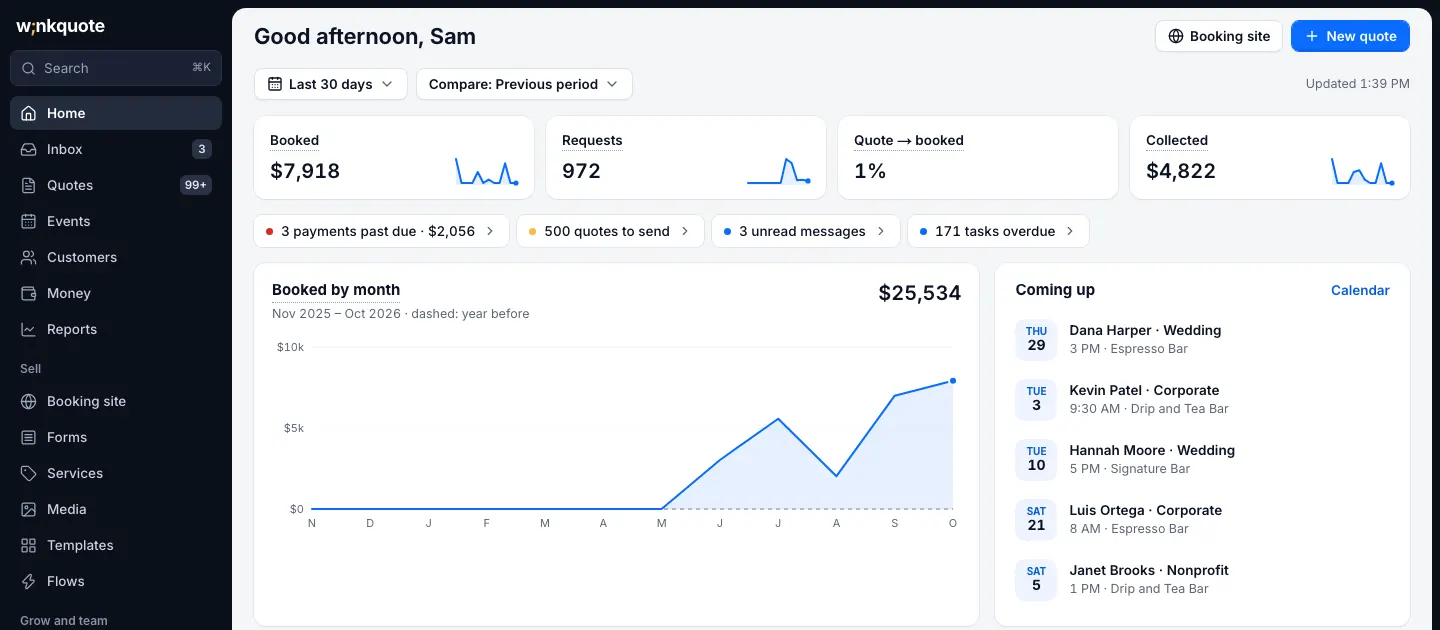
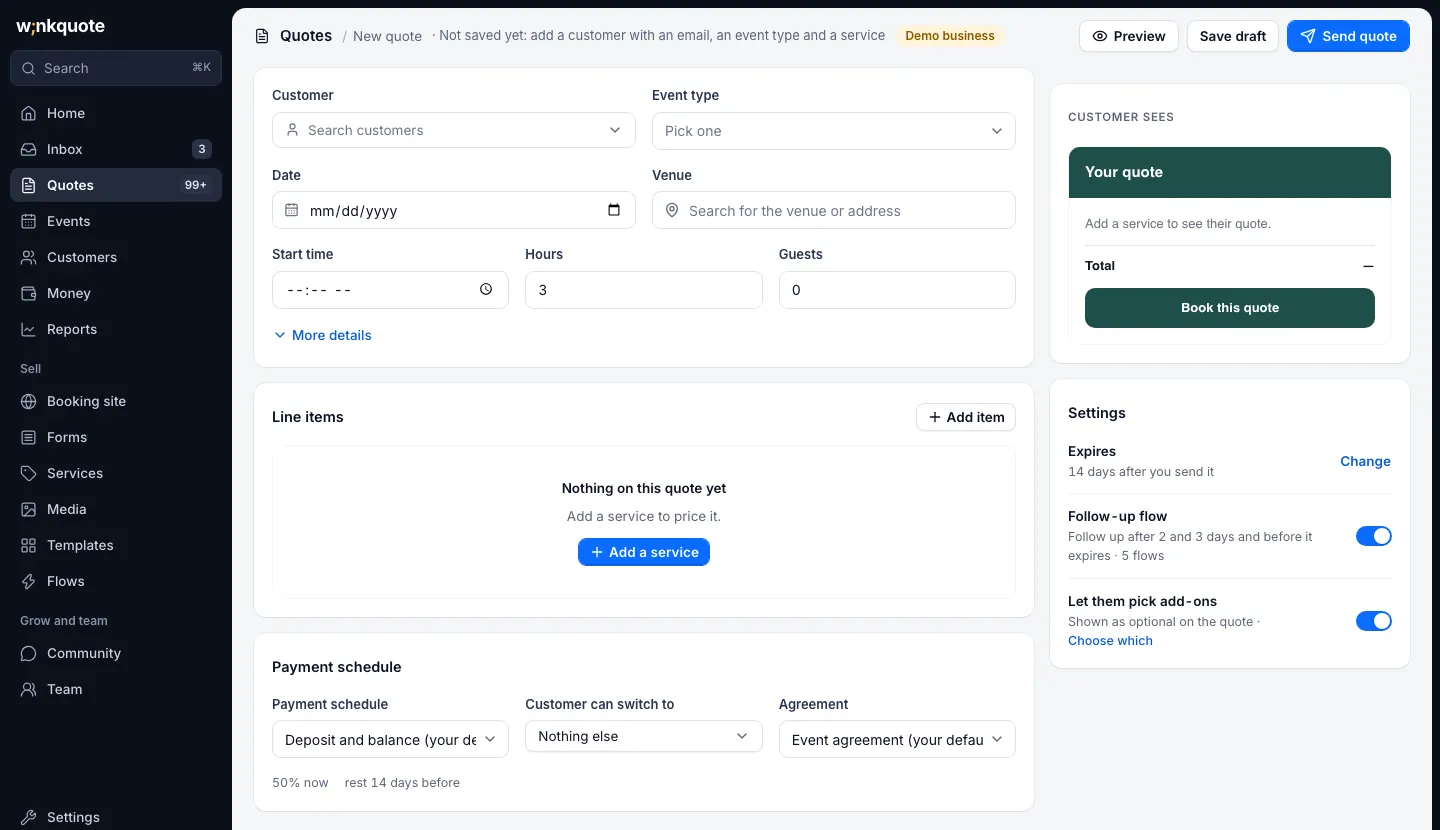
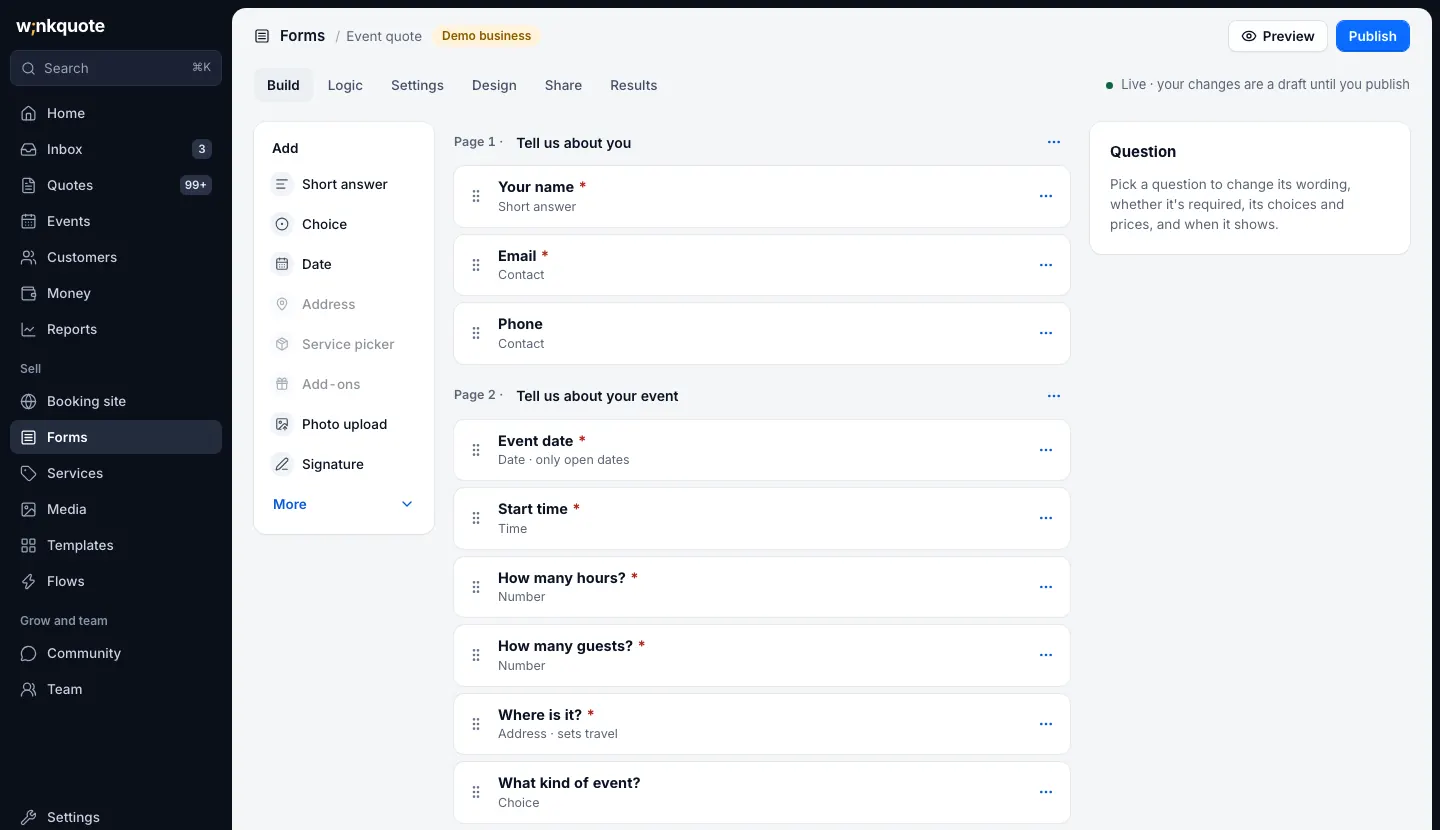
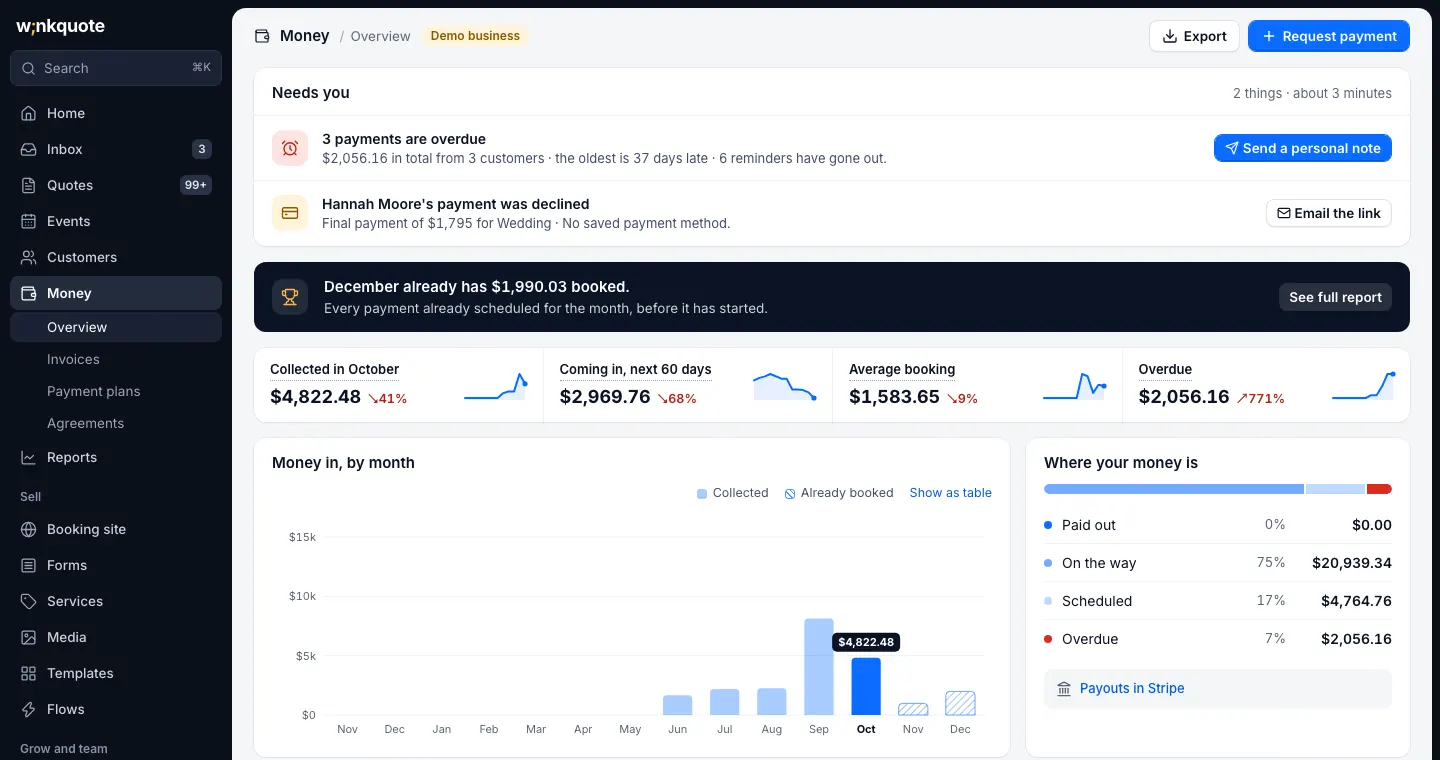
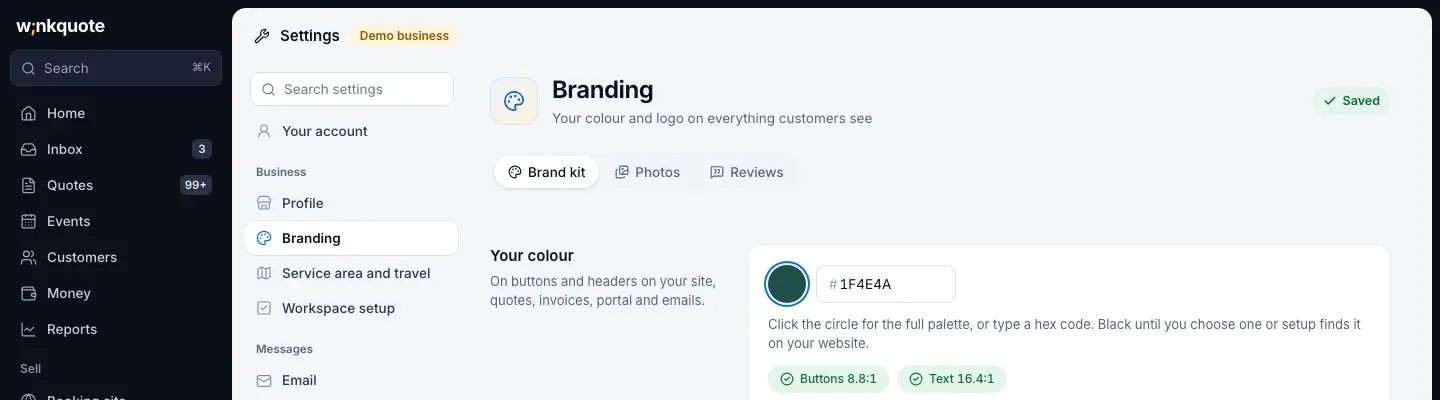
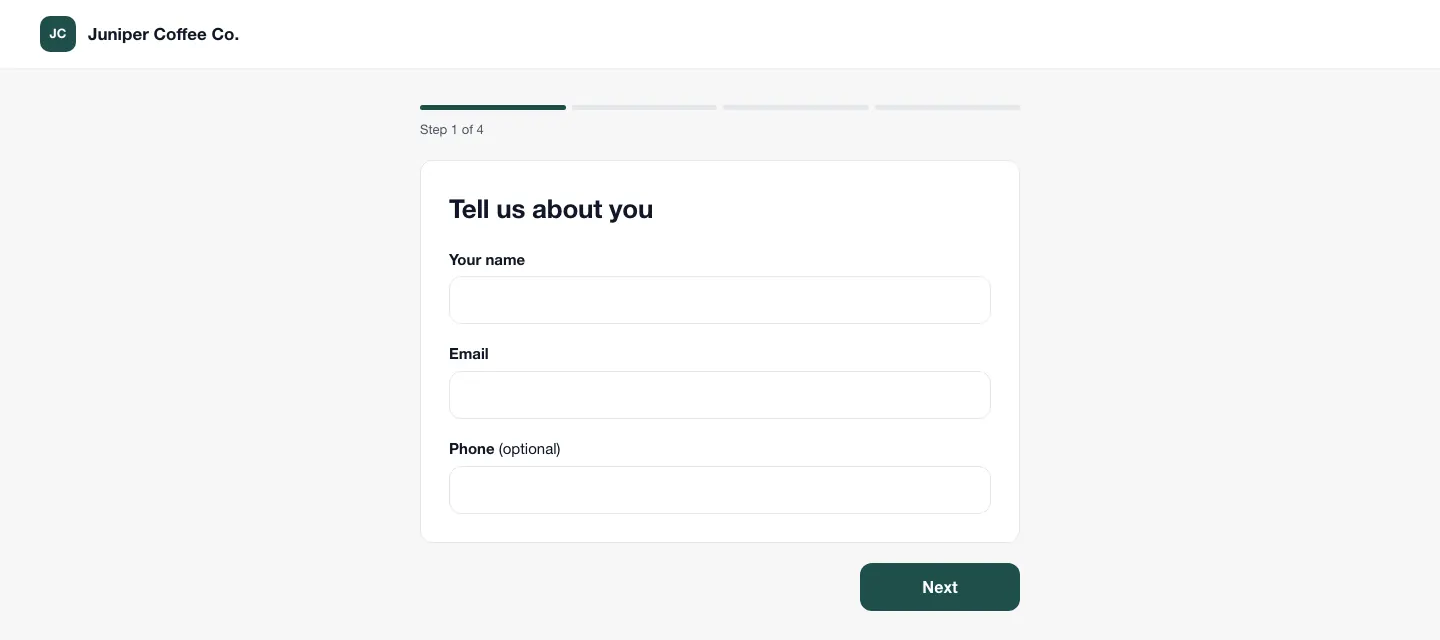
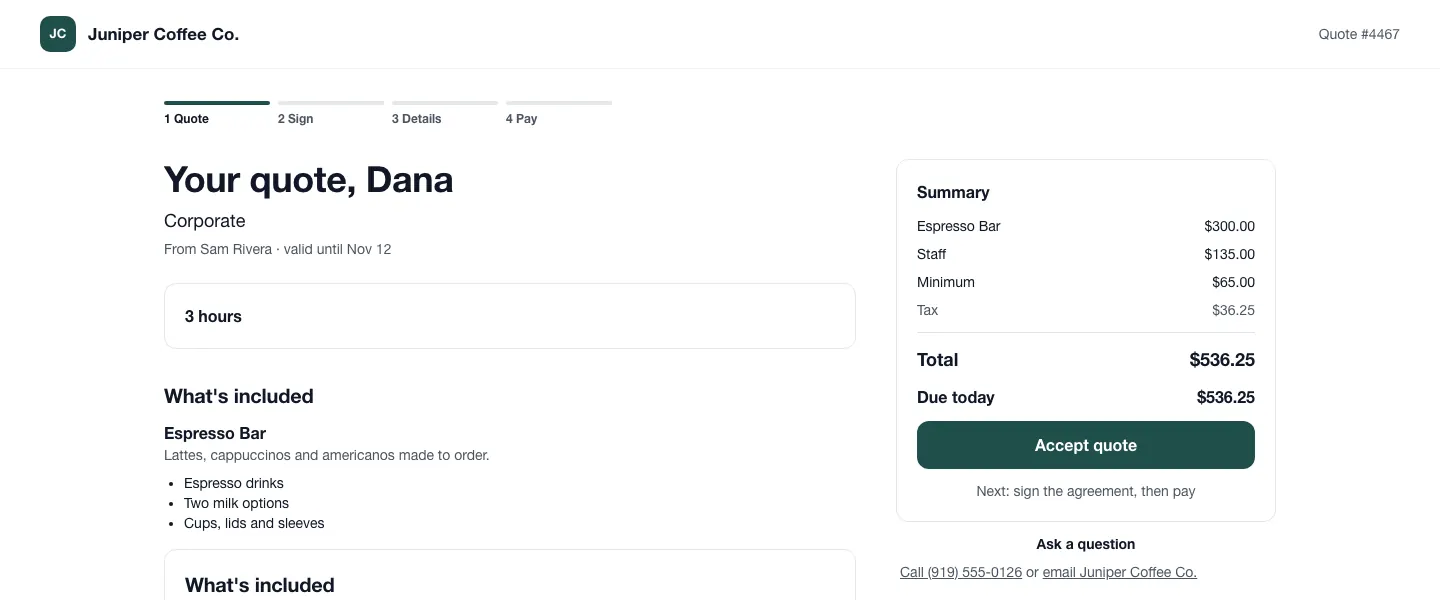
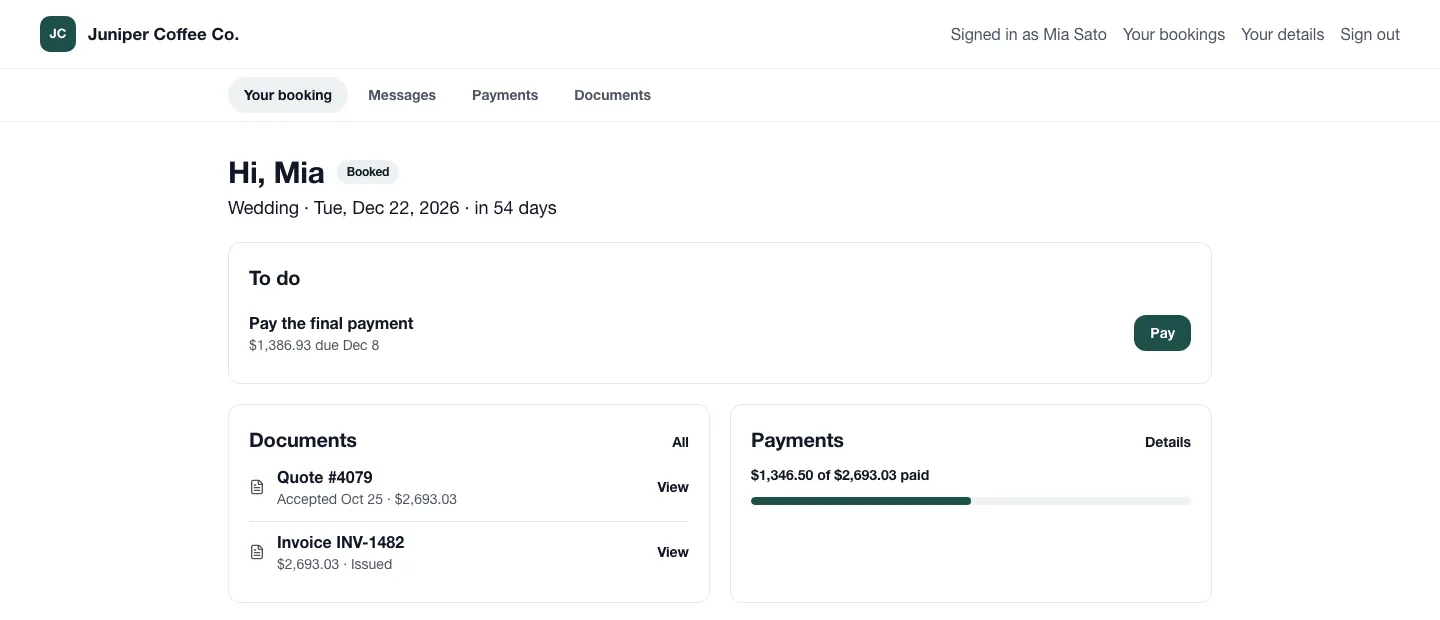
New
- Booking site templates: choose from 19 templates, five of them free, made for coffee carts, mobile bars, food trucks, photographers and more. Every template uses your color, logo and font, and switching keeps your words, photos and services. Plus and Scale add the rest. See Booking site.
- Galleries for photographers: each session's galleries, sets, favorites and proofing in one place, with download, favorites, print store and expiry set per gallery. Customers pick favorites and order prints, with a crop preview, from the gallery itself. See Photo galleries and Print sales.
- Setting up in six steps: your business, services, booking site, getting paid, connecting your tools, and your customers and team, with photos to pick your kind of business. See Setting up.
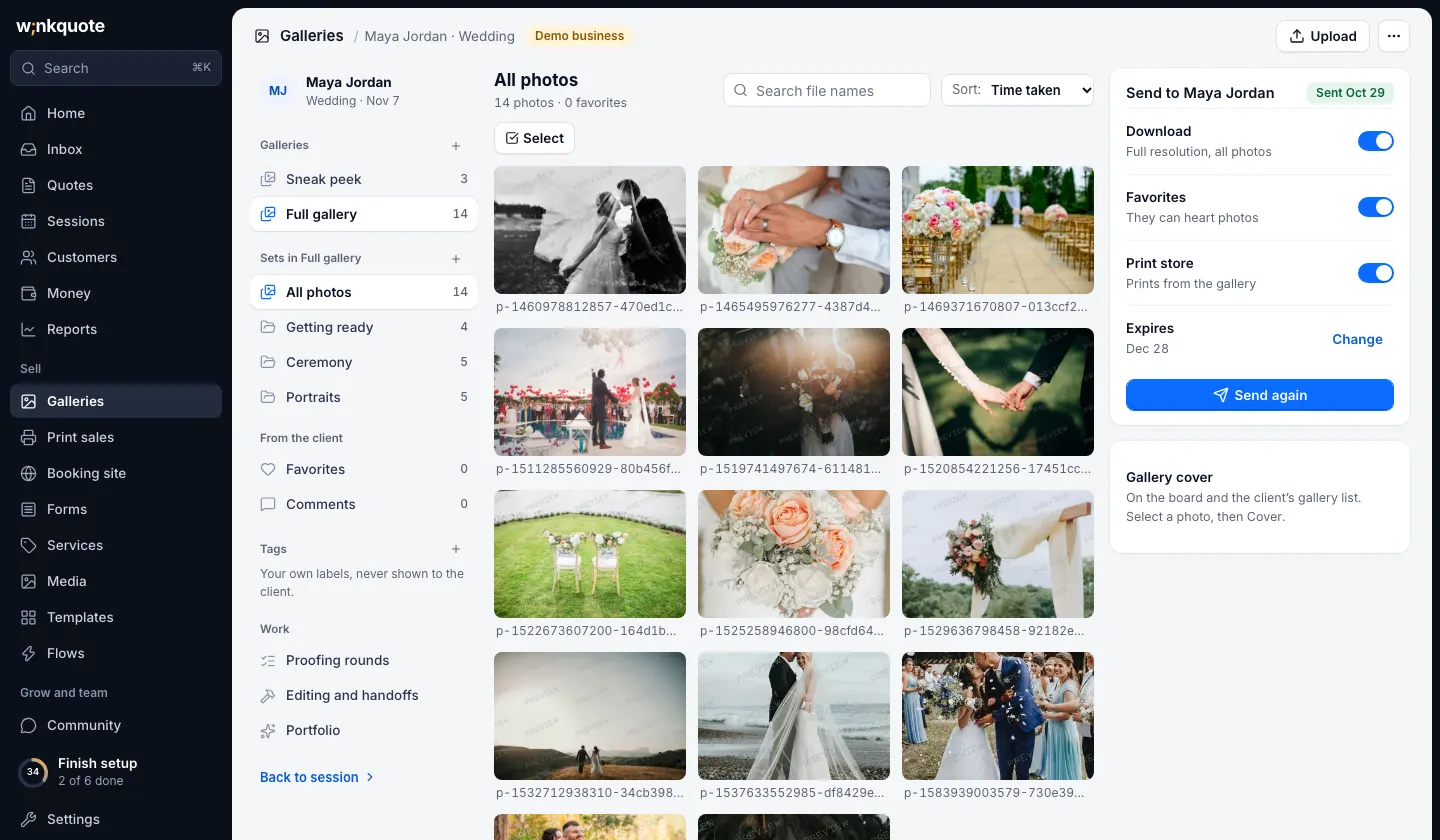
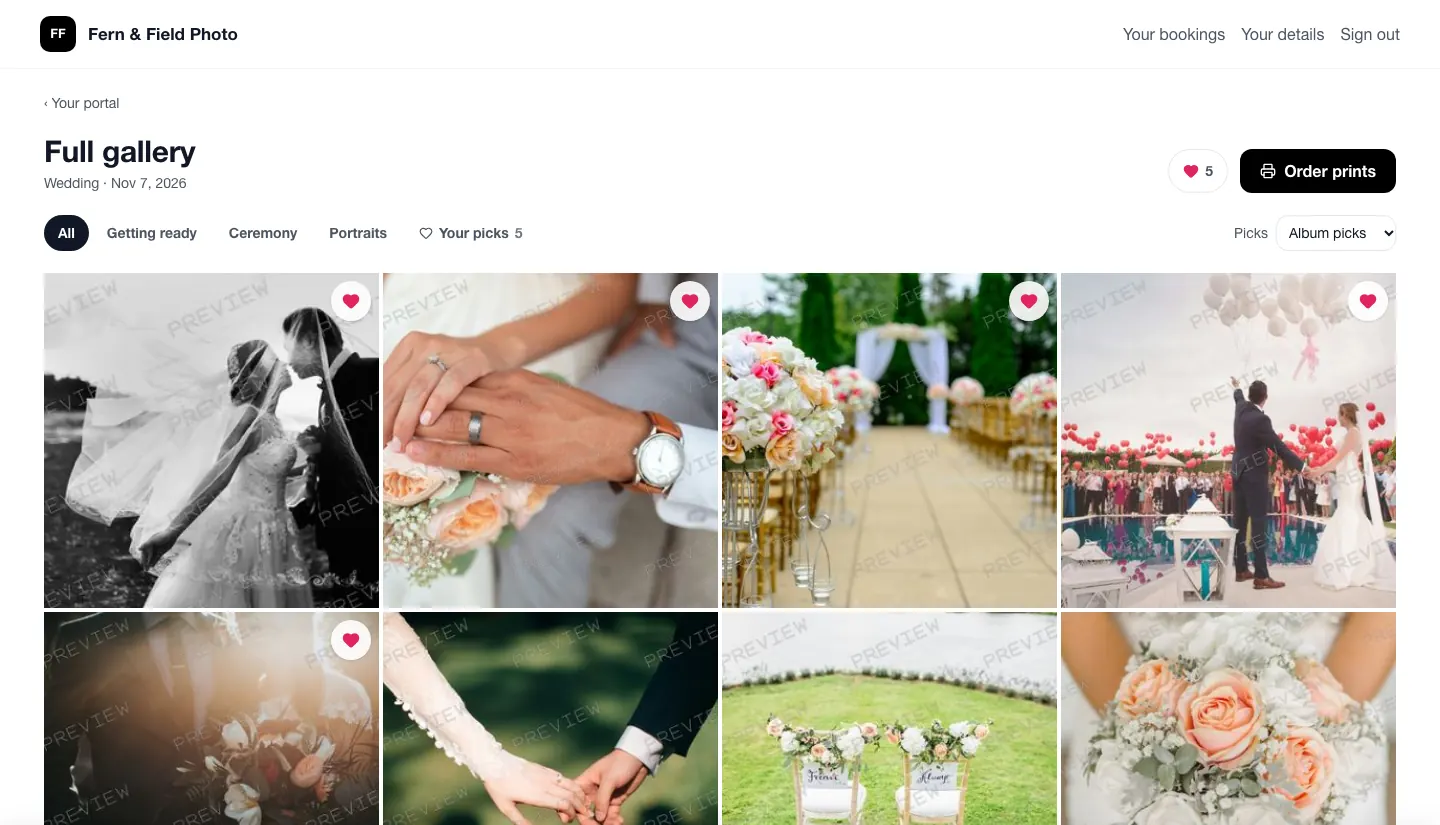
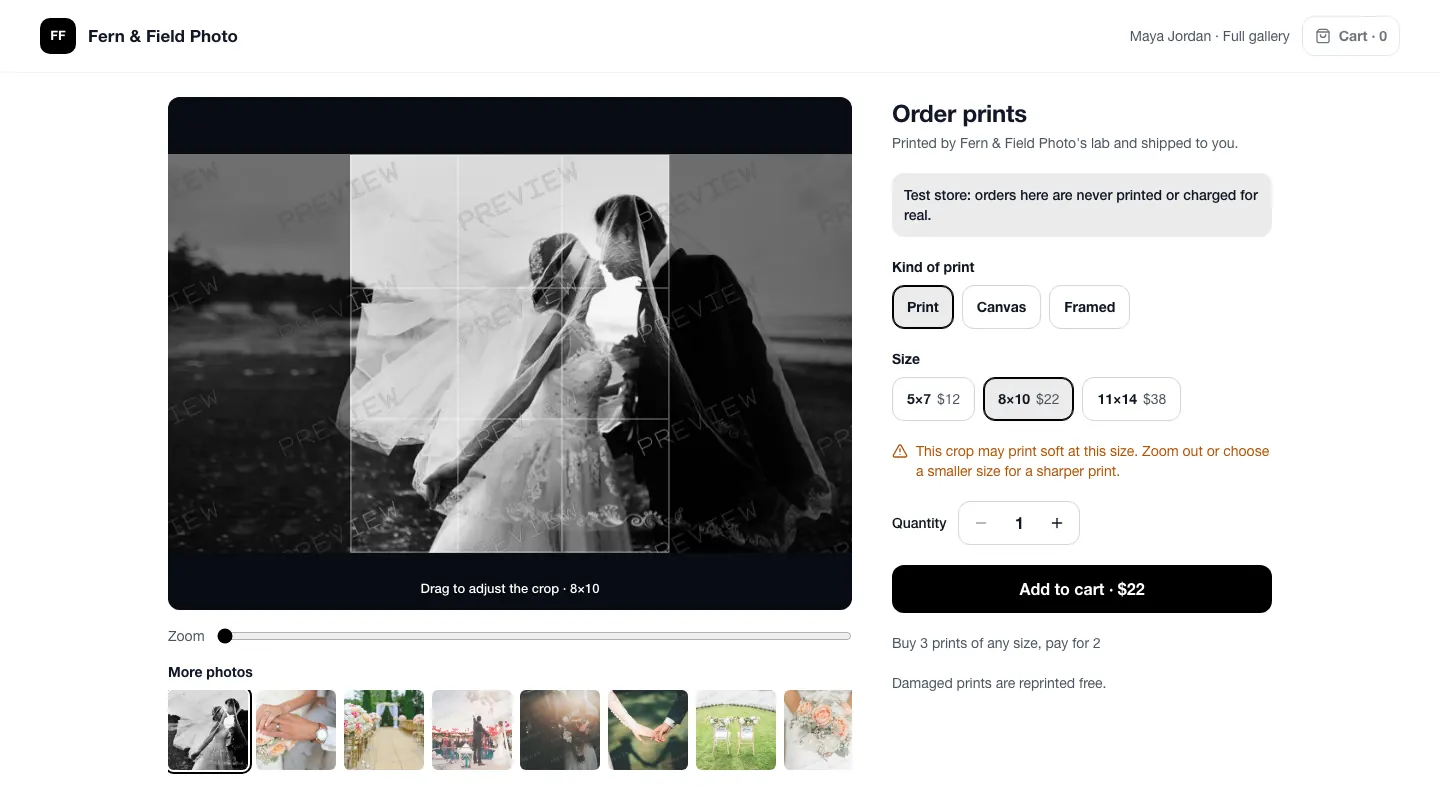
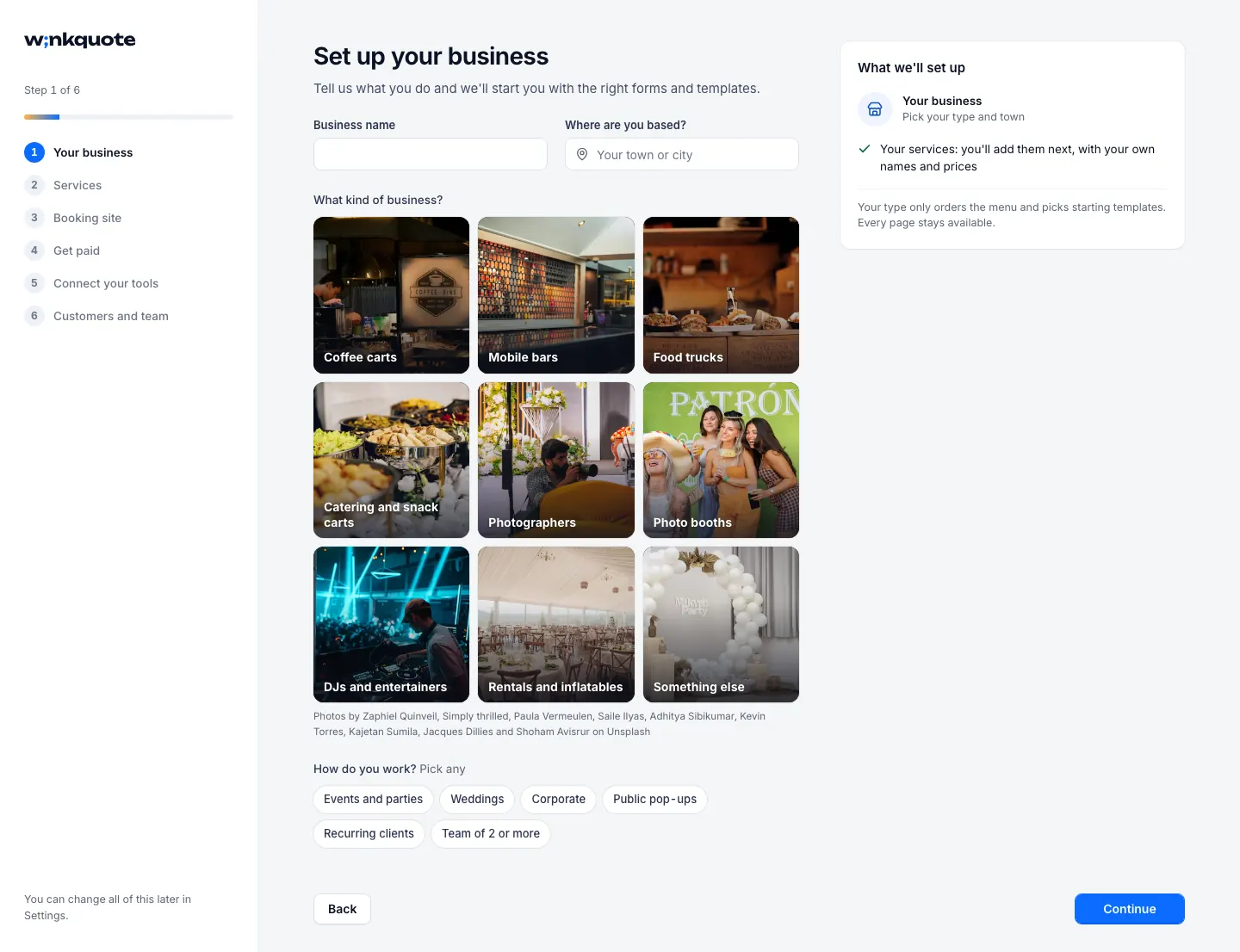
October 29, 2026
Your cloud
Improved
- Storage is now your cloud: Settings → Cloud space shows a cloud that fills as you add files, with how full it is in big type ("Your cloud is 82% full"), what's using it and what you could clear. The warnings, emails and Settings → Plan and billing say the same. See Cloud space.
- Scale includes 1 TB of cloud space, Plus 250 GB and Free 5 GB.
New
- Add cloud space on any plan: +10 GB for $2, +50 GB for $5, +100 GB for $9, +250 GB for $19, +500 GB for $35, and +1 TB for $60 a month, on the same bill as your plan. Stack as many as you like and remove one any time; the rest of the period comes off your next bill. Only people with Stripe and payment settings can add it; everyone else can ask their admin. See Add cloud space.
New
- Download everything: Settings → Cloud space downloads all your files, one gallery or one Media folder as zips of up to 4 GB, with your originals unchanged, in folders by gallery and session, and a list of every file. Big downloads are prepared in the background and you get an email when they're ready; the links work for 7 days. See Download your files.
- 30 days when your cloud gets smaller: if your plan or cloud space ends and you store more than your cloud, new uploads pause and you have 30 days, with at least ten reminders and a countdown at the top of the app, to download, delete or add space. Nothing is deleted in that time. After it, files go one at a time, your Archive first and then the files nobody has opened for the longest, only until you fit. Agreements and contracts, booking files, invoices, receipts, certificates of insurance, messages and your Media library are never deleted. See When your cloud gets smaller.
- Your Archive: a photo you delete from a gallery, or a file you remove from your library, now moves to your Archive instead of a Trash that emptied itself after 30 days. It's kept, still in your cloud, until you restore it or delete it forever, in Settings → Cloud space → Archive or the Media library's Archive. Only people with Stripe and payment settings can delete forever. See Archive.
API
GET /v1/storagenow includes your cloud's size (cap_bytes), what your plan includes (included_bytes), cloud space you added (added_bytes,cloud_space_packs),used_percentandlevel. The newstorage.cap_changedwebhook fires when your cloud gets bigger or smaller, and Zapier has a Cloud Space Changed trigger.- Downloads and the 30 days by API:
POST /v1/storage/exportsstarts a download,GET /v1/storage/exports/{id}gives its links once it's ready, andGET /v1/storage/gracesays whether you're over your cloud and when. New webhooks:storage.grace_started,storage.grace_ended,storage.content_deletedandexport.ready, with matching Zapier triggers and n8n events, and the AI connector can read both. - The Trash is now the Archive: Media files carry
archived_at, andGET /v1/storagehasarchive. The old names,trashed_atandtrash, still work with the same values and are deprecated.storage.content_deletedlists each file with itsgalleryandlast_opened_at.
October 29, 2026
Texts and calls from your business number
New
- Texts and calls on Plus and Scale: text and call customers from your own business number, in the same conversation as their emails. A toll-free number is included; a local number is $35 once, free on Scale. Turn it on in Settings → Integrations → Texts. See Texts and calls.
- Paid in credits: a text is 1 credit and a picture message 3. Once your number is approved you get welcome credits, 300 on Plus and 1,000 on Scale, then 300 credits for $10 a month on your plan's bill, with refills of 300 for $10 when you run out. Credits never expire: if texting stops, they're saved for when you turn it back on, with the same number or a new one.
- Pictures, calls and voicemail: send and receive photos, forward calls to your phone, call customers from the app with your business number showing, text missed callers back, and keep voicemails and recordings with transcripts and summaries. Each has its own switch on Settings → Phone.
- Nothing is set up before it's paid: a local number's $35 is charged to your card when you submit, and nothing is registered or bought until the payment goes through. If your bank asks you to confirm it, setup carries on by itself once you do.
Improved
- Terms and privacy: the Terms of Service (section 3.5) and Privacy Policy now cover texts and calls.
API
GET /callsandGET /calls/{id}list the calls on your business number with their recordings, transcripts and summaries, and thecall.completedandcall.transcribedwebhook events say when a call ends and when its transcript is in.
October 29, 2026
More storage on every plan
Improved
- More room on every plan: Free now includes 5 GB, Plus 250 GB and Scale 1 TB for the photos, videos and files your business adds. Nothing to do: Settings → Storage shows the new amount. See Storage.
- Faster galleries: original photos and gallery previews load straight from storage, so big downloads start sooner.
New
- Downloads this month: Settings → Storage shows how many original files your customers, team and the API downloaded this month. Up to 2 times your plan's storage is fair use; past it nothing is blocked, and people with Stripe and payment settings get one notice that month. See Storage.
October 29, 2026
Storage on every plan
New
- Storage per plan: Free includes 5 GB, Plus 250 GB and Scale 1 TB for the photos, videos and files your business adds. Web sizes, crops and previews Winkquote makes don't count. Settings → Storage shows what you've used of your plan's storage, the room left, and when it will be full at the recent pace. See Storage.
- Warnings before it fills: at 80% and 95%, a bar at the top of the app says how much you've used, and everyone with Stripe and payment settings gets a bell notice and an email.
Improved
- Nothing is deleted when storage is full: new uploads pause until you free up space or move to a plan with more, with Get more space on Settings → Storage. Everything you have stays, customers can still view and download it, and what customers send you still arrives. The same applies after moving to a plan with less storage.
October 29, 2026
Scale for growing businesses, and team size on your plan
Improved
- Scale is the plan for growing businesses: it has everything in Plus, plus the REST API, webhooks you set up yourself and the n8n node, and the lowest online payment fee. See Plus and Scale.
- Team 12 of 20: Team and Settings → Plan and billing show how many people sign in, counting invitations still waiting. Every plan has room for 20; crew who don't sign in aren't counted. When the team is full, Add person says so and adds crew without a sign-in instead. See Team.
API
- Direct API keys, your own webhooks and n8n are part of Scale. The Claude and ChatGPT connector works on every plan. On a move from Scale to another plan, keys and webhook endpoints are kept and marked Paused on Settings → Developer; calls with a paused key get
403 plan_required, and everything works again on Scale. See API. - The API Terms now say direct keys, your own webhooks and n8n need Scale. You agree to the updated terms before your next key or endpoint.
October 29, 2026
Contact, security and policies on winkquote.com
Improved
- More ways to reach us: the contact form at winkquote.com/contact has Sales, Moving to Winkquote and Press beside Support and Something else. A person replies within 2 business days.
- Policies and security in one place: the terms of service, privacy policy, API terms, community guidelines and security page live on winkquote.com, with their dates at the top and contents that follow you down the page. Links to the old addresses on app.winkquote.com go straight there.
October 28, 2026
Recurring event services and retainers
New
- Recurring agreements: create a retainer or repeated event services from a priced quote, with a billing interval, first charge, services, pause and cancellation terms, and an optional end date. The customer reviews the exact version, confirms a card, enters their name and explicitly authorizes automatic charges in the portal. Open Recurring → New agreement. Operational features stay free. See Recurring agreements.
- Billing separate from the calendar: each billing period has one invoice. Retainers reserve no time. Confirm actual work dates separately for repeated services; those events are marked Covered by recurring agreement and create no second service charge or invoice.
- Manage recurring billing: customers can replace a saved card, retry an unpaid invoice, and pause, resume or cancel when their accepted terms allow it. Merchants can also stop billing immediately. Failed payments and pending refunds keep their actual status visible.
Improved
- Accepted versions stay intact: offer service, price or term changes as a new version for the customer's explicit acceptance. Approved moves create a new actual-work version and time amendment while preserving original agreement evidence and billing dates.
- Shared records: recurring invoices and payments appear in the shared billing views, CSV exports and reports. QuickBooks uses the existing connection rules, with actual payment, refund and fee evidence. Contract exports include accepted versions, exact text, PDFs and recorded consent.
API
- Eight recurring read resources expose agreements, versions, periods, invoices, payments, refunds, actual fee credits and covered work, with matching Zapier, n8n and AI connector reads and events. Offers, consent, card confirmation and billing changes remain in the authenticated app and customer portal. Existing connection and key rules apply.
October 28, 2026
Photographer websites and print orders
New
- Free photographer websites: publish Home, Portfolio, Services, About, Contact and Book a session pages using your existing branding, domains, services, inquiry forms and schedules. Edit each page's copy and search details, preview your draft and publish when ready. Portfolio images require explicit publication permission. Open Booking site → Design → Photographer website. See Booking site.
- Print sales through your own Prodigi account: select products, finishes and retail prices, set shipping handling and tax, and choose which gallery or portfolio photos may be printed. Clients review photo crops, quantities, US shipping and your policy before paying through your connected Stripe account. Operational features stay Free, with existing payment fee and premium appearance rules. Open Settings → Print sales.
- Separate print orders: manage print invoices, payments, lab status, shipment tracking, processing retries, cancellations and refunds from Payments → Print orders. Keep quoted costs separate from actual lab charges and credits, and include print income in source views, Reports and QuickBooks accounting. See Manage print orders.
API
- Read/list photographer websites, print products, orders, invoices, payments, refunds and lab or fee credit evidence through the API, Zapier, n8n and the AI connector. Website and print transitions have matching webhooks. Existing integration, permission and key rules apply.
October 28, 2026
Private photo galleries and proofing
New
- Private client galleries and albums: upload originals, review watermarked previews and control which deliverable versions customers can view and download in their portal. Original files stay unchanged. Open Photo galleries. See Photo galleries.
- Proofing and production: customers choose favorites, comment and lock the exact versions they reviewed. Revision requests stay with those versions and create editing tasks. Track deadlines, respond to revisions and publish edited deliverables as new versions.
- External editor handoffs: download selected originals with a version manifest, then import returned edits against their source photos.
- Recorded portfolio permission: explicitly publish a separate public web image with permission recorded for that photo version, and unpublish it or revoke permission from the gallery. Gallery operations are free on every plan.
October 28, 2026
Appointment and rental availability
New
- Shared scheduling: offer appointment, consultation and rental times with minute-based starts, buffers, date overrides, notice periods and shared staff/equipment availability. Client limits are independent of event guests, and rental stock stays reserved between pickup and return. Open Settings → Scheduling. See Scheduling and rental availability.
- Waitlists and reminders: collect preferred time windows, notify customers of openings and send reminders for confirmed services and rental handoffs. Availability notices invite a new booking; they do not guarantee a place.
- Recorded time amendments: move a confirmed service to an available time while keeping the original signed agreement and agreed price. Review customer requests in the portal card and retain the change history.
Fixed
- Checkout holds and confirmation checks protect shared capacity. Late payments that cannot secure their service are recorded with tracked refunds and provider evidence.
October 27, 2026
Bring your contracts and keep proposals connected
New
- Original contract archives: import downloaded PDFs against a customer, with an optional booking, supplied source/status and document date. Keep past, current and future contracts. Originals download unchanged, including from the customer's portal. Open Agreements → Import original PDF.
- Reviewed template imports: paste reusable contract text, preview it and save an editable template with available version history. The contract already in use stays selected.
- Take your contracts with you: export original PDFs, real PDFs and exact text of signed Winkquote agreements, recorded signing evidence, editable templates, saved versions and relationship manifests. Exports show progress, resume after failures and provide ZIP parts to download. Operational features stay free on every plan. See Contracts and event details.
Improved
- Connected service choices and signing: merchants choose which services and extras clients may change before signing. Quotes, payment schedules and agreement fields update together, including a discount for paying in full. Signing captures the exact reviewed proposal and agreement. Existing signed copies stay intact.
API
- Original archives/downloads, editable templates/history, accepted proposal snapshots and resumable contract exports are available through the API and matching Zapier, n8n and AI connector capabilities. New events cover imports, template updates, signing and completed exports. Existing connection and key rules apply.
October 27, 2026
Workspace setup for your business
New
- Choose categories and how you work: review editable setup for coffee carts, mobile bars, food trucks, catering and snack carts, photographers, photo booths, DJs and entertainers, event rentals and inflatables, or Other. Add secondary categories for a mixed business, arrange workspace priorities and review presets before applying them. Existing services, forms, prices, templates and customers are kept. Open Settings → Company → Edit workspace setup. See Company and locations.
- Photographer inquiries ask about coverage, location, photographers, shot requirements and deliverables. Guest count is optional unless a selected price or staffing rule needs it. See Quote forms.
API
- Workspace preferences are available through the API, the
workspace.updatedwebhook, Zapier's Workspace Updated, n8n's Workspace and the AI connector'sget_workspacetool. Existing plan and key rules apply.
October 27, 2026
A 14-day free trial on Plus and Scale
New
- Try Plus or Scale free for 14 days: your business's first plan, monthly or yearly, starts with a 14-day free trial. Checkout takes your card and charges nothing until the trial ends, and you have everything the plan adds from the first day, including its lower online payment fee. Settings → Plan shows the days left and your first charge, with Cancel trial. 7 days before it ends, everyone with Stripe and payment settings gets an email with the date, the amount and how to cancel. On monthly Scale, your first 3 paid months are $109. The trial is once per business. See Plus and Scale.
October 26, 2026
Visit counts on Winkquote's own sites
Improved
- Privacy policy updated: Winkquote's own websites (winkquote.com, docs and the app) now count visits with Vercel Web Analytics, which sets no cookies and doesn't identify anyone. It never loads on your booking site, forms, quote and payment pages or customer portal.
October 26, 2026
Safer card payments and plan checkout
Fixed
- No double charges when a customer reloads the payment page: reopening the page while the bank is still approving a card picks up the same payment, and a payment that changes (a new amount, a tip, a split, or recorded by hand) cancels the one the customer had started in Stripe. If a customer is still charged twice for one payment, the second charge is refunded in full automatically, and a charge that doesn't match what's owed is noted on the payment and your team is told. See Payments.
- Splitting a Pay in full payment: each part's refund terms are shared between the two payments in proportion, so a cancel request shows the refund your policy really allows.
- One plan per business: if two people (or two tabs) start Plus or Scale at once, only the newest checkout can be finished. If two subscriptions still start, the older one is canceled and its unused time is credited to your next invoice.
October 26, 2026
Clearer checks on the files you import
Improved
- Every import file is checked first: on Settings → Import, Winkquote makes sure each file really is a CSV table before reading it. An Excel workbook, PDF, zip or web page is turned away with what it is and what to export instead, for example "Payments.xlsx is an Excel workbook… save or download it as CSV". Files saved as UTF-16 or older Windows text now import as they are. See Moving from Flashquotes.
- Files you email for help moving in: each one is checked when it arrives. If we can't use one, we reply saying which and why, and Help moving in on Settings → Import lists the files we've received. See Moving from another tool.
- Import files are deleted sooner: the files you drop are deleted once the import has run or is undone, or after 30 days if you never press Import. The Privacy Policy explains how import files are kept and deleted.
October 26, 2026
Customer replies in your Inbox, and wedding marketplace leads
New
- Customer replies in Inbox → Messages: when a customer answers one of your emails, from a quote to a reminder, their reply lands in their own conversation in Inbox → Messages, next to their quotes, with the files they attached. Answer from there, assign it to a teammate or turn it into a task. The quote's History shows Customer replied, and whoever looks after the customer gets a notice. A copy still goes to your business email. See Inbox.
- Wedding and event marketplaces (Plus and Scale): send your lead emails from The Knot, WeddingWire, GigSalad, Bark, Zola and Yelp to your own Winkquote leads address, and each lead becomes a customer and a quote in New inquiry, with the name, date, guests and budget read for you and a Reply in button back to the marketplace. See Integrations.
Improved
- Choose where replies go: Settings → Email sending → Replies offers Winkquote Inbox or My own inbox, and Also send a copy to my inbox. See Email sending.
- Privacy policy updated: it now covers customers' replies and their attachments, kept with your records; lead emails from marketplaces, read by Anthropic's Claude; and Resend receiving them. You'll see it once and press Continue.
October 26, 2026
A clean, neutral look for your customers
Improved
- Customers see a neutral look by default: your quote form, booking site, quote pages, booking and payment pages, invoices and emails now use white, the Helvetica font, and your logo and primary color, so they sit well on any website with no setup. To use your own fonts and background there too, turn on Use these fonts and background for customers in Settings → Branding → Type and shape. See Branding.
October 26, 2026
Help moving in from HoneyBook, Dubsado, 17hats and more
New
- We move your data in with you: on Settings → Import, choose HoneyBook, Dubsado, 17hats, or Another tool or a spreadsheet, ask for help, and email your export files to support@winkquote.com with the subject Winkquote shows you. See Moving from another tool. Flashquotes still imports on its own.
Improved
- Privacy Policy: explains how files sent for help moving in are used and deleted.
October 26, 2026
The customer portal
New
- Customer portal: your customers sign in at
yourname.winkquote.com/portal(or/portalon your own domain) with a one-time emailed link and see every quote and booking they have with you, with where each stands. On each booking they see the event's details, the payment schedule with refund terms, Pay, invoices and receipts, signed contracts to print or save as a PDF, messages with you, and files. It's in your brand kit and free on every plan. See Customer portal. - Saved cards and automatic payments in the portal: customers can remove or replace the card or bank account saved on your Stripe account, and turn automatic payments on or off where the booking's payment policy charges automatically. Turning them on shows and records the exact wording with each amount and date.
- Files: share menus and timelines from a booking's Customer portal card, and customers upload logos and inspiration, up to 25 MB each.
- Change requests: customers ask for changes to guests, the date, times or add-ons. Approve one as a change order (the event updates, and any difference in price becomes a draft extra invoice) or decline it with a note; the customer gets an email either way.
- Messages from the portal: customers' messages land in Inbox → Messages, and your replies reach them by email and in the portal.
- Settings → Customer portal: turn the portal on or off, choose which parts show, allow uploads and change requests, and copy your portal's address. The
{portal.link}merge field puts the link in any email.
Improved
- Customer emails link to the portal: while the portal is on, the standard customer emails end with a link to see all their bookings with you.
- Named contacts see their bookings: someone billed on an invoice, or whose email is in the booking form's answers, sees that booking in the portal too.
- Privacy policy updated: it now says what Winkquote keeps for portal sign-ins, sessions, files, change requests and messages, and describes the portal's sign-in cookie.
API
- Files and change requests:
GET /v1/filesandGET /v1/change_requests, each with a list and a get, filtered bybookingandcustomer. - New webhook events:
file.uploadedandchange_request.created. - Zapier, n8n and the connector: Zapier has New File and New Change Request triggers, the n8n node reads both, and the Claude and ChatGPT connector can read files and change requests.
October 26, 2026
Plus and Scale, a lower fee, and busy times on every plan
New
- Scale: a new plan at $149 a month with everything in Plus and a 1% online payment fee. A business's first 3 months of Scale, billed monthly, are $109 a month. See Plus and Scale.
- Yearly billing: Plus is $39 a month billed yearly and Scale $129 a month billed yearly. Pick Monthly or Yearly on Settings → Plan, and switch plans there at any time; Stripe adjusts your next invoice for the difference.
- Ask for a higher API limit: Settings → Developer shows today's requests and your daily limit, with Ask for a higher limit.
Improved
- A lower fee on paid plans: the online payment fee is 3% on Free, 2% on Plus and 1% on Scale. Each booking keeps the rate it was accepted at. See Payments.
- Calendar busy times on every plan: Google and Microsoft Calendar busy times no longer need Plus.
- Terms of Service and API Terms updated for the new plans, fees and API limits. You'll see the Terms once and press Continue, and Settings → Developer asks you to agree to the API Terms again before your next key or endpoint.
API
- Direct API keys, your own webhooks and n8n are part of Plus and Scale. Keys for the Claude and ChatGPT connector work on every plan. When you make a key, pick what it's For. Direct keys made earlier on Free are paused until you start a plan.
- Daily limits: 10,000 requests and 300 price estimates a day per business, on top of 60 requests a minute per key. Bulk copying or repeated spikes suspend a key while the Winkquote team reviews it.
- Price estimates return the price, its lines, staff and units; they no longer include
flags. - New response headers:
Winkquote-Version,Request-Id(also in error bodies asrequest_id) andWinkquote-Terms. - The API reference is now in Winkquote under Settings → Developer → API reference. The public API page covers plans, the connector, limits and the rules.
October 26, 2026
Email Winkquote directly
New
- Email us: write to support@winkquote.com for help, privacy@winkquote.com for privacy requests, legal@winkquote.com for legal and copyright notices, billing@winkquote.com about your plan, or hello@winkquote.com to request access. Security problems go to security@winkquote.com. A person on the Winkquote team answers from the same address.
Improved
- Privacy policy updated: it now covers emails you send to Winkquote's addresses, and Resend receiving them. You'll see it once and press Continue.
October 25, 2026
Google Calendar busy times, Google Sheets, and photos from Unsplash and Canva
New
- Google Calendar busy times (Plus): connect your Google Calendar and the times you're already busy close on your quote form and quotes. Winkquote reads only when you're busy, never what an event is called or who's going. See Integrations.
- Google Sheets: a spreadsheet in your Google Drive with a row for every request, booking and payment. Winkquote can open only the spreadsheet it made. See Integrations.
- Photos from Unsplash and Canva: every photo picker has an Unsplash tab for free, credited photos and a Canva tab for your own designs, and Make a flyer on a quote or booking fills one of your Canva brand templates. See Branding.
Improved
- Privacy policy updated: it now says what Winkquote reads from Google Calendar, Google Sheets and Canva, and that Google data follows Google's Limited Use rules. You'll see it once and press Continue.
October 24, 2026
More of your business in the API
API
- New in the API: notes, signed contracts, insurance certificates, outside leads, payment policies and checklists, each with a list and a get (
/v1/notes,/v1/signed_contracts,/v1/insurance_certificates,/v1/outside_leads,/v1/payment_policies,/v1/checklists). - More fields on existing objects: quotes have their title, event type, payment policy, flags and the "Reply in" link from another app; bookings have the payment schedule the customer agreed to, who pays the online payment fee and their location; invoices have tax, due date, notes, quantities and when they were voided; payments have their invoice, receipt link, refunds and what a late fee is for; customers have their location, ad campaign tags and the customer they were merged into; event days have their crew notes.
- New webhook events:
invoice.voided,insurance_certificate.updatedandnote.created. - More moments send events:
task.createdandtask.completednow fire for tasks made and ticked off in Winkquote, by flows, from your admin checklist and from cancel requests, not only through the API.customer.createdfires for customers you add by hand,customer.updatedfor edits and merges in Winkquote, and voiding an invoice and issuing its replacement sendsinvoice.issuedfor the new one. - Customer-chosen payment plans in the API: a booking's
payment_plansays whether the customer chose to pay in full or monthly and any discount; a payment'srefund_partsgives each part's refund terms; a payment policy'scustomer_choicesshows what customers may pick. - MCP server: your assistant can open a booking with its payments, event days and certificate of insurance, and read your team's notes.
October 24, 2026
Customers choose how to pay
New
- Customers choose how to pay: turn it on in a payment policy, and customers pick on the quote page between your schedule, Pay in full (with an optional discount, shown on the invoice) and Monthly payments that end a set number of days before the event, charged automatically to the card or bank account they save. Every payment goes to your own Stripe account. See Payments.
October 24, 2026
Imports checked by hand, and a quicker sign-up
Improved
- A quicker sign-up: no boxes to tick. The line under Continue says that continuing accepts the Terms of Service and Privacy Policy, and product news and tips by email, which you can turn off anytime in Settings → Profile. When the terms change, you see them once and press Continue; your product news choice stays as it was.
- Imports from Flashquotes are checked by hand while they're new: the Winkquote team hears about each import so it can spot anything that didn't come across right. Above the drop area on Settings → Import → Flashquotes, Let the Winkquote team see these files shares your files and the import summary with the team. It's off unless you turn it on, copies are deleted after 30 days or when you turn it off, and your import runs the same either way.
October 23, 2026
Requests from more places, TikTok and Pinterest ads, team chat, weather and security improvements
New
- Payment reminders for Plus: if a Plus payment doesn't go through, people with Stripe and payment settings see a bar across the top of every page with the amount, the date Plus ends and a Pay now button, and get an email on the day it fails, then 4, 10 and 13 days on, and when Plus ends. The bar starts as a friendly blue note you can hide for the day, turns amber after 5 days and red in the last few days, and goes away as soon as the payment goes through. Everyone else on your team isn't interrupted.
- Google Ads lead forms: requests from the lead forms on your Google ads land in New inquiry as a customer and a quote, tell your team and start your "Quote created" flows. Answers like the event date and guest count fill in the quote. Settings → Integrations gives you the webhook address and key for Google Ads, and Google's Send test data shows on the card without making a quote.
- Thumbtack: new Thumbtack leads land in New inquiry the moment a customer contacts you, through a webhook you add in your Thumbtack account.
- Thumbtack is part of Plus: its card shows a Plus tag, and without Plus, Connect opens the Plus page. If Plus ends, Thumbtack shows Paused and keeps its address, password and settings; leads it sends meanwhile are saved and become quotes in New inquiry, oldest first, as soon as Plus is back. The Plus page, Settings → Plan and the pricing page list it.
- TikTok and Pinterest tags (Settings → Integrations): save a TikTok or Pinterest tag for your business. Like your Google and Meta tags, they're paused: they stay saved, show as Paused, and don't load on any of your pages. See Visitor privacy.
- Server events for TikTok and Pinterest: save a token from your own ad account with your tag. While tags are paused, Winkquote sends no conversions to TikTok or Pinterest.
- Team chat: post new requests, bookings and payments to a Slack, Microsoft Teams, Google Chat or Discord channel with a link back to Winkquote. Pick which alerts post and send a test message.
- Mailchimp: customers who opt in to marketing email on your form join your Mailchimp audience, tagged "Requested a quote", then "Booked". People who didn't opt in are never added, and unsubscribes in Mailchimp are kept.
- Add to Mailchimp step in flows, with your own tag.
- Mailchimp is part of Plus: its card shows a Plus tag, and without Plus, Connect opens the Plus page. If Plus ends, Mailchimp shows Paused and keeps your key and audience; nobody new is added and the Add to Mailchimp step is skipped, with a note in the flow's results. The Plus page, Settings → Plan and the pricing page list it.
- Klaviyo: customers who opt in to marketing email on your form join your Klaviyo list, with a "Requested a quote" event and a "Booked" event (with the total) to start your Klaviyo flows. Paste a private key from your Klaviyo account and pick the list. People who didn't opt in are never sent, and anyone who unsubscribed in Klaviyo stays unsubscribed.
- Add to Klaviyo step in flows, with your own tag.
- Klaviyo is part of Plus: its card shows a Plus tag, and without Plus, Connect opens the Plus page. If Plus ends, Klaviyo shows Paused and keeps your key and list; nothing is sent and the Add to Klaviyo step is skipped, with a note in the flow's results. The Plus page, Settings → Plan and the pricing page list it.
- Ask your admin: Plus belongs to your business, and only people with Stripe and payment settings can start it. Everyone else sees Ask your admin where they'd see Start Plus: on the Plus page and on Connect for a Plus integration. It sends a bell notice and an email to everyone who can start Plus, saying who asked and for what, and the button then shows the date you asked. You can ask for the same thing again after 3 days. Open requests show on Settings → Plan with Dismiss, and the email can be turned off with Plan requests on Settings → Profile.
- Videos on your booking site: paste up to 6 YouTube, Vimeo or Loom links in the new Videos tile on Booking site → Design. Visitors see the video's picture with a big play button, and the video plays right on the page when they tap it. Free on every plan.
- A video on your quote pages: add a "video from us" to a quote page template in Templates → Quote pages, and it shows under the photos on every quote that uses it.
- Certificates of insurance: the event page's new Insurance for this event card tracks a venue's certificate: who it names as additional insured (starting from the event's address), when it's due (7 days before the event), and Needed → Requested → Received or Not needed. Get a certificate opens your insurer's request page or email from Settings → Company → Your event insurance; drop the PDF or image on the card, then Send to venue emails it to the venue contact with the certificate attached. Three days before it's due, if it isn't in yet, the event's owner gets a bell notice and an email. Events → List filters to COIs due. Free on every plan.
- Weather on event days: for US events in the coming week, the event page and the staff brief show the shift's forecast and any alerts from the National Weather Service, and your team gets a heads-up 1 to 3 days ahead when rain is likely, it's 95°F or hotter, or there's a weather warning.
API
- API Terms: the Winkquote API Terms set the ground rules for the API, the MCP server, webhooks and calendar feeds. The first time your business makes an API key or a webhook, Settings → Developer shows them in short and asks you to agree.
- MCP server at
https://api.winkquote.com/mcp: add it to Claude, ChatGPT or another assistant as a custom connector with your API key to search customers, read quotes, bookings and invoices, price an event, send a quote and add tasks.
Improved
- Payments and Invoices are easier to scan: the totals sit in one strip, and pressing Collected, Still to come, Refunded, Unpaid or Overdue shows just those. Payments and Events have a search box, lists show 25 at a time with Show more (each Quotes board column shows 20), phones get one tidy row per payment or invoice, and each status has its own color and word. Test bookings and payments stay out of the totals, so they're hidden from the lists too until you press Test bookings or Test payments. On an issued invoice, Print or save as PDF is the main button and Duplicate and Void sit under More; after you issue an invoice it opens with a note saying it's on the customer's payment page.
- Settings menu: every page has its own icon, the menu stays beside you as you scroll, and on a phone one button names the page you're on and opens the full list. A red dot marks a page that needs you: Stripe asking for details, a Plus payment that didn't go through, an app to reconnect or a sending domain to fix.
- Money settings: on Taxes, Service charges, Discounts and Quotes, each rate, charge, discount and date rule is one row with its amount up front. Tap a row to edit it, switch charges, discounts and rules on or off right in the list, and archive or delete from its … menu. Discounts can be searched by name or code and filtered to Active or Expired. Empty lists offer one-tap starters, like a 20% service charge or a Saturday rate, and Settings → Invoices and reminders shows when reminder emails go out on a timeline.
- Plus has a new look: a blue tag that drifts gently, with a see-through +, wherever something goes live with Plus.
- Settings → Integrations groups apps by what they do (Leads, Inbox and messages, Ads and analytics, Calendars, Team chat alerts and more), free ones first, with each app's own logo on its own card. Google Calendar, Apple Calendar and Outlook Calendar each have a card that opens your calendar feed with that app's steps.
- Settings → Plan shows what Plus adds as little pictures of each design, with the logos of the integrations it covers, and Start Plus right there.
- Settings → Profile is one page you can scan: your photo, name and phone together, and the emails you get as tiles you tap on or off. Each tap saves on its own; name and phone save with the bar that appears when you change them.
- The Plus page wears the Plus colors, with a picture of each design and a tile for each integration it connects.
- Event day settings, at a glance: Availability opens on the next four weeks, with closed days striped; tap a day to see what's blocked or block it, and a long list of blocks gets a search. Setup times draws your shift as a bar that changes as you type. Checklists show as cards with their first few items, and Brief notes are pinned up like sticky notes, with one-tap starters when you have none.
- Reports is easier to scan: the date and location pickers sit beside the title, the four headline tiles show each change as a labeled chip, and each section leads with figures and small bar charts (requests to bookings, booked days by weekday, when tips came in) before its table. Event economics switches between Service, Month and Event type, and a range with nothing in it offers the last 12 months in one tap.
- The photo picker has tabs: Gallery holds every photo you've added, with a search once you have more than a few, and Upload takes photos dropped straight onto it or picked from your device. A new photo lands in your gallery and is picked for you.
- Colors from your logo: in Settings → Branding, the colors in your logo show as swatches above your color settings. Tap one to use it as your primary, accent, background or text color, or press Match my logo to set your primary and accent in one go.
- Payments that come in short: if Stripe receives less than a payment is due, the payment stays unpaid and everyone who handles payments is told, with the amount, so you can sort it out in Stripe.
- Returning customers on your forms: a form filled in with an existing contact's email fills in only what's missing on their record; it never changes their name, phone or company.
- Quote emails CC up to 5 people.
- Custom domains that aren't verified within 3 days can be connected by the business that owns them.
- Webhook endpoints must be public https addresses, and each delivery checks that the address still points to a public server before sending; redirects aren't followed, and a delivery keeps only a short piece of the response.
- Card and bank payments are marked paid even when a notice from Stripe is delayed: notices that fail are retried, and payments still processing after an hour are checked with Stripe every hour until they settle.
- Custom CSS applies only inside your page's design and can't load files from other sites.
- CSV exports keep text that starts with =, +, - or @ as text in Excel and Google Sheets.
- Location-limited teammates see only their locations in reports and exports, as everywhere else.
- Removing a teammate disconnects the calendars they connected.
- Booking site links on app.winkquote.com open your booking site at its own address (yourname.winkquote.com), keeping the page and any UTM tags in the link.
- Staff brief notes: a booking note shows on the staff brief only when Show on crew brief is ticked, when you add it or later on the note. Notes added before today stay off the brief until you tick them.
- Taking someone off a day's crew gives the staff brief a new link, so the old one stops working. The rest of the crew get a fresh invite with the new link, and calendar feeds show it.
- Forms that hide prices no longer show the running estimate, and the page never carries your prices. The quote is still priced when the request is sent.
- Form confirmation emails go to the same address up to 5 times a day per business; requests past that are still saved.
- Quote email CCs that bounced or marked your email as spam are left off, like the customer's own address.
- Asking a customer to share their details, and sending it again, goes up to 5 times a day per quote.
- Notes follow the permissions for what they're on: customer notes need the customers permission, quote notes the quotes permission, and event notes the events permission.
- Limits on big lists, far past what a business needs: 200 items a checklist, 50 reminders of its own an event day, 50 pages, 300 questions and 200 choices a question on a form, and 500 people or pieces of equipment a blockout.
October 22, 2026
Plus, and a way to reach us
New
- Simpler pricing: Plus is $49 a month, and the online payment fee is a flat 3% on every card and bank payment, on every plan, Plus included. You still choose whether customers pay it or you absorb it, and can change that on any quote. There's no fee on cash, checks or payments you record by hand, a full refund returns the fee, and every booking keeps the rate it was booked at.
- A bigger winkquote.com: menus for business types, the product and resources; a page for each kind of business; a platform overview; a pricing page with a full plan comparison and how the online payment fee works; a blog with practical guides; and side-by-side comparisons with Flashquotes, HoneyBook, Dubsado, 17hats and Check Cherry.
- New docs at docs.winkquote.com: a short page for each part of Winkquote in a sidebar, an "On this page" list, search with ⌘K, Previous and Next, and tabs for the API reference and What's new.
- Plus, $49 a month: premium form designs (Split page with a photo or video, Spotlight with one question per screen, Showcase with photos across the top), the design studio (media, side, background, buttons, and your own saved designs), the Gallery and Link page layouts for your booking site, custom CSS and no "Powered by w;nkquote" badge. Running your business stays free with no limits: forms, questions, services, embeds, your brand kit and everything else.
- Design tab in the form builder: try any design with your own brand and content, save it, and publish when you're ready. Embeds show your published design without new code.
- Settings → Plan: start Plus through Stripe Checkout, manage your card and invoices or cancel in Stripe's billing portal. Plus doesn't change the online payment fee.
- Contact at app.winkquote.com/contact: request access, ask for support, or send a privacy request or legal notice. A person on the Winkquote team replies by email within 2 business days. Request access on winkquote.com opens it.
Improved
- Sign-up in two screens: open your invitation link, add your name, mobile number and password, tick the box for our Terms of Service and Privacy Policy (and, if you like, product news), then enter the code we text you. The link proves your email, so there's no email code, and that phone takes the second step whenever you sign in, so Admins have two-factor from the start.
- Sign-in asks for your email and password, then the code we text you (or your authenticator app). Forgot password sends a code to your email.
- Product news can be turned on or off in Settings → Profile. If you signed up before the terms box, you'll see our terms once on your next visit.
- Two-factor for Admins in one tap: for anyone without two-factor yet who has a verified phone, "Text me a code at sign-in" turns on text-message codes right away; an authenticator app still works too. "I've turned it on" now tells you when it isn't on yet.
- A quote's History now shows what the customer did alongside your own changes: opened the email (in gray, since mail apps can load images on their own), clicked a link in it, clicked Book Now, asked for an add-on.
- Links in your customer emails go through short links on your own domain, so a click by a person counts and a mail scanner checking every link doesn't. The pipeline, quote History and flow results use those clicks.
- Pick a contract per quote on the quote's Payment card; the customer signs that one when booking instead of your default.
- Flows:
- A "Use a contract" step.
- In a flow that starts when a quote is created, add-on, discount, service charge, template, event details form, payment terms and contract steps now apply before an instant quote goes out.
- Two more stop rules: when there are no events left, and when the customer's date is no longer available (blocked out or fully booked since they asked).
- Results show Book Now clicks and bookings for each email, credited to the last email the customer got before them, and count every run, not just the latest 100.
- Date and time pricing now shows in the New quote preview.
- Quotes expire on their own at their expiry date, so flows stop and the quote shows Expired without anyone opening it.
- Your name and phone are the same in every business you belong to: saving them in Settings → Profile updates all of them.
- Global Privacy Control: a business's analytics and ad tags stay off for visitors whose browser sends the signal.
- Terms of service, privacy policy and community guidelines are in effect from October 22, 2026, and describe Winkquote as it works today.
API
POST /v1/estimatestakesdate(YYYY-MM-DD) andstart_time(HH:MM) and applies your date and time pricing.- New webhook events:
quote.expiredandquote.version_created.event_day.updatednow fires when an event day is moved, added or its crew changes. - Each API key can make 60 requests a minute, as documented.
GET /v1/accountreturns your business's name and currency and the key's own name and access.- Lookups on lists:
GET /v1/customers?email=…, andnumberorcustomeronGET /v1/quotesandGET /v1/bookings.
October 21, 2026
Payments, bookings, workflows and the API
New
- Connect Stripe from Settings → Company: your own Stripe account with its full dashboard, set up on Stripe's pages. Until it can take payments, quotes still go out and payments are recorded by hand.
- Payment policies in Settings → Invoices: named schedules that always add up to 100% (percent, amount or "the rest"; due on booking or days before or after the event; charged automatically, by link or by hand; refundable, not, or until a date; grace days), with a sample schedule as you edit. Four starter policies. Each quote can pick its policy and who pays the online fee.
- Send quote from the quote screen: pick who it's from, change the subject or add a personal note for this email, add a one-off CC, or copy the link and mark it sent; instant quotes now send "Quote ready" by email.
- The quote page shows photos, extras the customer can add or remove (repricing at once; ones that need approval wait for you), how they'll pay, and a sticky Book button on phones. Booking takes three steps: accept with the terms and a typed name, a few details (on-site contact, parking, power and more) and a tip, then the deposit through Stripe's Payment Element on your account, with the online payment fee shown first. Automatic later payments need the customer's consent, saved with the dates and amounts.
- On booking: the quote moves to Booked, an invoice is issued from the accepted version (your prefix and numbering), event days are created, the team is notified, and the customer gets "Booking confirmed".
- The customer payment page (/p/…): the schedule, pay now or ahead when you allow it, invoices to print, and your contact details.
- Bookings and Invoices pages, with each booking's payments, the acceptance record (typed name, time, IP and device), and Record payment for checks, cash, bank transfers, Venmo and Zelle.
- Try it as a customer from the form builder: a test request that skips emails and shows the quote straight away, all the way to a test payment.
- Availability follows bookings: the date picker shows a day as fully booked when every unit is out (offering the waitlist), the quote page shows a live "Your date is available" badge, and two customers can't book the last unit on the same day.
- The quote page prints cleanly and saves as a PDF.
- Refunds, full or partial with a reason: card and bank payments through Stripe (a full refund returns the online fee), cash and checks recorded by hand. Invoices with no payments can be voided and reissued.
- Payments page with every payment, totals (collected, still to come, refunded, fees paid by customers), status filter, export, and links to payouts and disputes in your Stripe dashboard. Bookings and Invoices get stat cards, filters (payment status, booking date, due date, search) and exports. Test bookings never hold equipment.
- Digital contracts (Templates → Contracts): write the agreement with headings, bold and lists, merge fields (including the deposit, balance and payment schedule), and signature, initials and page-break blocks, previewed with a real quote. With a contract in use, booking means signing it: initials at each block, a typed name and an email, with consent to sign electronically. The exact text signed is kept with its SHA-256 hash, the time, IP and device, and both sides get the signed copy with a completion certificate.
- Quote page templates (Templates → Quote pages): several templates with one default; up to 8 photos; "what's included" lines with merge fields; a typed-in rating and review count; testimonials in your order; which extras customers see and in what order; desktop and phone previews. A sent quote keeps its template version, and the quote screen offers "Update to latest version" with what would change.
- Message log: every email to a customer shows on its quote with who it went to and whether it was sent, delivered, opened or bounced. Opens show as a signal on pipeline cards.
- Compare versions side by side, with what changed in the event and each line, and the change in total.
- Apple Pay and Google Pay: each business's booking domains are registered on its Stripe account automatically.
API
- The Winkquote API v1 at
https://api.winkquote.com/v1: Bearer keys (wq_live_…, read or read-and-write) from Settings → Developer, stored only as hashes. List and get customers, quotes, quote versions, bookings, invoices, payments, event days, tasks, staff, resources, locations, event types, discounts, tax rates, packages and add-ons; create and update customers and tasks, complete tasks, send a quote, run an estimate with the pricing engine, and manage webhook endpoints. Lists uselimit,starting_afterandcreated_at[gte]with full ISO 8601 times; writes takeIdempotency-Key; errors are{ error: { type, code, message, param } }; another business's IDs are 404s; 60 requests a minute per key. - Webhooks: customer, form, quote, booking, invoice, payment and task events, signed with
Winkquote-Signature: t=…,v1=…, retried with backoff for 3 days, then the endpoint pauses and the owner is told. A delivery log with resend, and "Send test".
New
- Import from Flashquotes now has its own box: each file is checked as you add it, with a checklist of the five exports, and anything that isn't a Flashquotes export is turned away before upload. The server refuses it too.
- winkquote.com and docs.winkquote.com: a home page (what Winkquote does, who it's for, how it works, our story) and a docs home (moving in from Flashquotes, core features, key workflows, configuration, getting started, the API, webhooks and what's new).
- More control on each quote (Edit lines): set any line's price or take it off (travel included, and automatic service charges), apply a saved one-line discount, pick order discounts and optional service charges, set this event's own loading, setup, breakdown and unloading minutes, and make a new tax rate right from the tax picker.
- Service area: a quote farther than a location's service radius (as the crow flies) is flagged for a look before sending; it's still priced.
- Line-item wording shortcodes: {guests}, {hours}, {days}, {staff} in a service's line-item wording fill in on each quote.
- Delete company (Settings → Company, owner only): type the business name to confirm; every record is deleted and sign-in ends for the team. Payments already in your Stripe account stay there. Download your data first from the same page.
- My events (everyone): the events you're on, each with its brief; the next 7 days of briefs are saved on your phone for no-signal days. Event staff now see only their own events on the schedule, each opening its brief.
- Mentions: every note where someone @-mentioned you, in one place.
- Support access (Settings → Company): let the Winkquote team see your account for 7 days to help you. It turns itself off, you can turn it off any time, and every look shows under Recent changes.
- Move in from Flashquotes (Settings → Import, or Bookings → Import): drop the Pipeline, Contacts, Bookings, Invoices and Payments exports. Winkquote recognizes each file, matches customers by email, links bookings to quotes and payments to invoices, suggests rates from past quotes, and shows exactly what will come across before anything is written. Importing sends nothing and starts no workflows; payments come across as paid through Flashquotes with no Winkquote fee, invoice numbering continues after the highest imported number, and the whole import can be undone for 7 days. Importing the same files again creates nothing new.
- Reports (sidebar → Reports): pipeline by lead source to paid, revenue (booked, collected, % paid, top customers, per shift hour), equipment use against quotes and days available, gratuity, staff service and shift hours, sales tax by rate on a cash basis, and event economics by service, month and event type. Date presets, a location filter, comparison with the period before, and CSV for every section.
- Cost sheet (Services & items → Costs): costs per guest, per event and per mile, optionally for some services only, plus each person's hourly pay. Every booking shows its price, Stripe fees, planned and actual costs, and margin.
- Date and time pricing (Settings → Quotes): rules for rush and far-out bookings, holidays and specific dates, days of the week, time of day, and location, each a percent or amount up or down, shown as its own line on the quote.
- Export your data (Settings → Company): contacts, quotes, bookings, invoices and payments as CSV files.
- Late and failed-payment fees (optional, per payment policy): a flat or percent late fee after the grace days, once or repeating up to a cap, and a flat fee when an automatic payment fails. Customers see them in "How you'll pay" before accepting, and they apply only to bookings that accepted them.
- Deliverability (Settings → Email sending): sent, delivered, bounced, spam and opened per email for the last 30 days. Addresses that bounce or mark mail as spam are blocked, listed with the reason, and shown on the contact; remove one after checking with the customer. If bounces pass 4% or complaints pass 0.1% over a week, workflow emails pause and the owner is told.
- Analytics and ad tags (Settings → Integrations): save a GA4, Tag Manager, Meta Pixel or Google Ads tag for your business. Business tags are paused: they stay saved, show as Paused, and don't load on any of your pages, including quote and payment pages. See Visitor privacy.
- Event page: a Logistics card on each booking with the shift (loading to unloading), staff needed, equipment, the map and drive, and the booking's own tasks. Notes on the booking take photos and PDFs (pick, paste or drag, 16 MB each) and show on the staff brief.
- Calendars: subscribe to every event, or one staff member's events, in Google, Apple or Outlook from Settings → Integrations. Staff get a calendar invite by email when they're put on an event.
- Workflows, more: "Paths" steps where the first matching path wins; new conditions (lead form, quote source, guests per hour, event days, staff assigned) with pick lists; steps that send to a webhook or set up a quote before it's sent (add an add-on, apply a discount, use a quote page template, booking form or payment terms). Per-email sends, opens and clicks on the Overview tab; enroll every upcoming booking at once; resume stopped runs; archive, restore and duplicate from the list. Start from the seven-email quote follow-up.
- Merge fields: contact last name, email and phone, company, booking number and link, plus
{customer.firstName|default:there},{if event.address}…{/if}and{unless …}…{/unless}. - Contacts: the Bookings, Emails and Workflows tabs now show each contact's bookings with invoices and balances, every email with its delivery status, and the workflows they're in.
- Fees and statements (Settings): Winkquote's online payment fee by month, who paid it, what refunds returned, and a statement to download.
- Paying in full: booking after the balance date combines the payments due now into one when they're collected the same way with the same refund terms. With paying ahead allowed, the payment page offers "Pay the full balance today".
- Booking forms (Templates → Booking forms): the questions customers answer after accepting, now one per page with Back and Skip. Short or long answers, pick one, yes or no, a full address (street, city, and state or ZIP, checked), and "pick your equipment". Any question can show only for some services or add-ons. One form is the default; pick another when sending a quote. Answers show with their questions on the booking, the payment page and the staff brief.
- Sending a quote can also start a follow-up workflow.
- Reminders per booking: switch payment reminders off for one booking from its Payments card. Settings → Invoices lists when reminders go out, with a link to preview the email.
- Instant quotes start a workflow: Settings → Quotes picks a workflow every instant quote also starts.
- Move an event: pick a new date on the booking; every day of it moves, and so do unpaid due dates, refund windows, invoice due dates and open tasks.
- Receipts: card and bank payments link to Stripe's receipt on the payment page and the invoice, with the card used.
- More invoices per booking: "New invoice" on a booking opens a draft with bill-to, copies-to, PO, due date, lines with quantities and per-line discounts, tax and notes. Issuing it numbers it, adds its payment to the customer's page and emails them. Drafts can be deleted; issued invoices are voided (which stops their unpaid payment) or duplicated. Invoices show tax, the due date, notes and refunds as negative amounts, and become Refunded when every payment on them is refunded.
- Event status on the schedule: a green, yellow or red dot on every event (ready; tasks open; short on staff or equipment, or a payment overdue), with the reasons on hover. Open tasks now show on the schedule too.
- Cancellations: customers can ask to cancel from their payment page; the team gets a task showing the refund the policy allows. Admins cancel from the booking (unpaid payments and automations stop) and refund each payment separately.
- Split payments: part of an unpaid payment becomes its own payment for someone else to pay.
- Tips after the event: the payment page offers a tip once the event is over, and the team can add a gratuity and re-send the link.
- Staff briefs: each event day gets a crew, reminder banners from your library (or just for that event), notes, and a brief at a no-login link: the six stages from loading to unloading with tick-offs that record who and when, what's being served with quantities, on-site details, the shift, and buttons to call teammates. It keeps working with no signal and sends the ticks when the phone is back online; the link expires a week after the event.
- Checklists (Settings → Checklists): event brief checklists in six stages with quantities and units (Enter adds the next item), and admin checklists timed days before or after the event, which become tasks when a booking is made. Reminders (Settings → Reminders): the company-wide tags.
- Workflows: a builder with emails (your own words or one of your templates), tasks, team notifications, tags, waits, "wait until" a set time before or after the event or quote expiry, and if/else on guests, length, total, days to the event, event type, service, add-on, source, status, viewed and booked. Drafts publish as versions; stop rules (booked, lost or expired, event started) and send windows in each location's time zone; a run sheet for every customer. Three starter workflows: quote follow-up, event reminders and a thank-you after the event. Quotes show the workflows they're in, with Stop.
- Tasks on the home page, from workflows or added by hand.
- Automatic payments: payments set to charge automatically are charged on their due date with the card or bank the customer saved (with their consent). A decline emails the customer their payment page and tells the team, retries 1, 3 and 5 days later, then switches to a payment link. Reminders go 3 days before an automatic charge, and the day before, the day of and 2 days after a payment by link.
- Change a booking: copy the event to another day (same booking and invoice), copy the booking into a new quote to book, or move the booking, its quote and invoices to another contact.
- Book by hand from the quote screen, for a yes by phone or email, with an optional confirmation email. The customer's payment page now shows each event day and the details they gave (on-site contact, parking and the rest), always current.
- Event schedule: Day, Week, Month and Agenda (Day and Agenda on phones) with events, quotes not booked yet (dashed), blocked time, payments due and quotes expiring, each toggled from the sidebar; equipment filter; service or shift times; each location's time, your time zone or another; and Block time from the sidebar. Event staff see events only, without prices.
- Stripe webhooks for payments, refunds, disputes (the payment is marked and Admins are emailed) and account changes.
October 21, 2026
Booking pages, branding and your own domains
New
- The booking page at
<slug>.winkquote.com: three templates (Storefront, Gallery, Link page) from one set of content, with packages and "from" prices, a gallery, about, how it works, contact buttons, social links and the quote form. Sections can be reordered or hidden. Search engines and AI tools get structured business details, and a switch turns AI crawlers off. - Share → Booking page editor: every change saves as a draft, desktop and phone previews show the draft, and Publish puts it live. Changing the page address keeps the old one redirecting for 90 days.
- Share: the booking link, tagged links for Instagram, Facebook, email, QR, business cards and Google, a QR code to download as PNG or SVG, no-code button steps for each website builder, and the embed code with a live preview. The embedded form sizes itself, keeps UTM tags and ad click IDs from the host page, and shows on Share once a website loads it. Visits and requests are counted per source.
- Settings → Branding: name, logo, colors with contrast checks, fonts, corners, heading case, wording, the "Powered by" badge and custom CSS, with a live preview of the form and an email.
- Templates → Emails: Request received, Quote ready, Booking confirmed, payment receipt, reminder and failed, event reminder, and thank-you emails, edited in blocks (heading, text, button, quote summary, payment schedule, image, divider) with merge fields like {customer.firstName}. The preview uses a sample or a real recent quote, on desktop or phone, in light or dark. Checks run before saving (the quote link in Quote ready, opt-out wording and length for texts). Each save is a version you can restore, and Reset to default is always there. Each template sets its from name, where replies go and who's always CC'd.
- Your own domains: point a subdomain like book.yourbusiness.com at your booking page with one CNAME record (the certificate is automatic), and verify a sending domain under Settings → Email sending so emails come from your address. Records show what's found and what isn't, and pending domains are rechecked every 15 minutes.
- The Get started checklist ticks itself off from real data on the server: starter template, brand, catalog, equipment, travel, sharing and team.
- Settings → Quotes: how many days quotes last (or the day before the event, whichever is first), the high-ticket threshold, each form's instant or manual mode, and a link to the Quote ready email.
- Contacts: owner and created columns, copy buttons for email and phone, filters by owner and created date, sorting, and saved views.
- Pipeline: filters by quote date, event date, source, event type and owner; drag cards between stages within a column; icons for email opens, quote views and Book Now clicks; saved views; the export follows the filters.
- Forms: a text message opt-in that keeps its exact wording, the time and the visitor's IP address; one-venue forms that skip the address question; services and add-ons in your chosen order, in sections when there are four or more with categories; per-form colors with contrast checks; a guest-count step; a visual crew on the staffing step; and a Share card per form with its link, QR code, share buttons and link preview. Invalid fields now show a red outline.
- Quotes: a map of the venue with the drive from your location; extra service days with their own times, including past midnight; duplicates keep the date (if it hasn't passed), venue, units, discounts and notes, and can copy the form answers.
- Re-price: when your prices change after a quote was priced, the quote shows its saved total next to today's and stays as it is until you press Re-price. Changing the event type shows the new price live and applies when you save.
- Line items on quotes: drag lines into order, reword them, add a description, take a percent or amount off one line, and choose its tax rate (or no tax). Service charges and tax follow the edited amounts.
- Photos are framed on upload: drag and zoom to crop at the right shape (4:3 for services, square for staff, free for logos and gallery), then they're resized to 2000 px at most and saved as WebP, so pages stay fast.
- Accessibility: the lead form and booking page pass automated WCAG 2.1 AA checks; secondary text now adjusts to stay readable on any brand colors.
- Settings → Availability: block whole days or hours, once or repeating weekly, monthly or yearly, for the whole business or chosen units and team members.
October 21, 2026
The lead form, contacts and the pipeline
New
- The lead form at
/f/<form>on each business's page, in its brand: four pages by default, a running estimate as people answer (a sticky bar on phones, a sidebar on wide screens), package and add-on prices shown as differences, real availability on the date picker, an address search that sets travel, the unit picker, and the customer's own words only. - Answers are checked when someone leaves a field and when they press Next; a failed Next lists what's missing and moves to the first problem. Answers are kept on the device for 7 days with "Welcome back". A send that fails keeps every answer, offers Try again, and never creates a request twice.
- Leads are saved as soon as name and email are in, so half-finished forms show as "Didn't finish the form".
- Every send becomes a contact with every answer, consents with their exact wording, and a priced quote draft in New inquiry; Instant forms send the quote straight away unless a person should look at it first. The team gets a "New request" email and notification.
- Forms: a builder with pages, questions that say where each answer is saved, conditional logic, Manual or Instant quoting, button labels, the thank-you line and a live preview.
- Contacts: list, search, filters, export, and a profile with the timeline, quotes, every form answer, consents, notes with @-mentions, call logging, owner, tags and merging duplicates.
- Pipeline: board and list, custom stages, signals (views, active in the last 24 hours, idle amber then red), lost reasons, expiry controls, export; quotes by hand and duplicates; a quote page that re-prices drafts, keeps every sent version, and logs its history.
- Brand kits (versioned, with a contrast guard) and the brand components every customer page uses; the customer's quote page.
October 21, 2026
Pricing and equipment
New
- The pricing engine. One engine prices every estimate the same way everywhere: base, labor on service or shift hours, per guest (flat, per hour, graduated bands or all-guest tiers), per resource, per unit, package minimums, thirteen add-on price models, unit premiums, travel, event-type adjustments, service charges, discounts and tax. Every rule that changes the price is its own line.
- Versioned rules. Every pricing change publishes a new rule set; a sent quote keeps the version it was priced with.
- Travel by road from each location: free miles, a rate per mile round trip per vehicle used, a maximum range past which you confirm personally, and drive-time pay. Flashquotes' full-trip formula is available to keep imported prices. Drive times are saved per address pair, so quotes price quickly.
- Staffing rules: fixed crew, hourly capacity, by guest count, by duration, or a guest × duration grid; copy from another service.
- Equipment and the load planner: units (with IDs, photos, premiums and the services they serve), trailers and vehicles, what fits where (including units that are trailers), which vehicle tows which trailer, and your ordered load options. Travel is charged per vehicle the plan uses; anything already out is skipped, and a plan that can't be made is flagged "Check equipment".
- Services & items with Services, Add-ons and Resources tabs; a service editor with a live price preview; an add-on editor; Check a price, which uses real drive time.
- Staff, and Settings → Tax rates, Service charges, Discounts, Timeline, Service area and travel, and event types under Quotes.
October 21, 2026
Accounts, team and settings
New
- Accounts and sign-in. One sign-in per person and one account per business, with several businesses under one sign-in. Accounts open by invitation.
- Admin, Sales and Event staff roles, enforced on the server for every call; Admins need two-factor sign-in.
- The admin layout: the sidebar, a business and location switcher, ⌘K search and every Settings page.
- Settings → Company: company details, who pays the online payment fee, and locations (add, edit, change address, archive, restore; the last one stays).
- Settings → Members: invite by email with a role and locations, resend, revoke, remove, restore and transfer ownership.
- Settings → Profile: name, phone and which notifications you get.
- An audit log of every settings, role and location change.
- Welcome email to new owners and "New business joined" to the Winkquote admin.
- Public files on every host: security.txt, robots.txt, sitemap.xml, llms.txt, gpc.json, and the terms, privacy and security pages with a vulnerability report form.